About the Outlook Add-in Settings Menu
Overview
In the Outlook Add-in Settings Menu, you can configure the Outlook Add-in language settings, grant access permissions, and reset settings.
You can also open the settings screen from the Outlook Add-in Settings Menu to edit Tenant Settings, Group Settings, and User Settings.
How to Access the Outlook Add-in Settings Menu
-
In Outlook, click New Email.
-
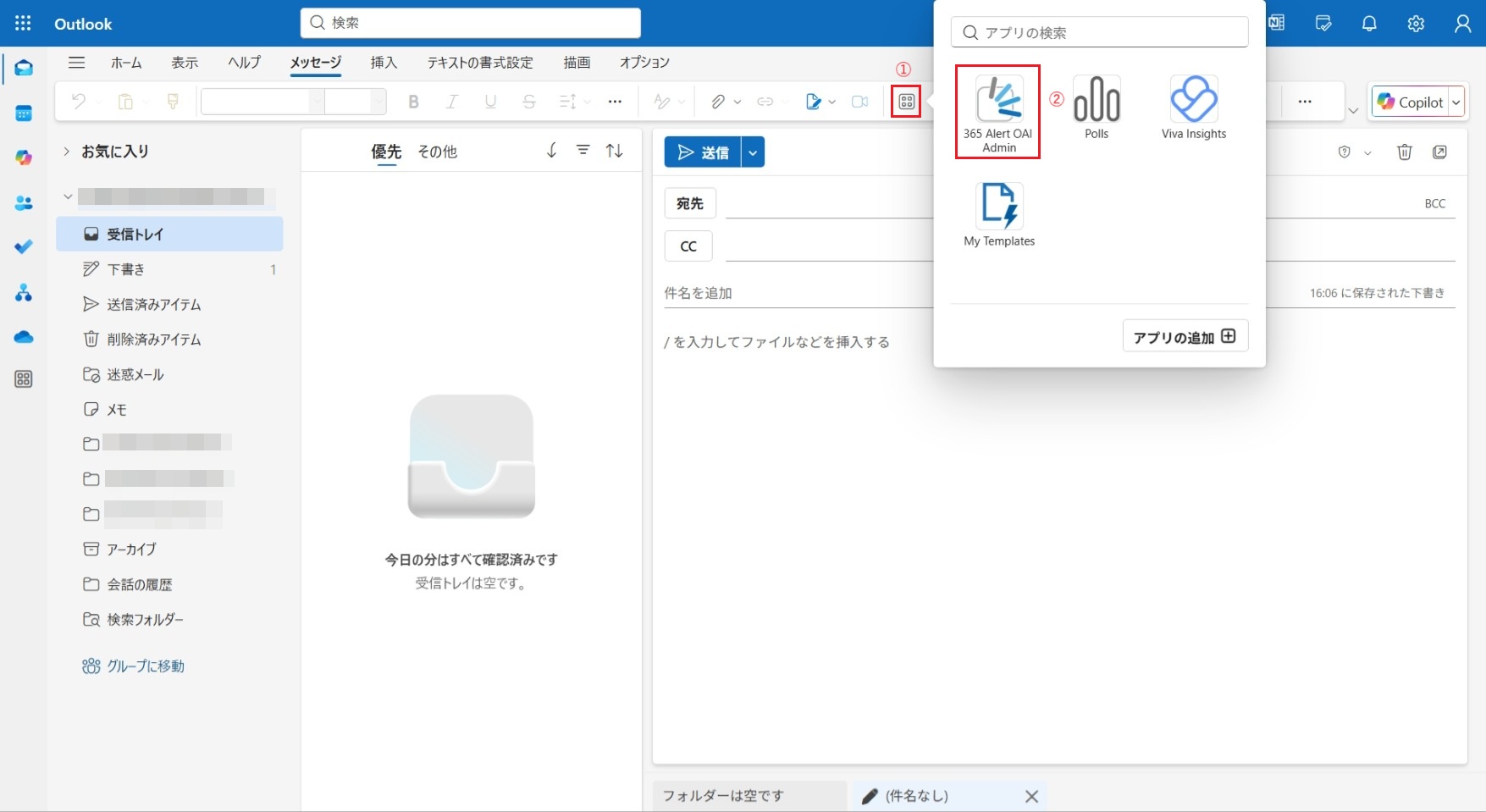
Click the app icon on the ribbon (①), and from the displayed app list, click the 365 Alert OAI Admin icon (②).
 tip
tipIf the app icon does not appear on the ribbon, try the following.
- Make sure the Message tab is selected. If it is not selected, select the Message tab.
- If the app icon still does not appear even though the Message tab is selected, select another tab (such as the Home tab) and then select the Message tab again.
Granting Access Permissions
Before using the Admin Outlook Add-in and the User Outlook Add-in, you must grant the 365 Alert OAI app access permission to Microsoft Graph using an account with Microsoft 365 tenant administrator privileges.
Access permissions are granted the first time you access the Outlook Add-in Settings Menu.
Access permissions can be granted in bulk on behalf of the organization by an account with Microsoft 365 tenant administrator privileges.
-
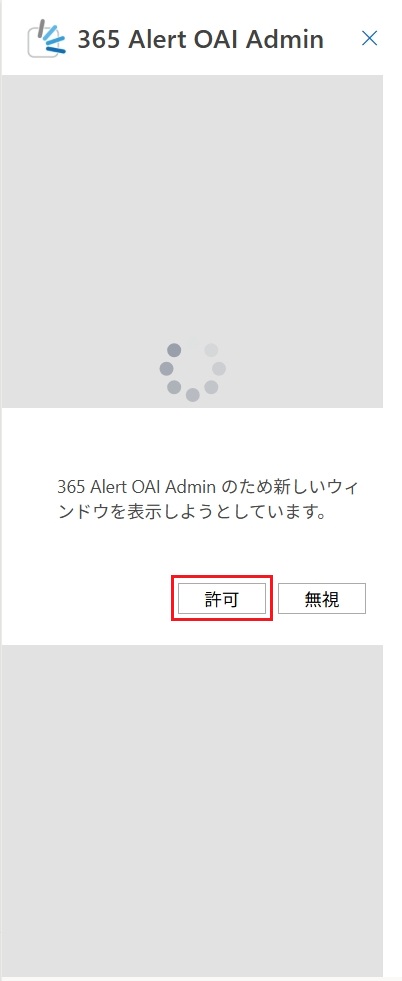
When you access the Outlook Add-in Settings Menu by referring to here, the following screen may appear (if it does not appear, access permissions have already been granted). Click Allow.
-
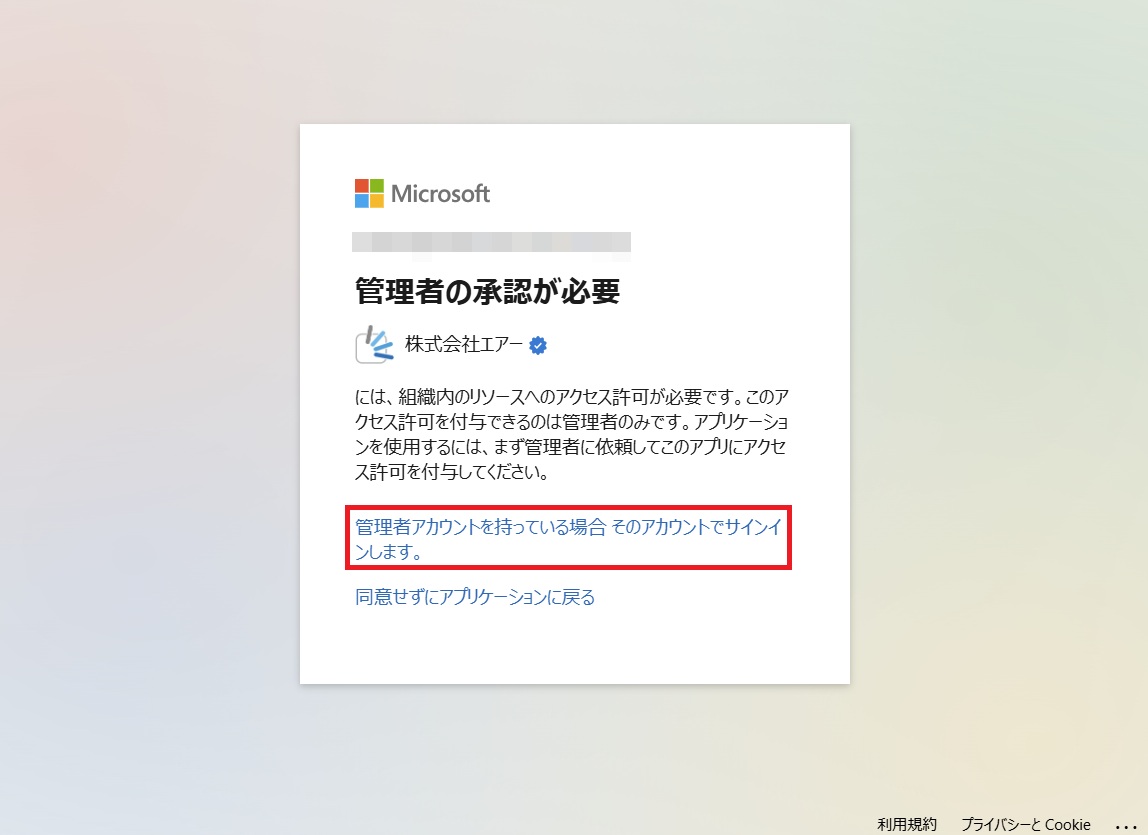
The following screen appears, so click Sign in with an admin account if you have one..
-
The Microsoft sign-in screen appears, so sign in with an account that has Microsoft 365 tenant administrator privileges (it does not appear if you are already signed in).
tipThe account you sign in with does not need to be the account currently using Outlook.
-
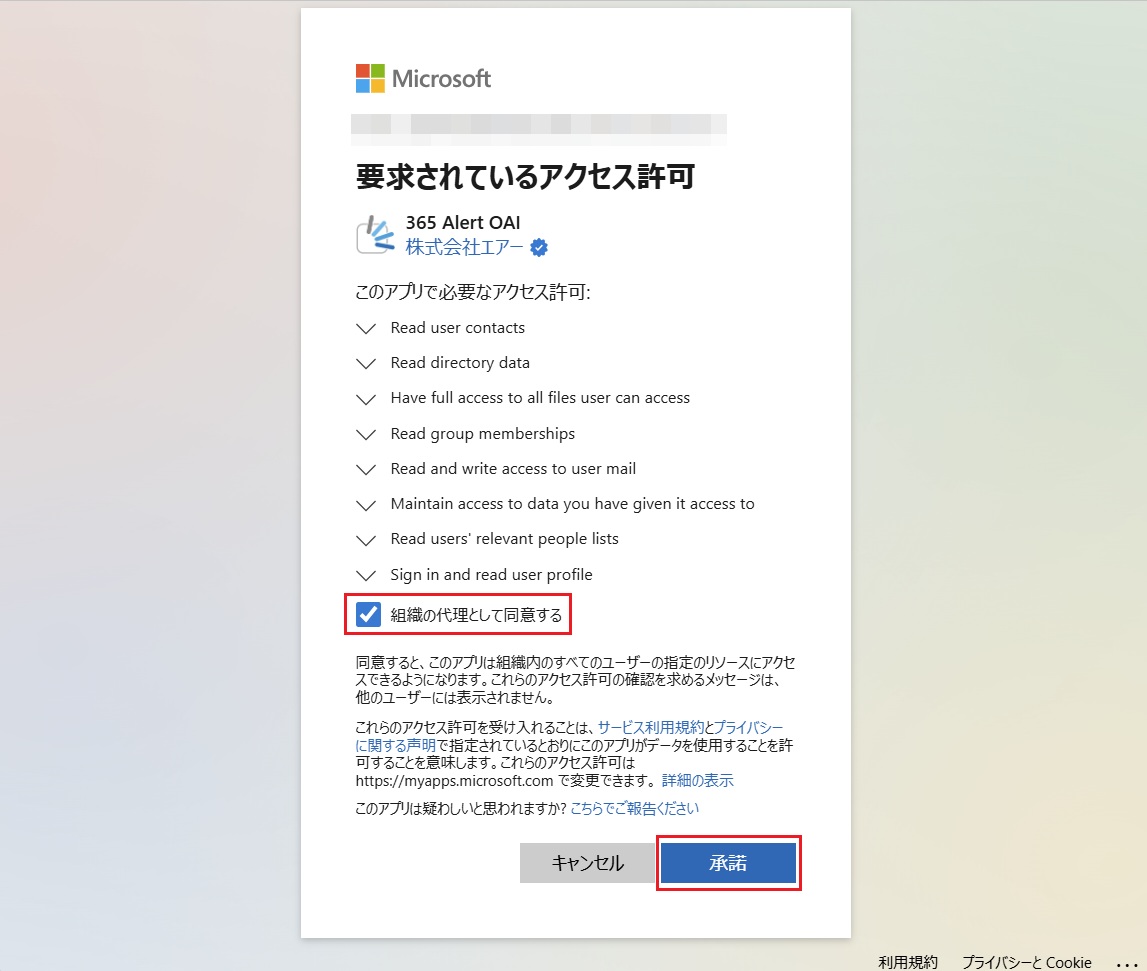
On the following screen, select Consent on behalf of your organization and click Accept to grant access permissions.
 caution
In environments where B2B integration is enabled, when attachments are sent to external users via SharePoint integration, the external users are registered as guest accounts in Microsoft Entra ID. Also, even when external sharing is performed with SharePoint alone without using our service, external users are registered as guest accounts without the users being aware of it. This is the Microsoft specification as of March 2026.
-
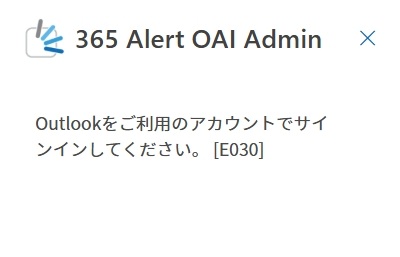
If the account you signed in with in step 3 differs from the account using Outlook, the following screen appears. Click × to close the Outlook Add-in Settings Menu, then open the Outlook Add-in Settings Menu again.
Sections of the Outlook Add-in Settings Menu
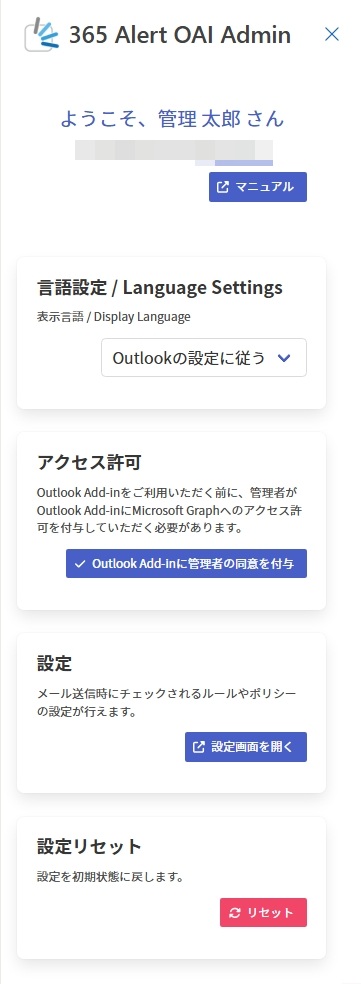
The Outlook Add-in Settings Menu is divided into four sections.
The description of each section is as follows.
| Section | Description |
|---|---|
| Language Settings | Selects the display language for the Outlook Add-in. You can select from the following five options.Follow Outlook settingsJapaneseEnglishChinese (Simplified)Chinese (Traditional)※ If you select Follow Outlook settings, it becomes Japanese when Outlook's language setting is Japanese, and English otherwise. |
| Permissions | Since access to Microsoft Graph is required for authentication, retrieving user information, etc. when using the Outlook Add-in, grants the 365 Alert OAI app access permission to Microsoft Graph. |
| Settings | Opens the settings screen. For a detailed description of the settings screen, refer to here. |
| Settings Reset | Restores the settings (including the language settings, the date and time when access permissions were last granted, and the settings configured in the settings screen) to their initial state. When you click Reset, a confirmation screen appears. The access permission state granted via Grant admin consent to the Outlook Add-in under Permissions is not reset. |