How to Distribute Using the Configuration Information Distribution Tool
Overview
The Settings Distribution Tool is a GUI tool that runs on Windows and can distribute the various settings information generated with the Admin Outlook Add-in to specified users.
It can also delete distributed settings information.
Before using the Settings Distribution Tool, you must register an app for the Settings Distribution Tool in Microsoft Entra ID.
For the app registration procedure, refer to here.
How to Use the Settings Distribution Tool
How to Launch the Settings Distribution Tool
-
On Windows 11, extract
SettingDistributionTool.zipto any location.cautionSettingDistributionTool.zipcan be downloaded from the support site. -
Double-click
SettingDistributionTool.exein the createdSettingDistributionToolfolder. -
The following screen appears. Enter the items and click Authenticate.
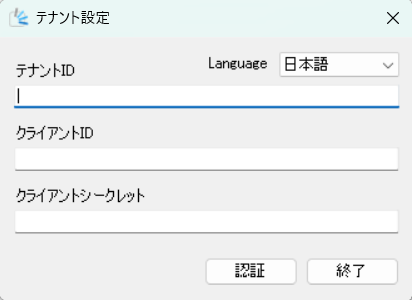
Enter the items by referring to the following.
Item Description Language Select the display language from EnglishorJapanese.Tenant ID Enter the Directory (tenant) ID of the Settings Distribution Tool app registered here. Client ID Enter the Application (client) ID of the Settings Distribution Tool app registered here. Client secret Enter the Client secret of the Settings Distribution Tool app registered here. -
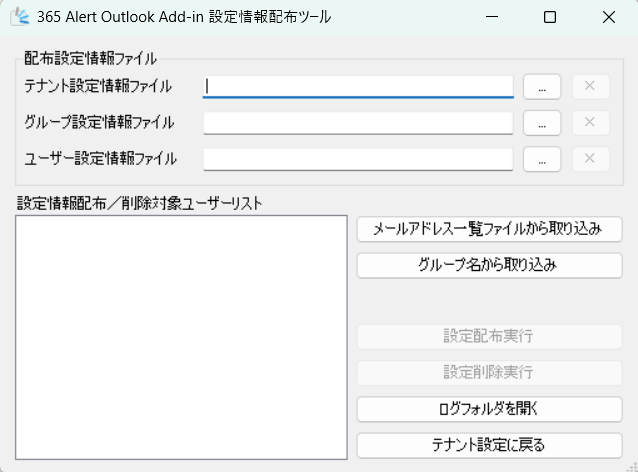
The Settings Distribution Tool launches.
How to Specify Target Users for Distribution/Deletion
There are two ways to specify the target users for distributing/deleting settings information.
- Specifying by email address list file
- Specifying by group name
The procedure for each method is described below.
Specifying by Email Address List File
-
Prepare an email address list file.
tipThe email address list file must be a text file.
Enter one email address per line in the email address list file.
You can specify multiple email addresses across multiple lines in the email address list file.
The specified email addresses must be registered in Microsoft Entra ID. -
In the Settings Distribution Tool, click Import from email address list file, and in the displayed screen, specify the prepared email address list file.
Specifying by Group Name
-
Create a group in Microsoft Entra ID and add the target users as members.
-
In the Settings Distribution Tool, click Import from group name, and in the displayed screen, specify the group name in Microsoft Entra ID and click OK.
How to Distribute Settings Information
-
Launch the Settings Distribution Tool by referring to here.
-
In the Distribution settings information section of the Settings Distribution Tool, specify the settings information files to distribute.
Specify at least one type of settings information file.Settings information file Description Tenant settings information file Specify the tenant settings information file exported here in the Admin Outlook Add-in. Group settings information file Specify the group settings information file exported here in the Admin Outlook Add-in. User settings information file Specify the user settings information file exported here in the Admin Outlook Add-in. -
Specify the target users for distribution by referring to here.
-
In the Settings Distribution Tool, click Run settings distribution.
Settings distributed by the administrator are applied automatically, but not immediately.
If you want them applied immediately, after distribution have the user click the 365 Alert Outlook Add-in icon in Outlook to display the settings menu.