Settings Distribution Tool App Setup
Settings Distribution Tool App Registration Procedure
This section describes two patterns of the Settings Distribution Tool app registration procedure required when using the Settings Distribution Tool.
- Registration procedure for a Settings Distribution Tool app that can distribute settings information to all users in the tenant
- Registration procedure for a Settings Distribution Tool app that can distribute settings information only to group members
※ If you try to use this app to distribute settings information to users other than group members, an error will occur.
Select one according to the range of target users for distributing settings information.
You can also create and use multiple apps (e.g., an app for Group A and an app for Group B).
Copy and note the following values, as they are required when using the Settings Distribution Tool.
- The Application (client) ID obtained in step 3.
- The Directory (tenant) ID obtained in step 3.
- The Client secret obtained in step 6.
Registration Procedure for an App That Can Distribute to All Users in the Tenant
This section describes the procedure for registering an app that can distribute settings information to all users in the tenant.
-
With an administrator account, sign in to the Microsoft Entra admin center from the following URL.
-
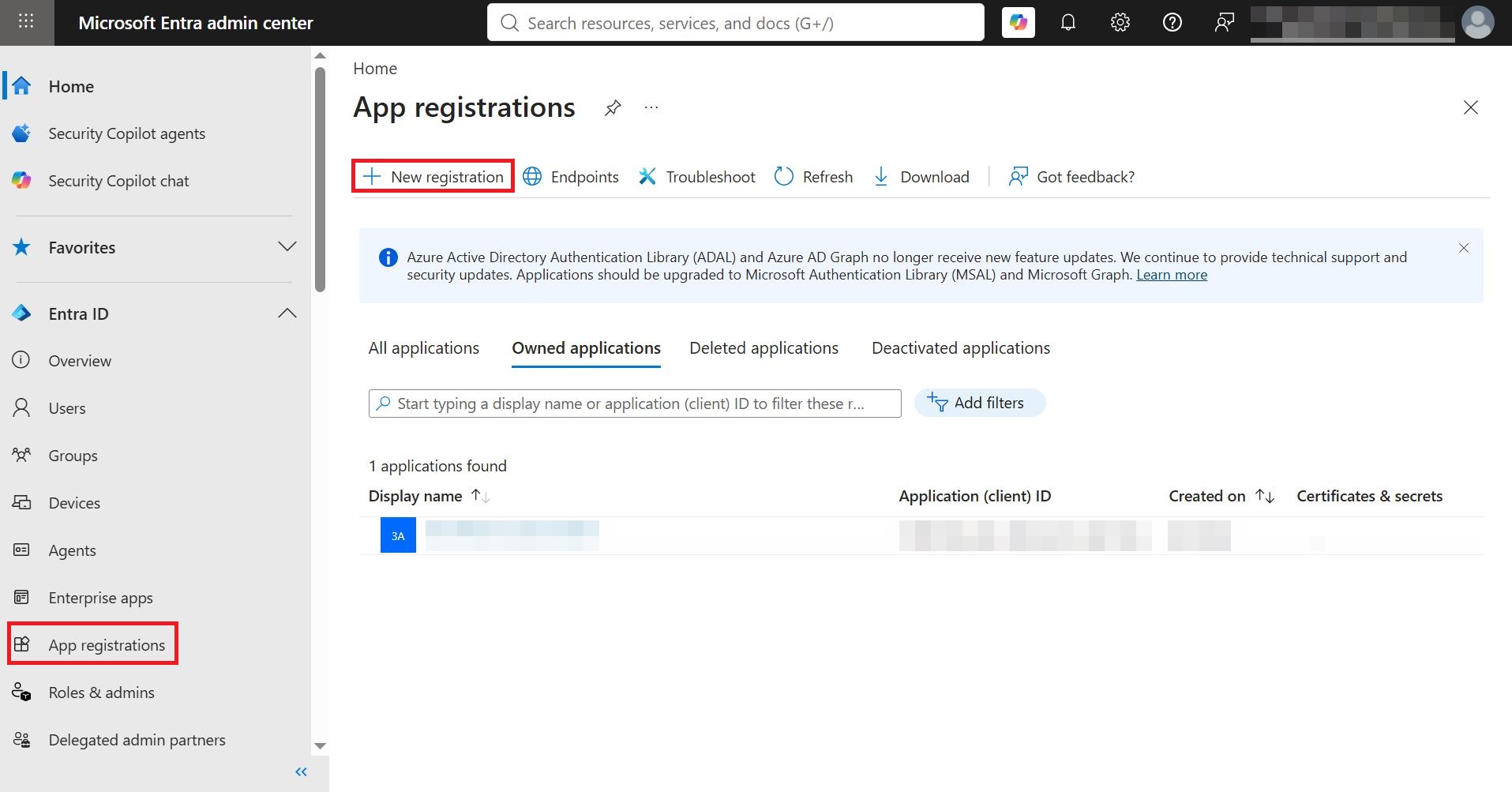
From the menu on the left of the screen, click App registrations. In the displayed screen, click + New registration.
-
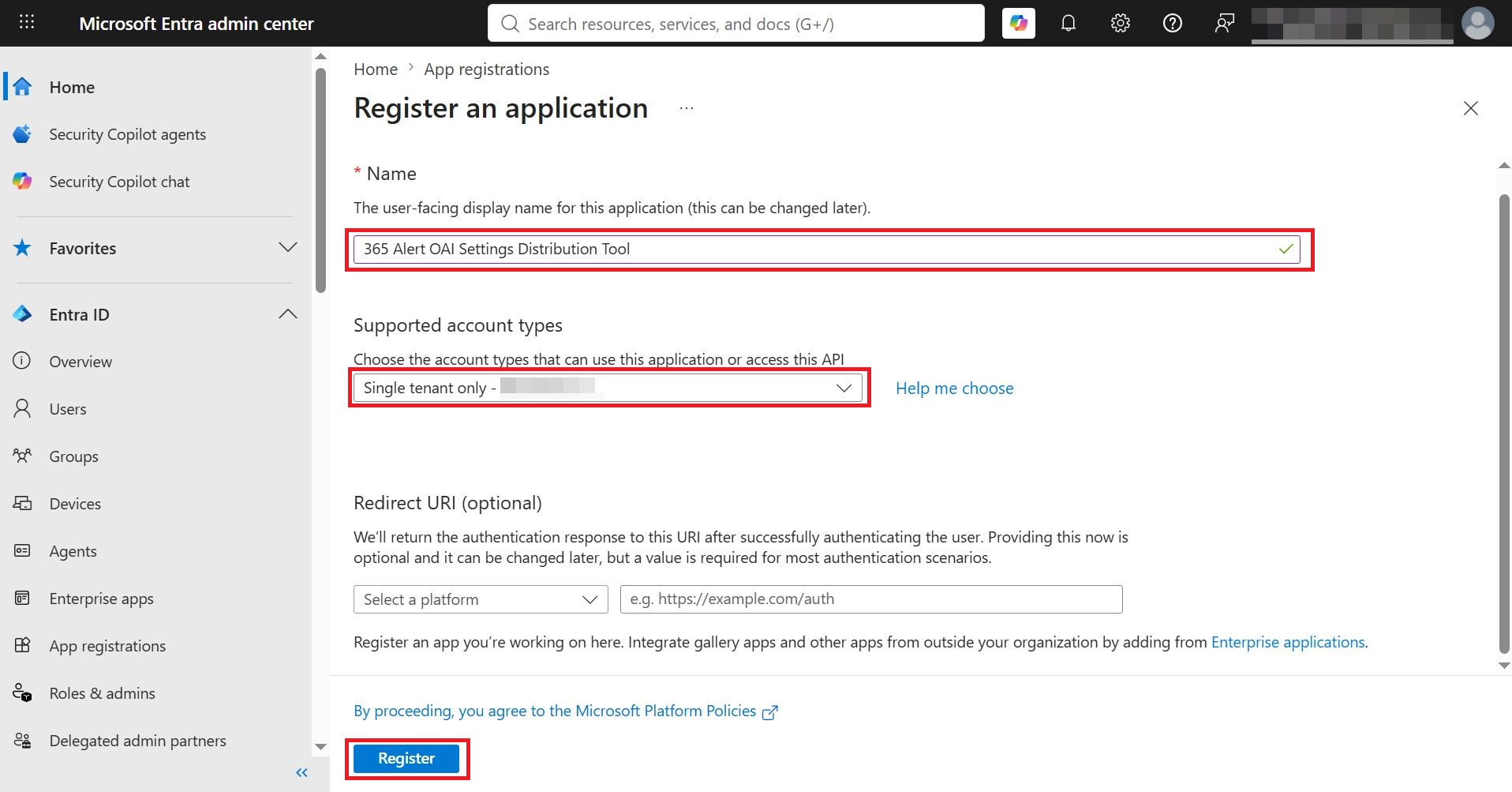
On the following screen, enter 365 Alert OAI Settings Distribution Tool as the name, select the Accounts in this organizational directory only option for the supported account types, and click Register.
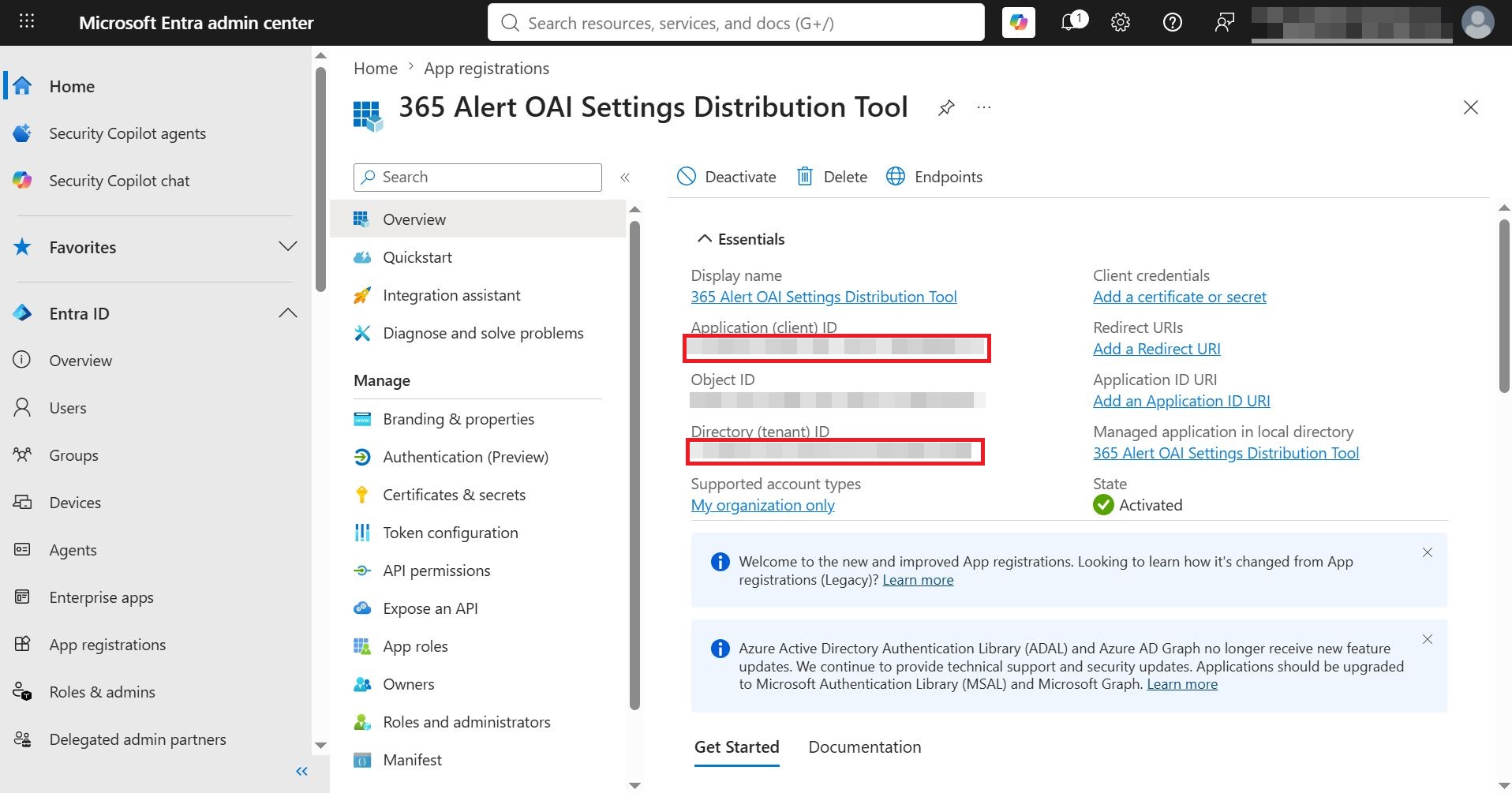
A new app is registered and its management screen opens. Copy and note the value of the Application (client) ID and the value of the Directory (tenant) ID.
-
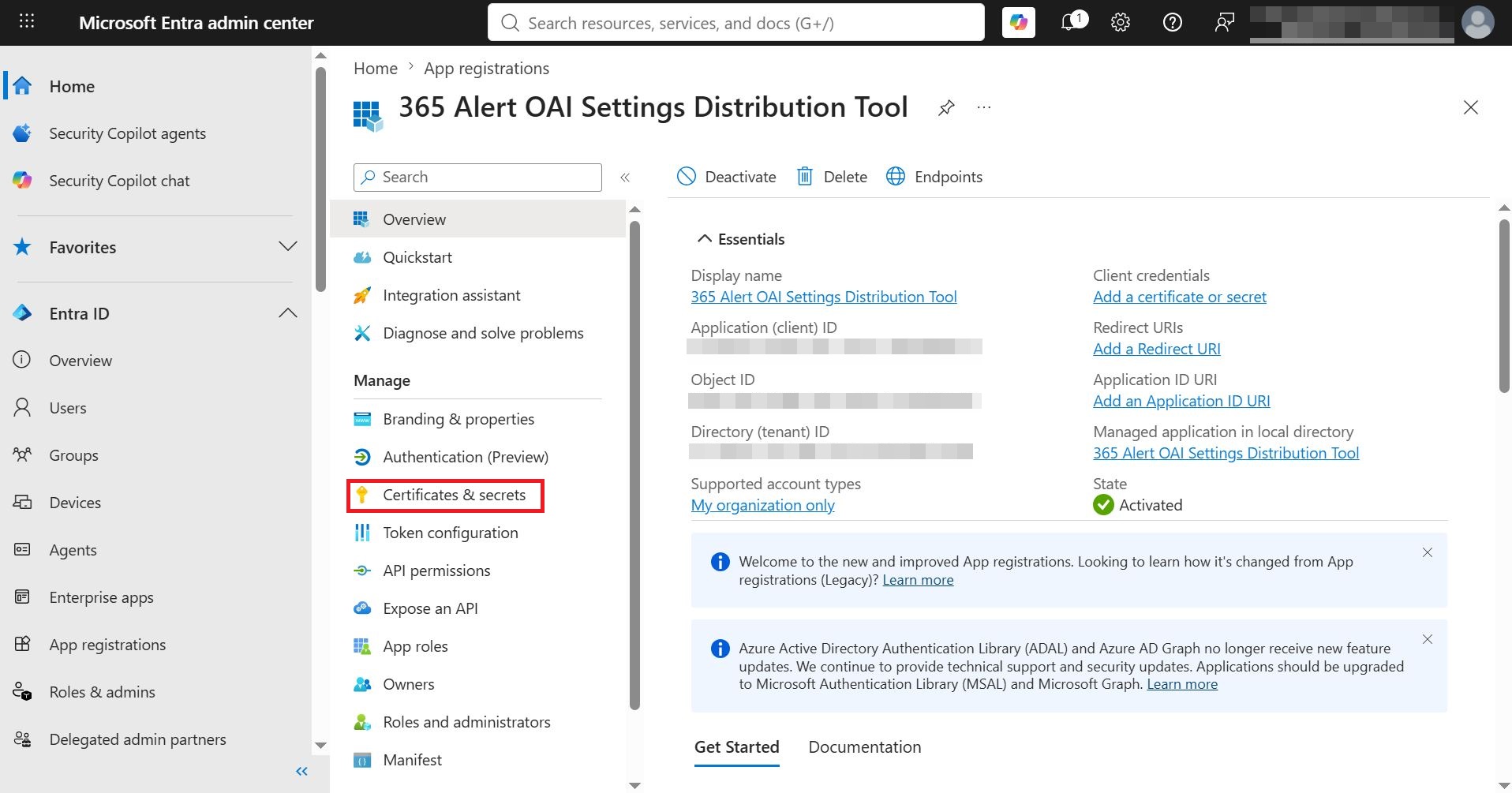
In the app management screen, click Manage > Certificates & secrets in the left panel.
-
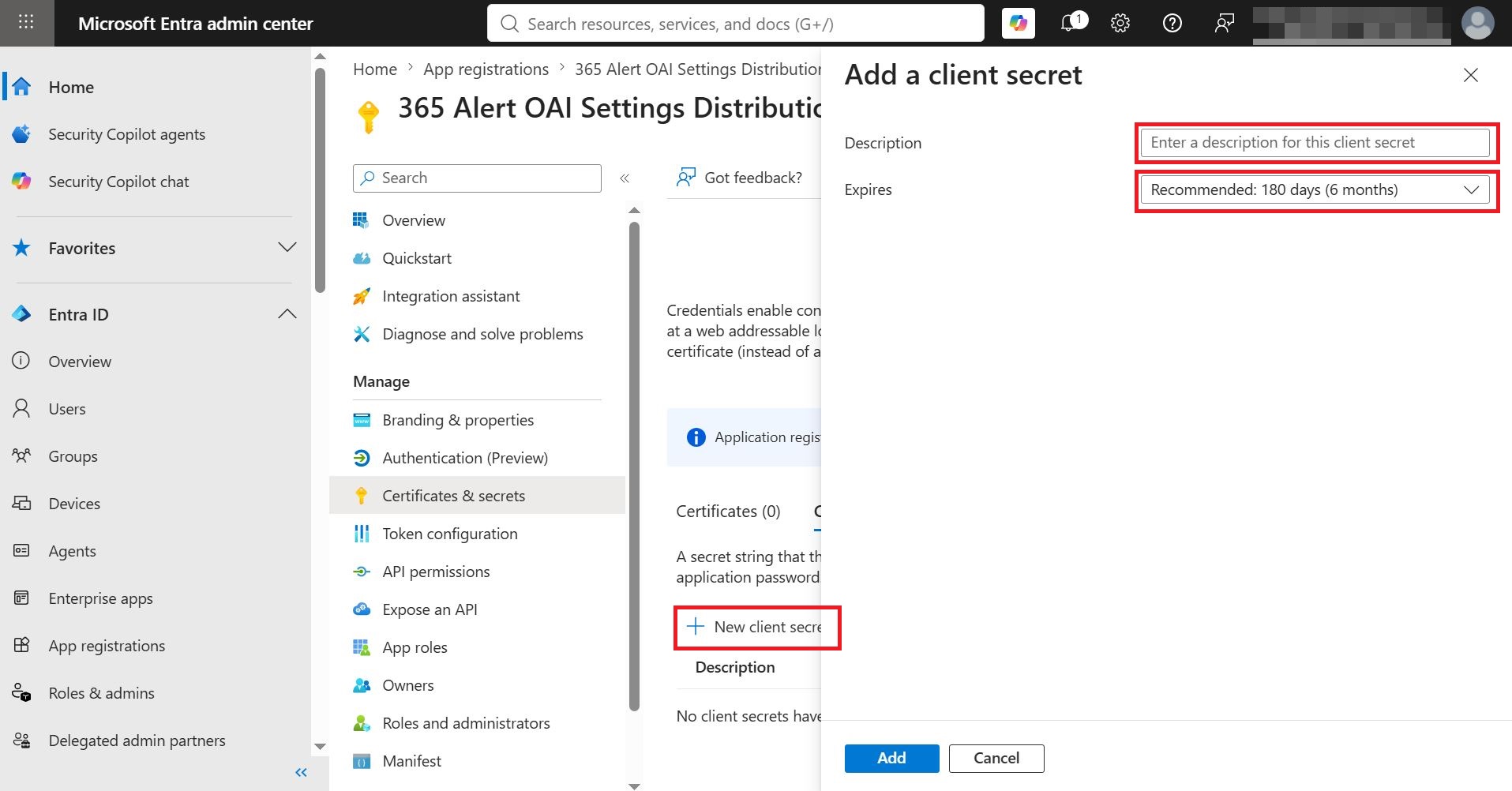
On the following screen, click + New client secret, and in the displayed Add a client secret screen, enter the Description and Expires, then click Add.
-
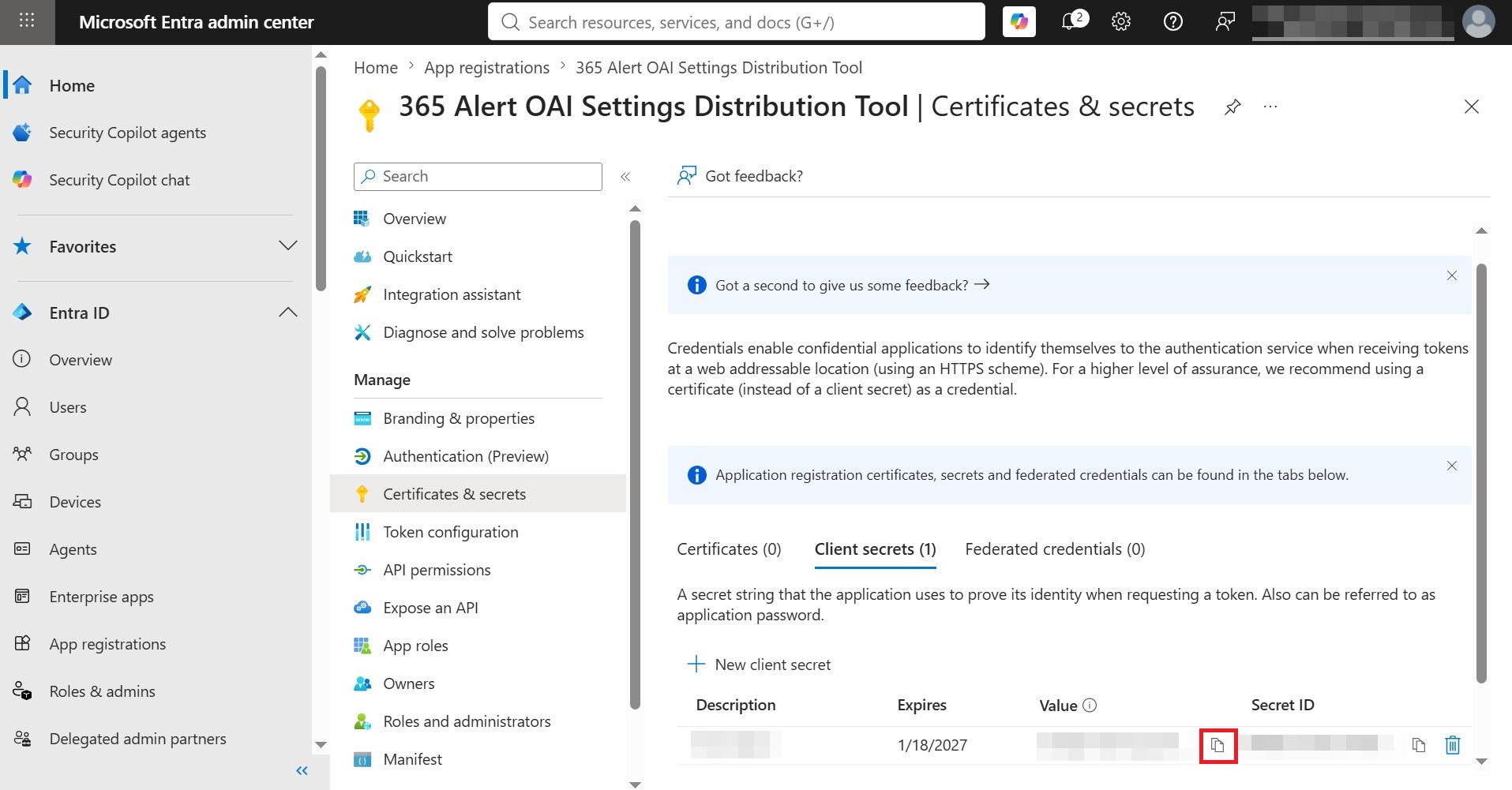
On the following screen, copy and note the value of the Client secret. Note that once you leave this page, the Client secret will not be displayed again.
-
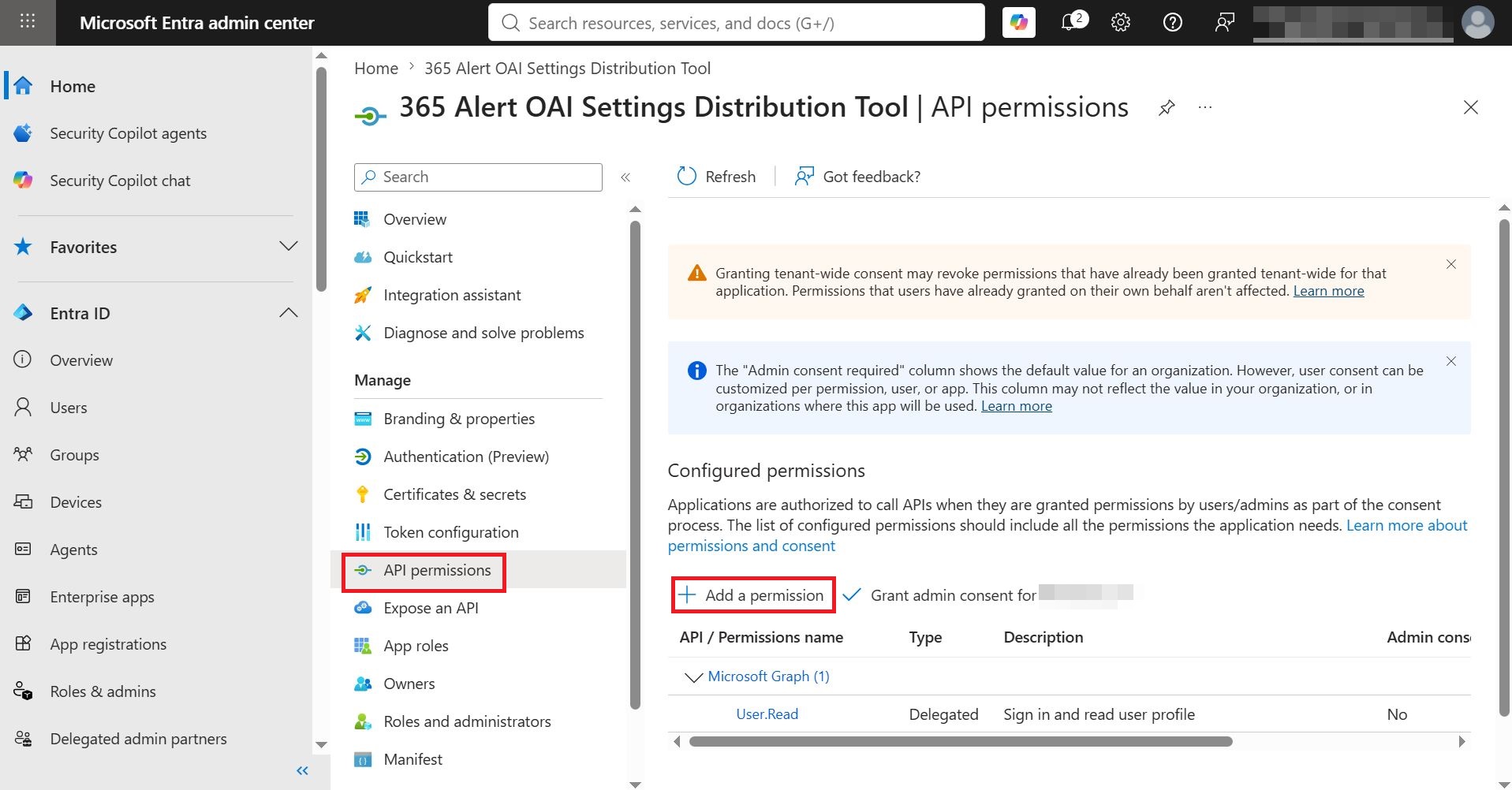
In the app management screen, click Manage > API permissions in the left panel, and in the displayed API permissions screen, click + Add a permission.
-
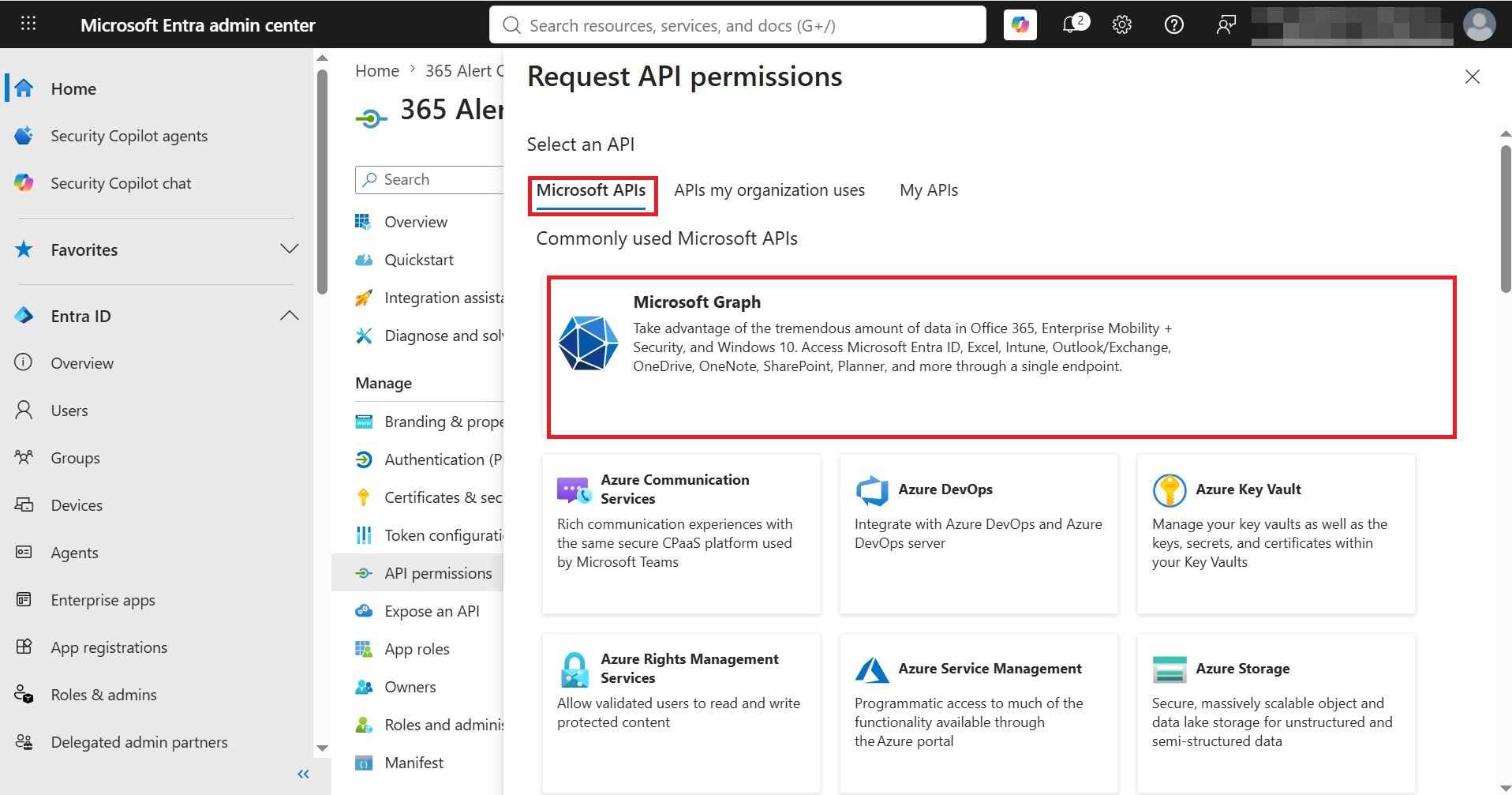
In the displayed Request API permissions screen, click Microsoft Graph on the Microsoft APIs tab.
-
In the Request API permissions screen, click Application permissions for the type of permissions the application requires, select the following permissions under Select permissions, then click Add permissions.
GroupMember.Read.All
Mail.ReadWrite
User.Read.All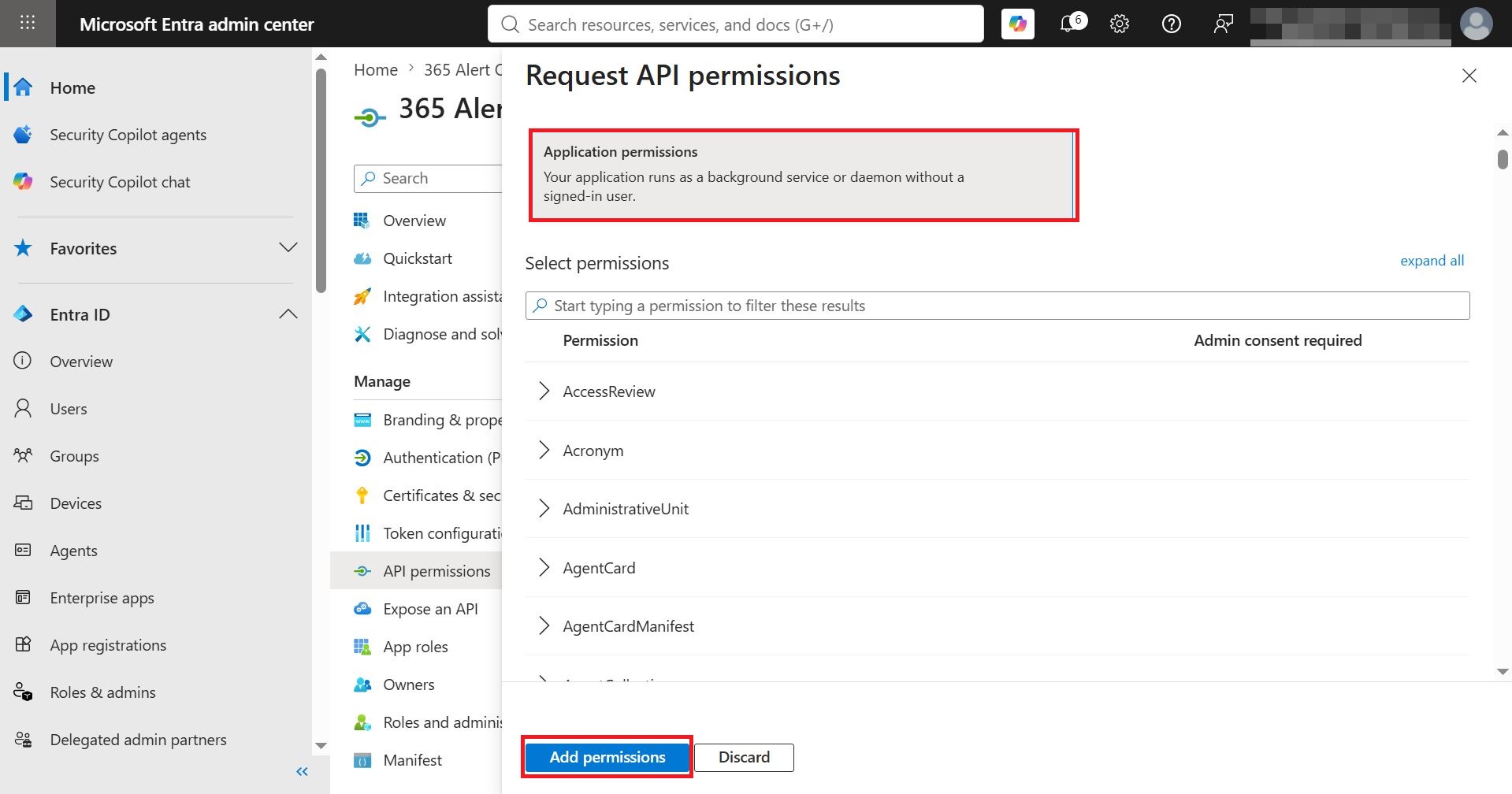
-
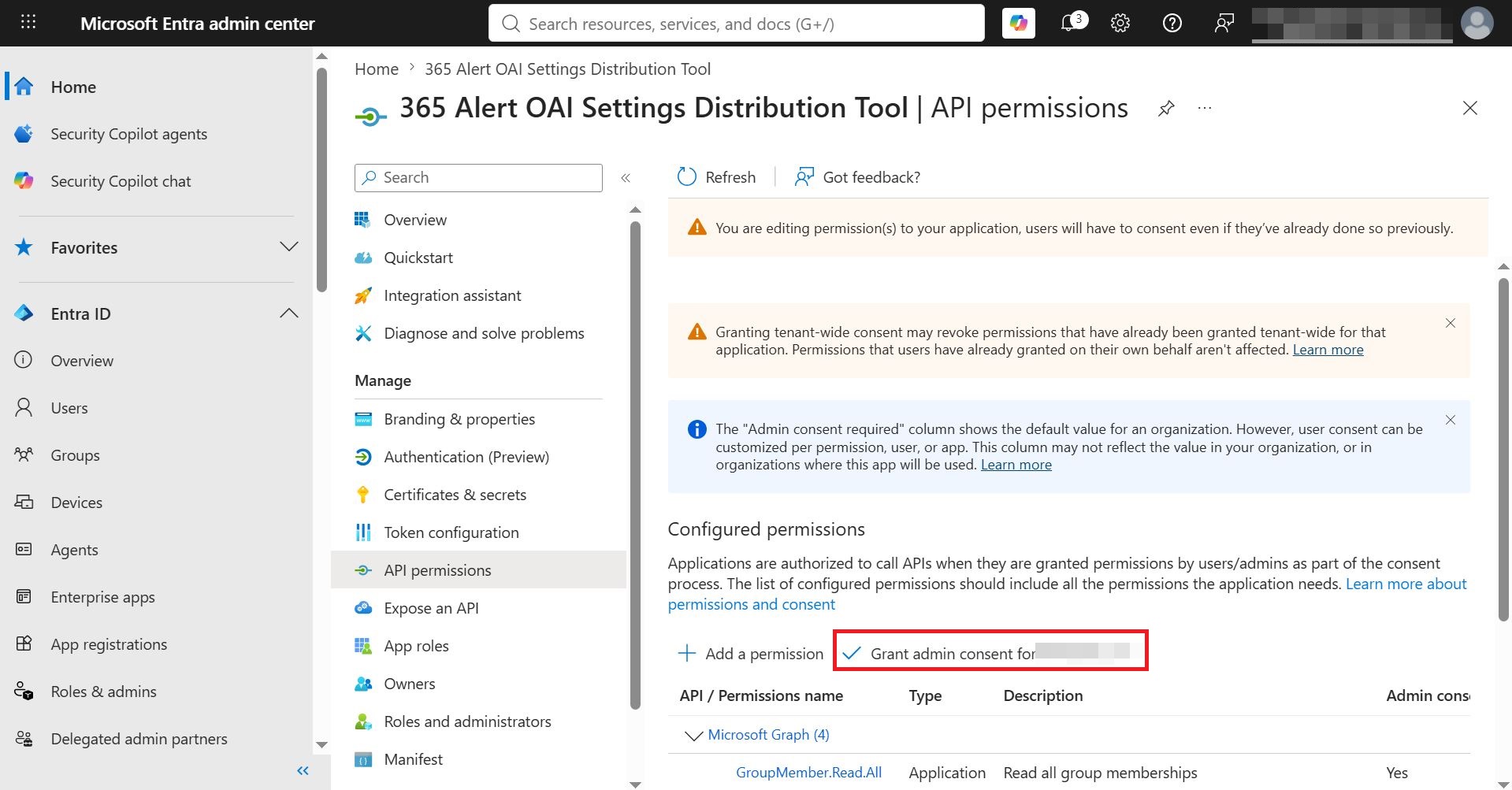
On the following screen, click Grant admin consent for [tenant name].
-
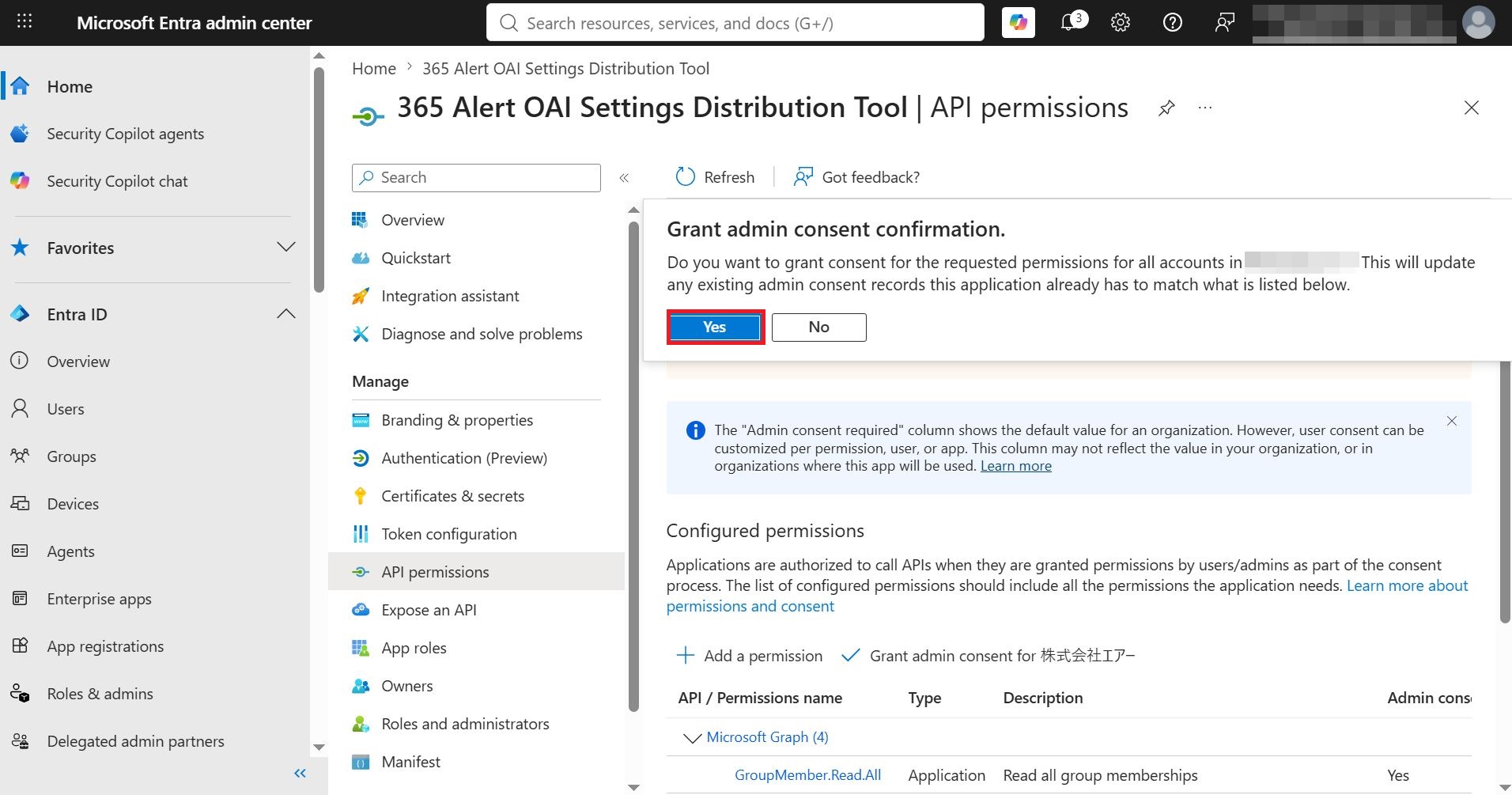
On the following screen, click Yes.
Registration Procedure for an App That Can Distribute Only to Group Members
This section describes the procedure for registering an app that can distribute settings information only to members of a specific group (using the group name TestGroup as an example).
-
With an administrator account, sign in to the Microsoft Entra admin center from the following URL.
-
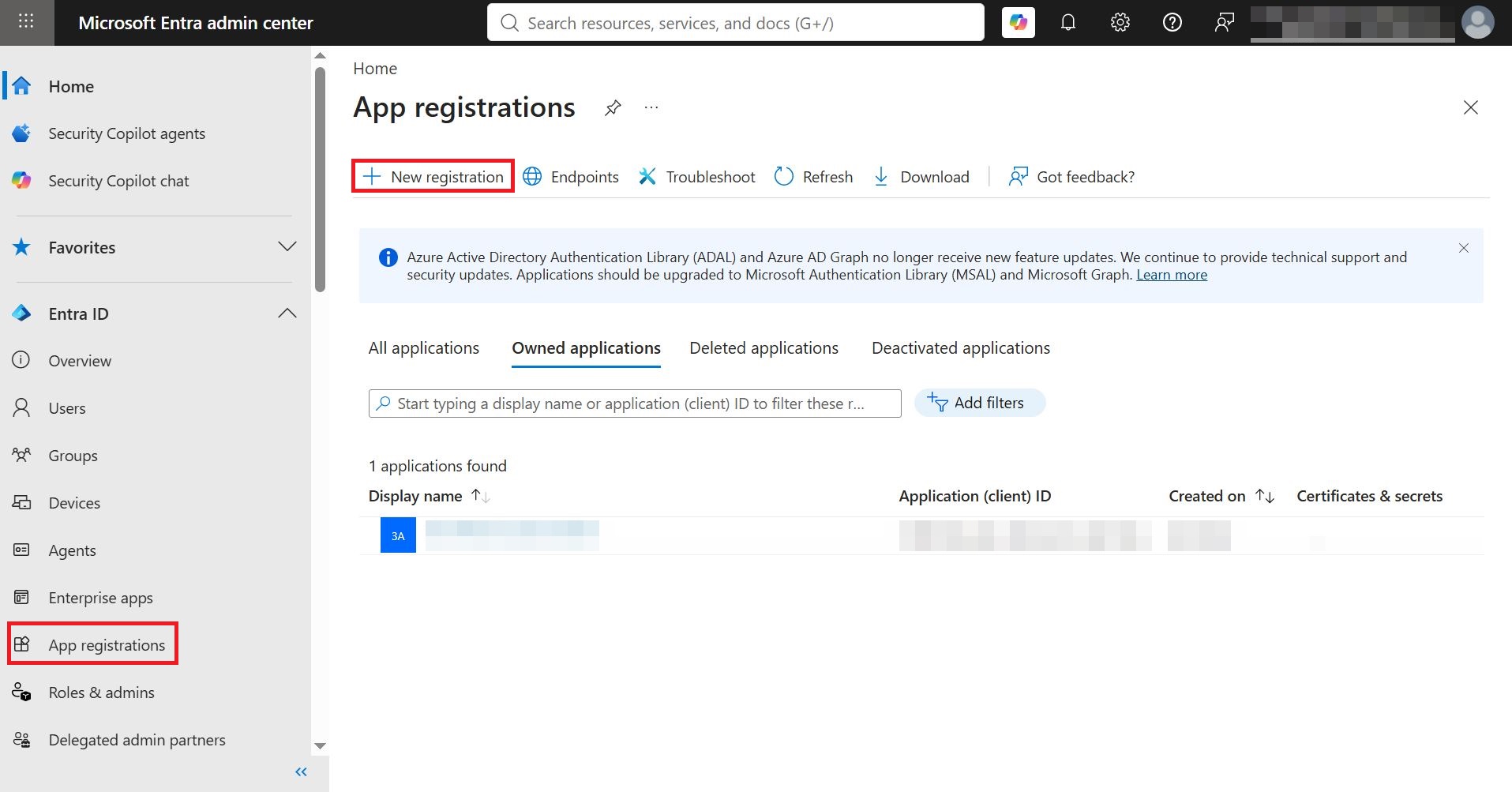
From the menu on the left of the screen, click App registrations. In the displayed screen, click + New registration.
-
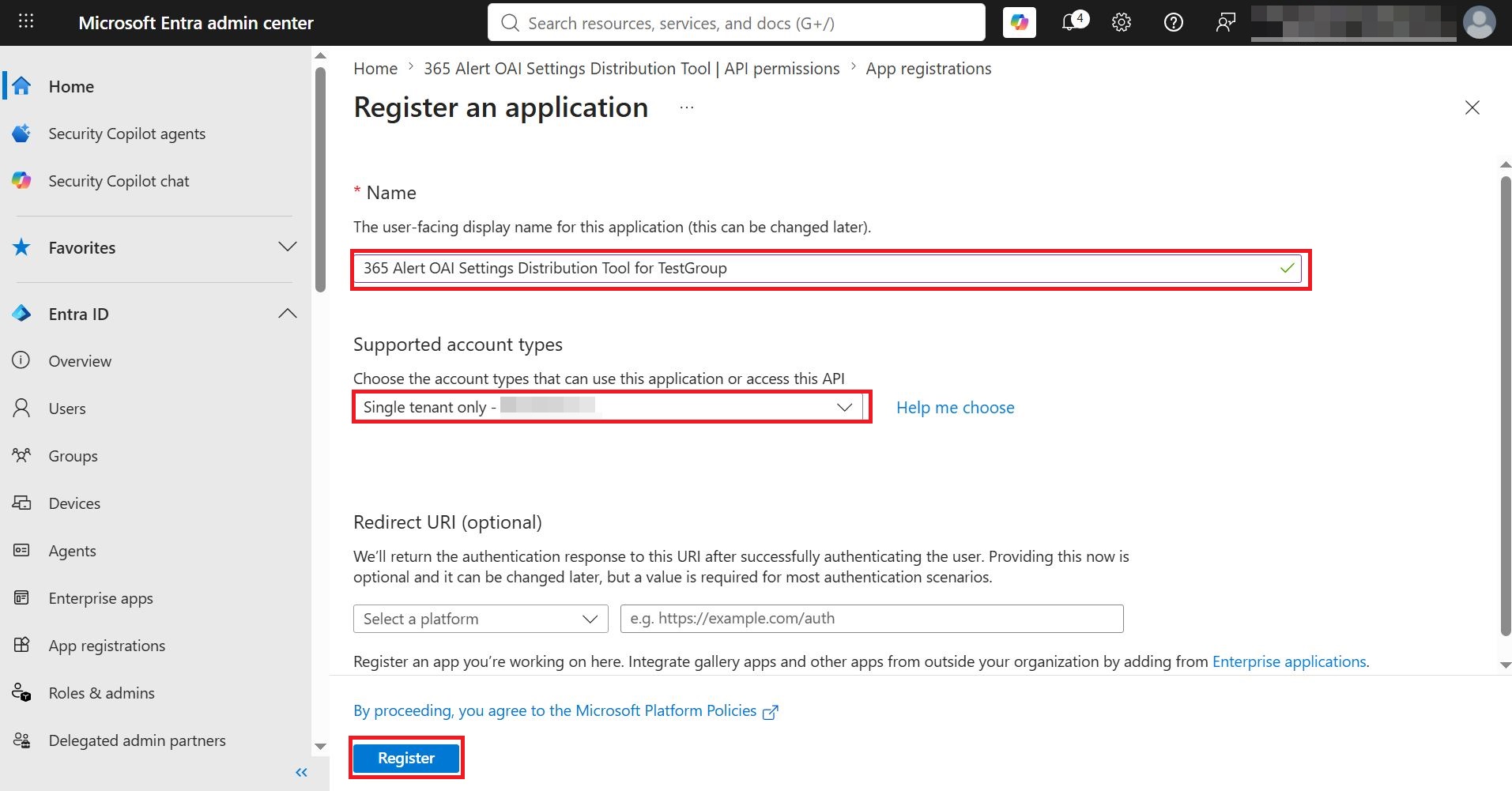
On the following screen, enter 365 Alert OAI Settings Distribution Tool for TestGroup as the name, select the Accounts in this organizational directory only option for the supported account types, and click Register.
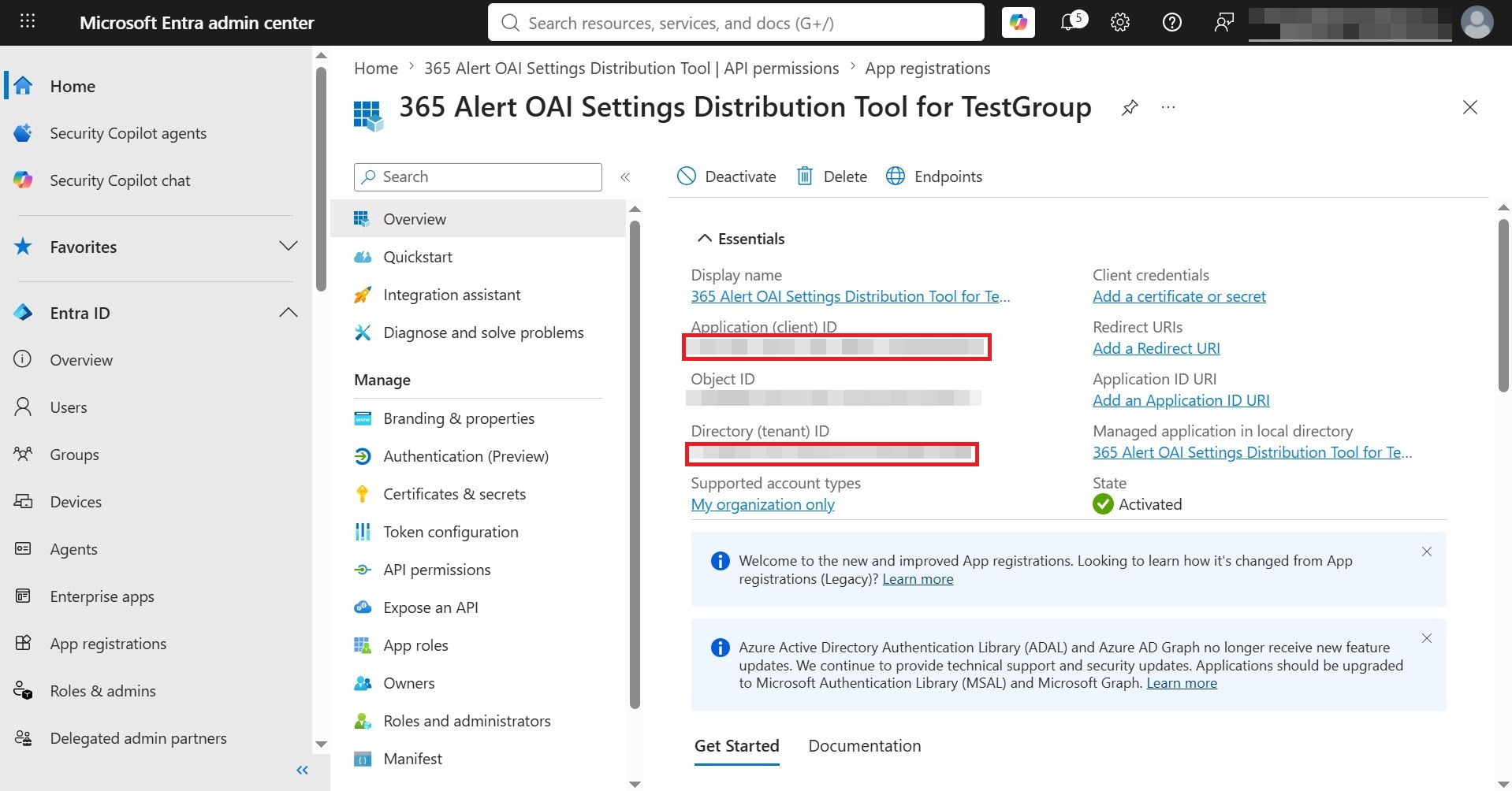
A new app is registered and its management screen opens. Copy and note the value of the Application (client) ID and the value of the Directory (tenant) ID.
-
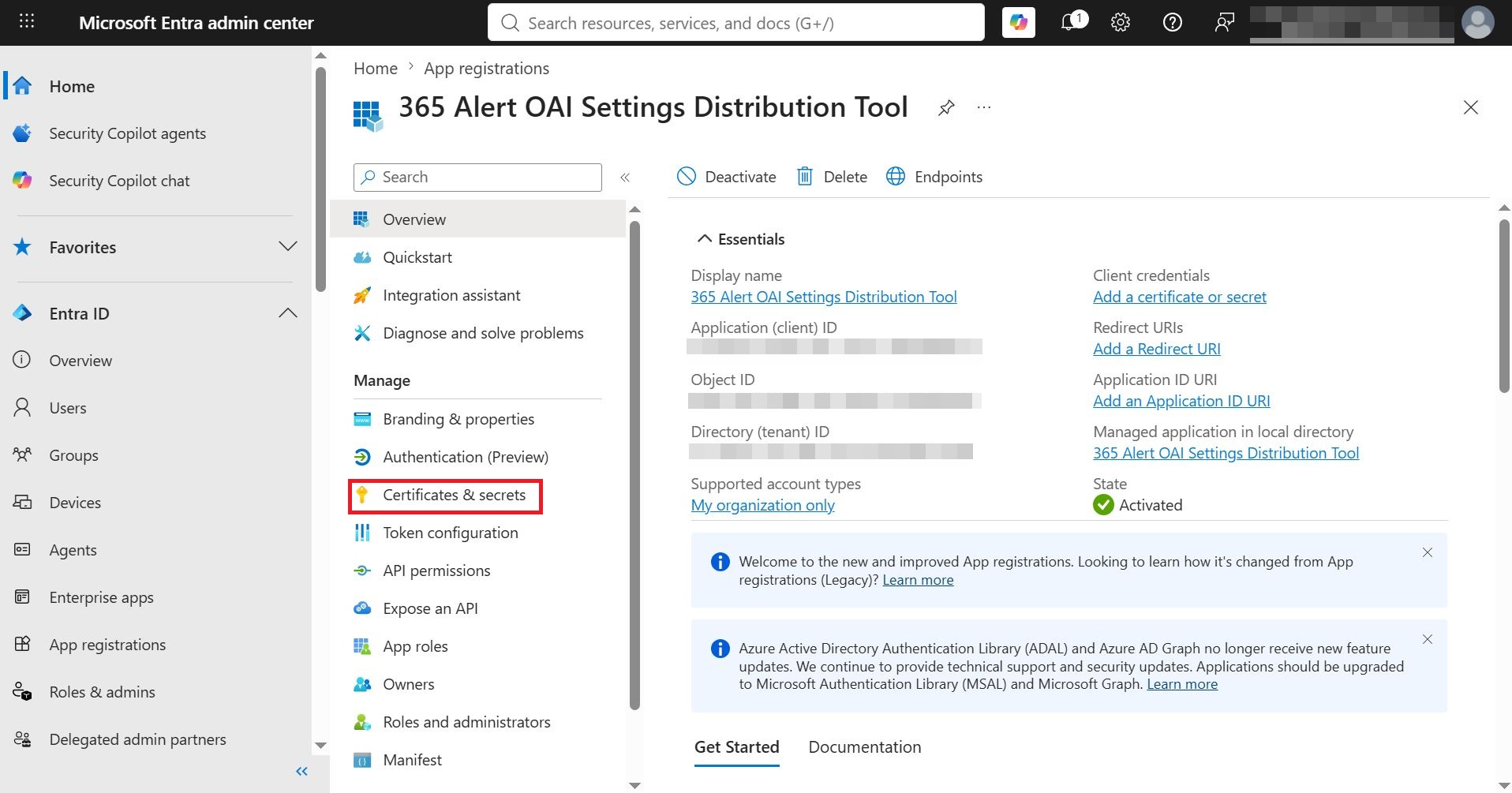
In the app management screen, click Manage > Certificates & secrets in the left panel.
-
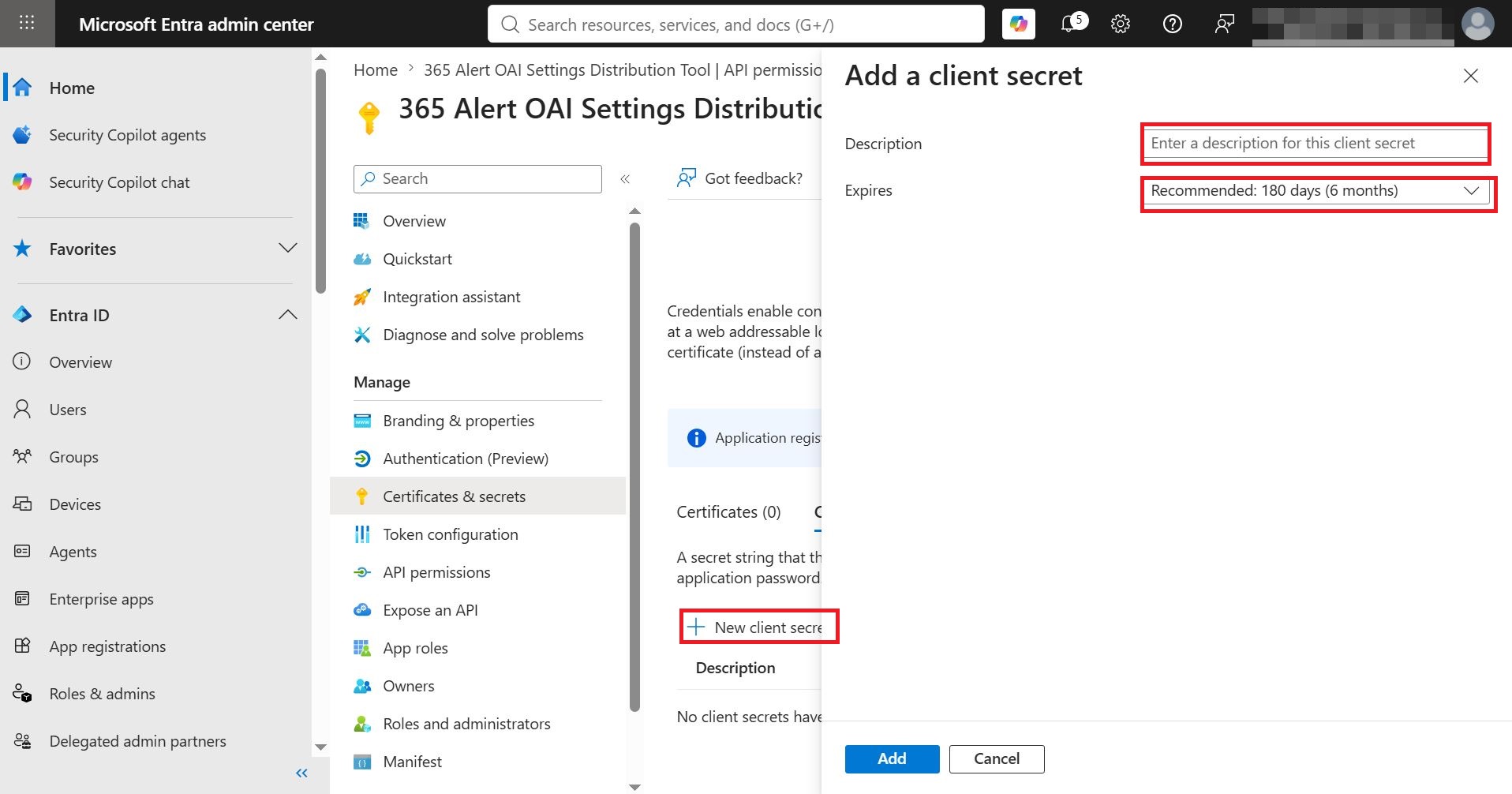
On the following screen, click + New client secret, and in the displayed Add a client secret screen, enter the Description and Expires, then click Add.
-
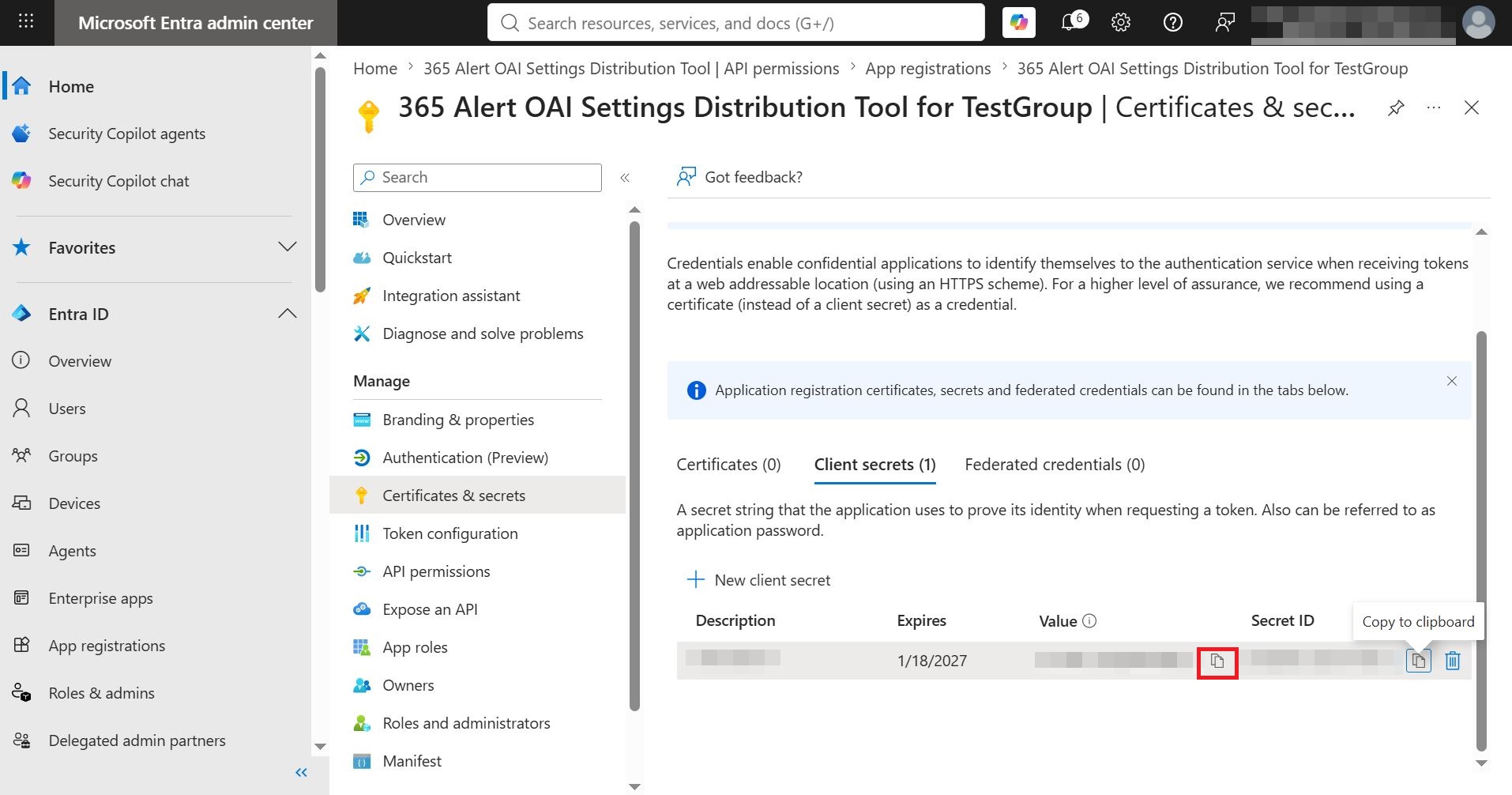
On the following screen, copy and note the value of the Client secret. Note that once you leave this page, the Client secret will not be displayed again.
-
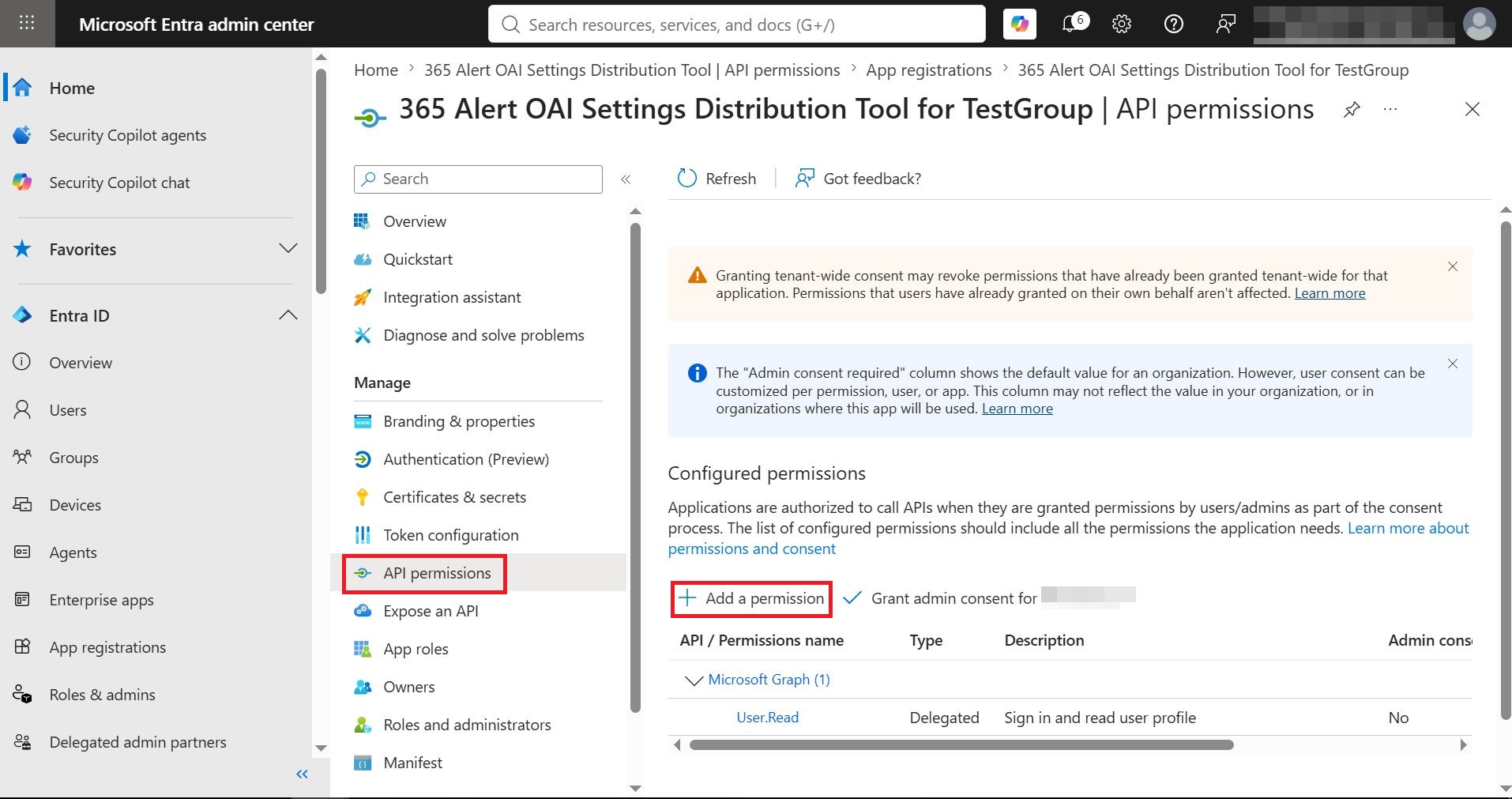
In the app management screen, click Manage > API permissions in the left panel, and in the displayed API permissions screen, click + Add a permission.
-
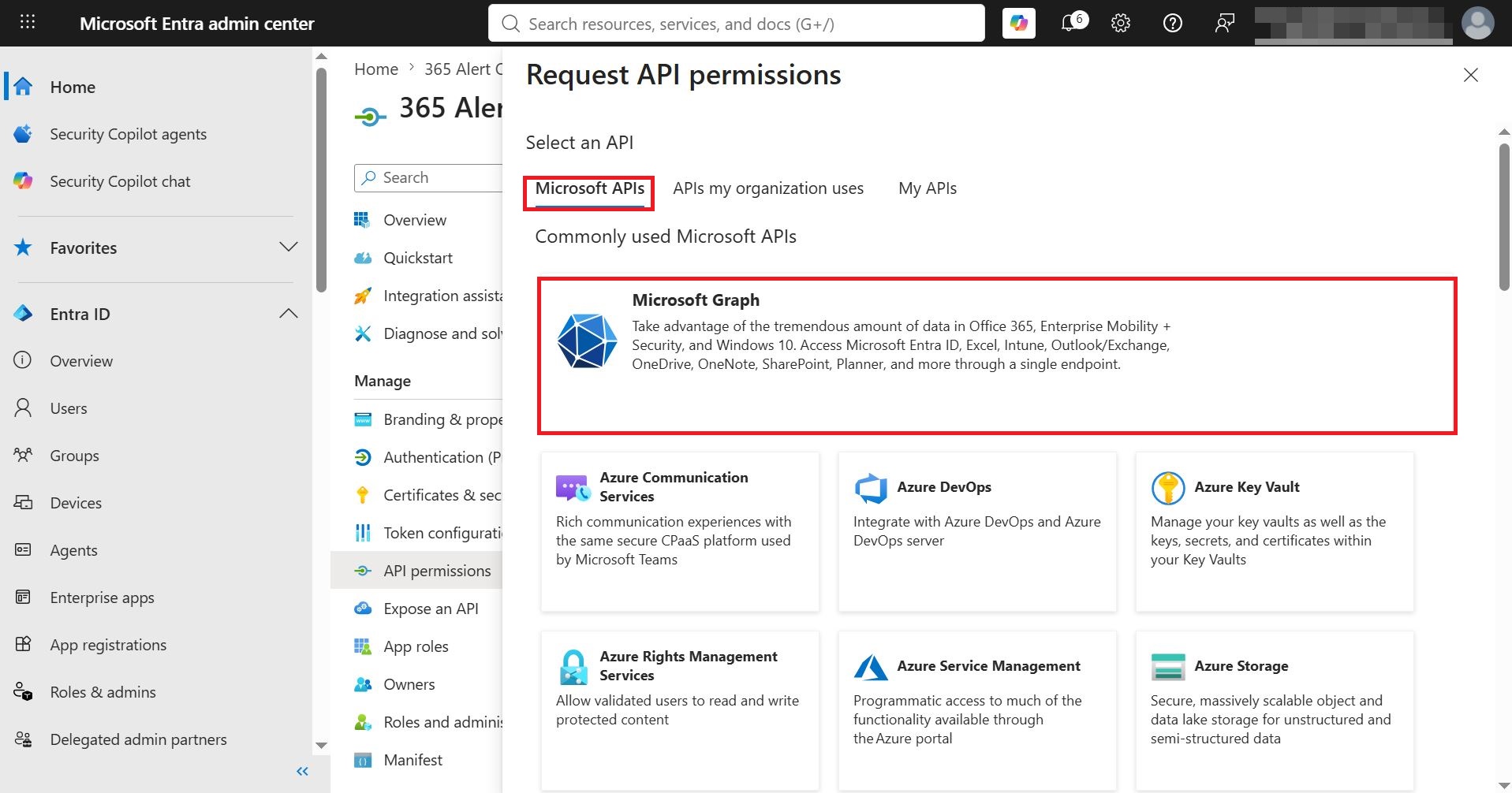
In the displayed Request API permissions screen, click Microsoft Graph on the Microsoft APIs tab.
-
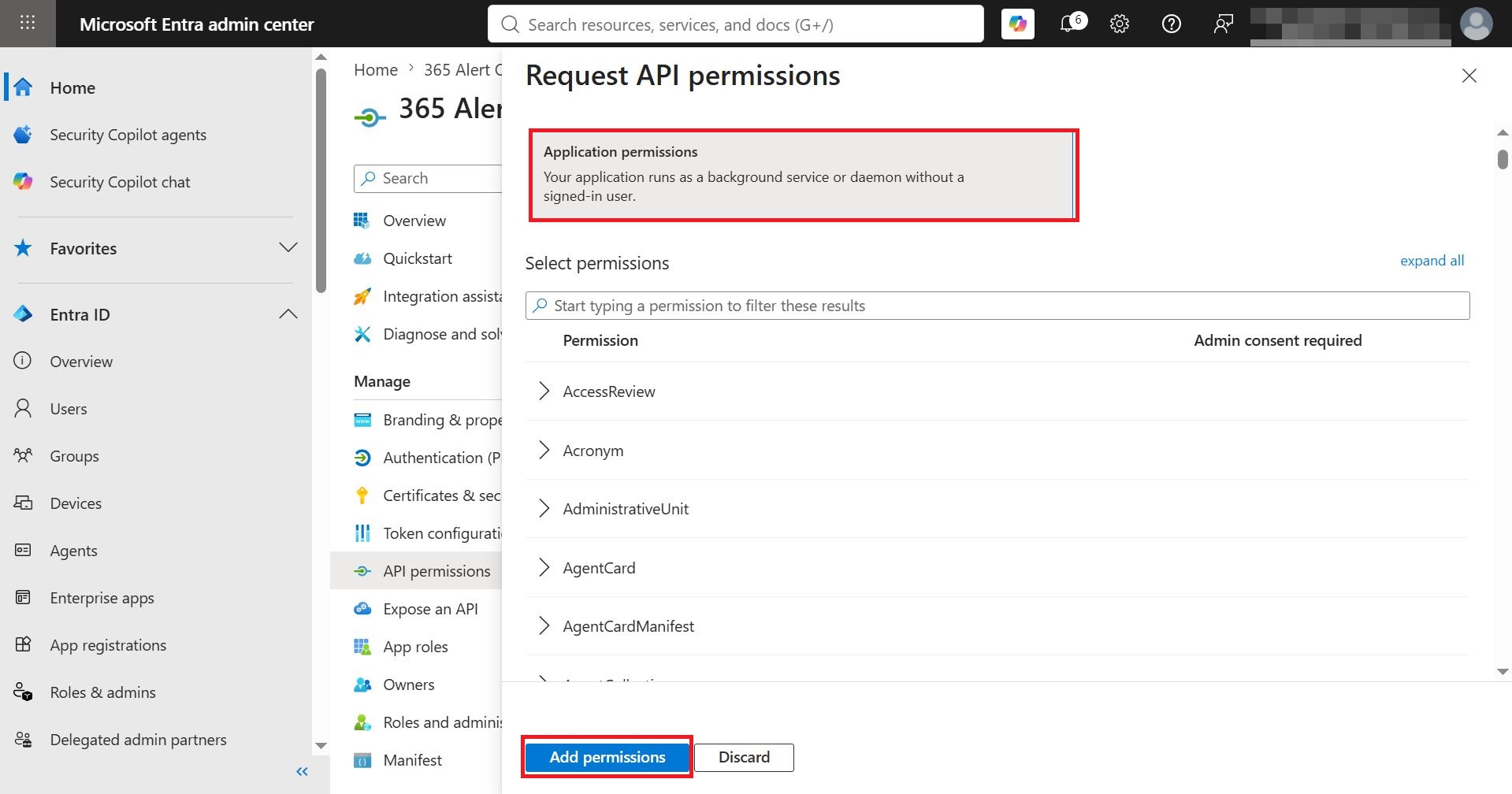
In the Request API permissions screen, click Application permissions for the type of permissions the application requires, select the following permissions under Select permissions, then click Add permissions.
GroupMember.Read.All
User.Read.AllcautionDo not grant the permission (Mail.ReadWrite) here. It will be granted only to a specific group in a later step.
-
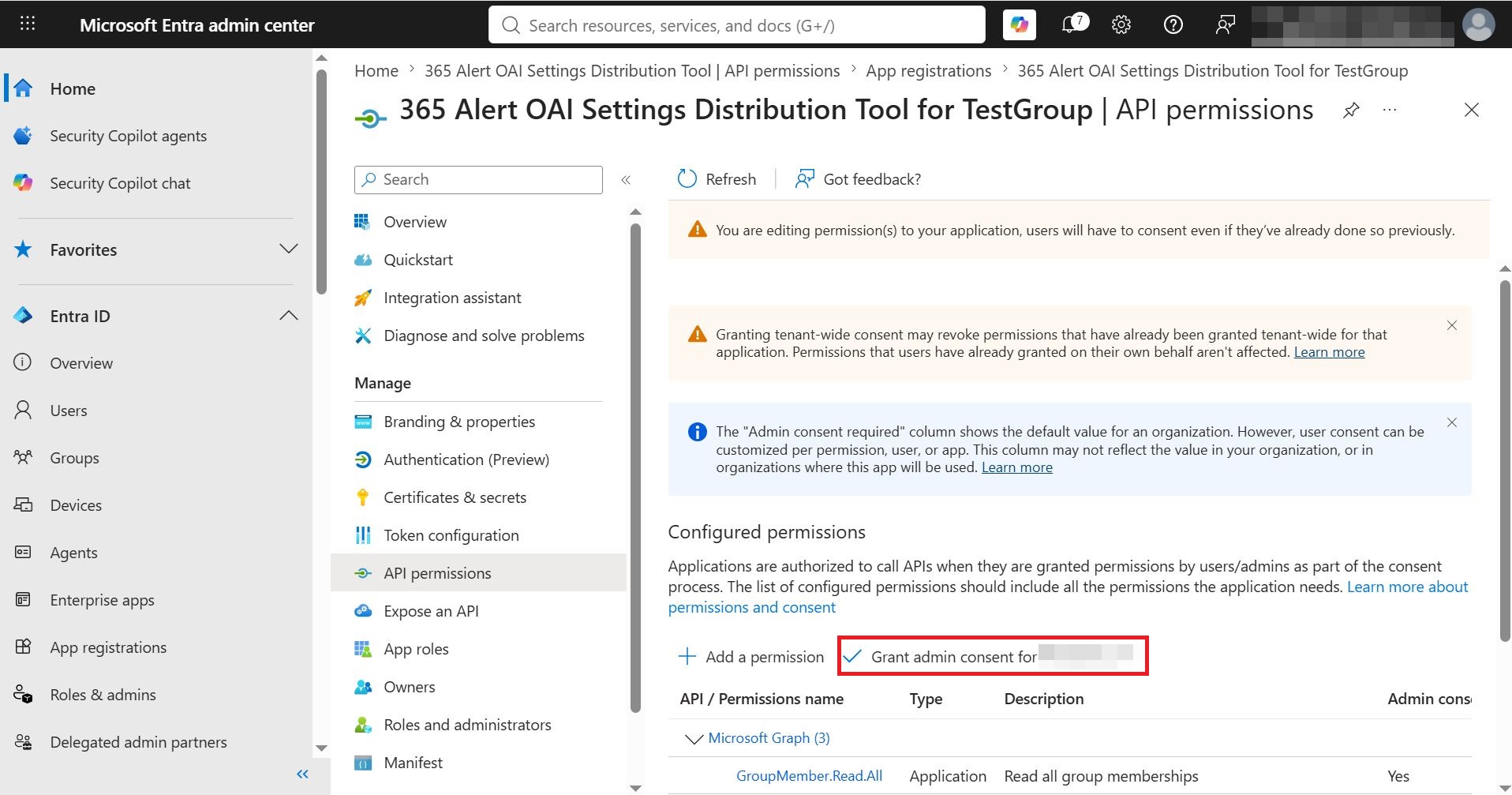
On the following screen, click Grant admin consent for [tenant name].
-
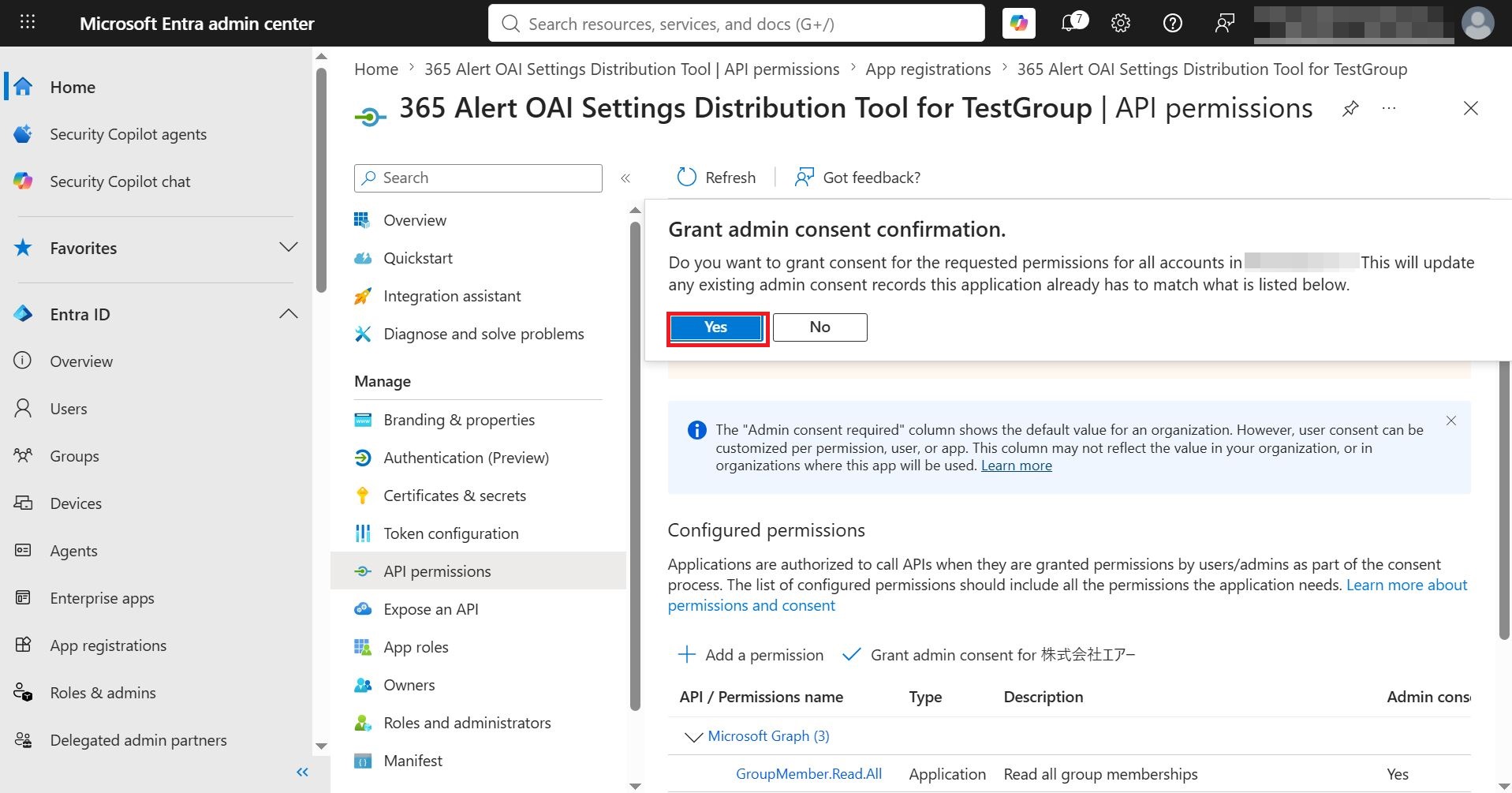
On the following screen, click Yes.
-
Grant the app the
Mail.ReadWritepermission scoped to theTestGroupgroup.-
Perform the following steps to install the Exchange Online PowerShell module. If it is already installed, proceed to the next step.
Open a PowerShell window by selecting "Run as administrator" when launching PowerShell, and run the following cmdlet.
Install-PackageProvider -Name NuGet -ForceOpen a PowerShell window with your current user account and run the following cmdlet.
Install-Module -Name ExchangeOnlineManagement -Scope CurrentUser -
Open a PowerShell window with your current user account.
-
Set values to PowerShell variables.
Run the following in the PowerShell window to set the administrator account's email address to the variable $UserPrincipalName. When running it, replace the admin@example.com part with the administrator account's email address.
$UserPrincipalName = "admin@example.com"Run the following in the PowerShell window to set the app's application ID to the variable $AppId and the app's object ID to the variable $ObjectId, respectively.
$AppId = "xxxxxxxx-xxxx-xxxx-xxxx-xxxxxxxxxxxx"
$ObjectId = "xxxxxxxx-xxxx-xxxx-xxxx-xxxxxxxxxxxx"tipThe app's application ID and object ID can be obtained as follows.
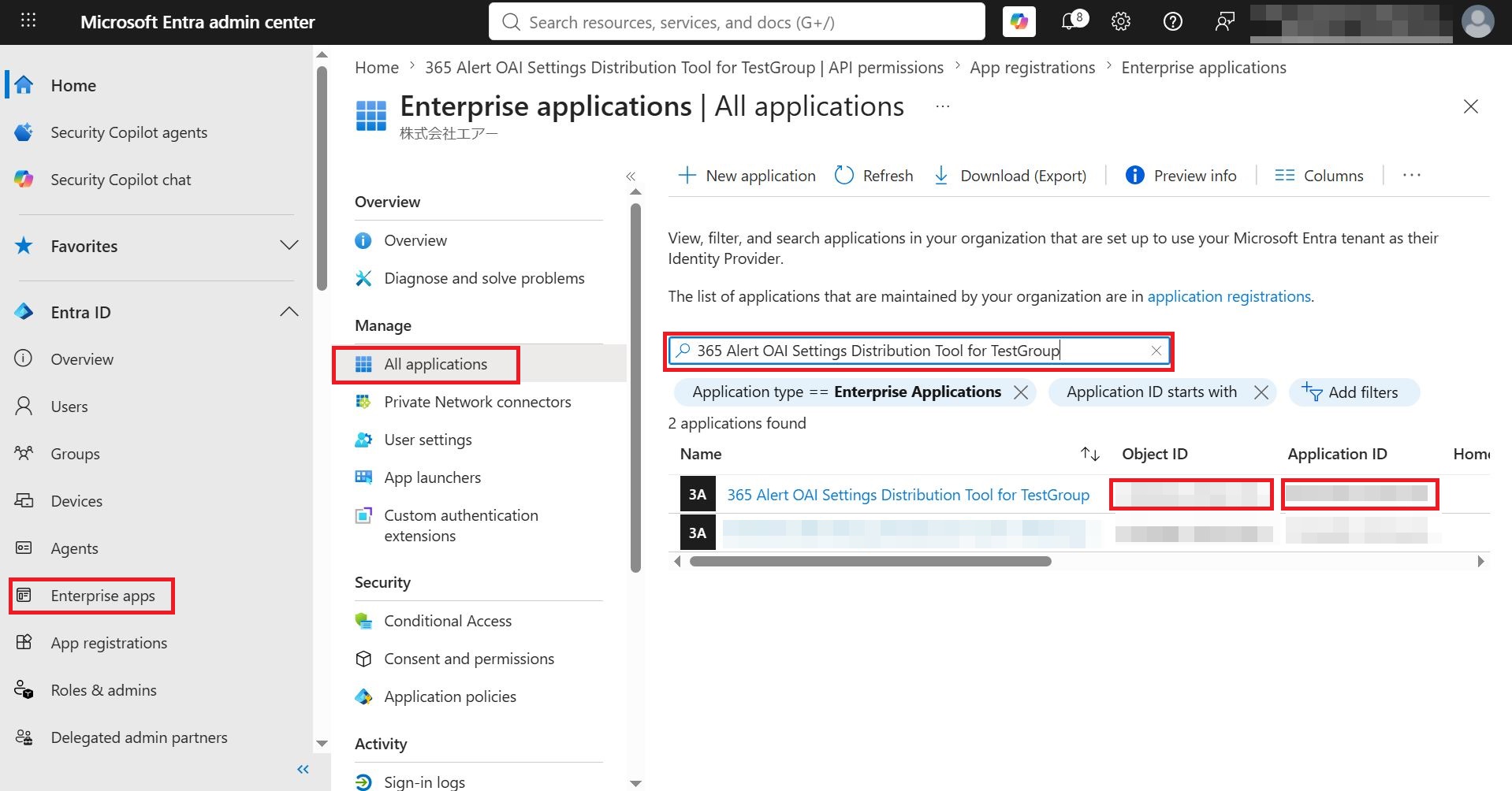
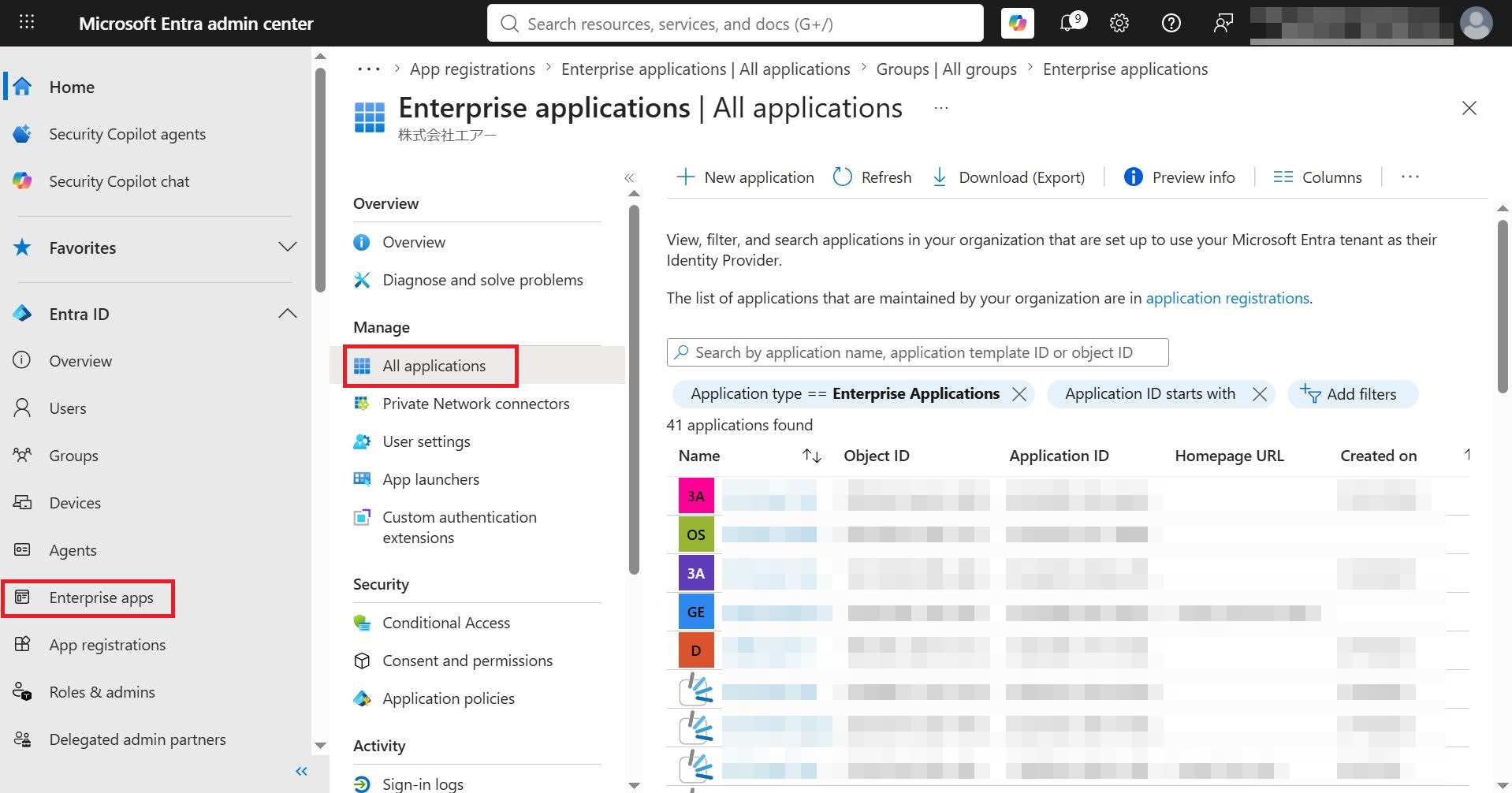
- From the menu on the left of the screen, click Enterprise applications. Note that this is different from the App registrations screen where you registered the app.
- From the menu of the displayed Enterprise applications screen, click All applications.
- In the search box of the displayed All applications screen, enter
365 Alert OAI Settings Distribution Tool for TestGroup, and copy the values in the Object ID and Application ID columns of the row named365 Alert OAI Settings Distribution Tool for TestGroup.
Run the following in the PowerShell window to set the app's name to the variable $DisplayName.
$DisplayName = "365 Alert OAI Settings Distribution Tool for TestGroup"Run the following in the PowerShell window to set the object ID of the target distribution group to the variable $GroupObjectId.
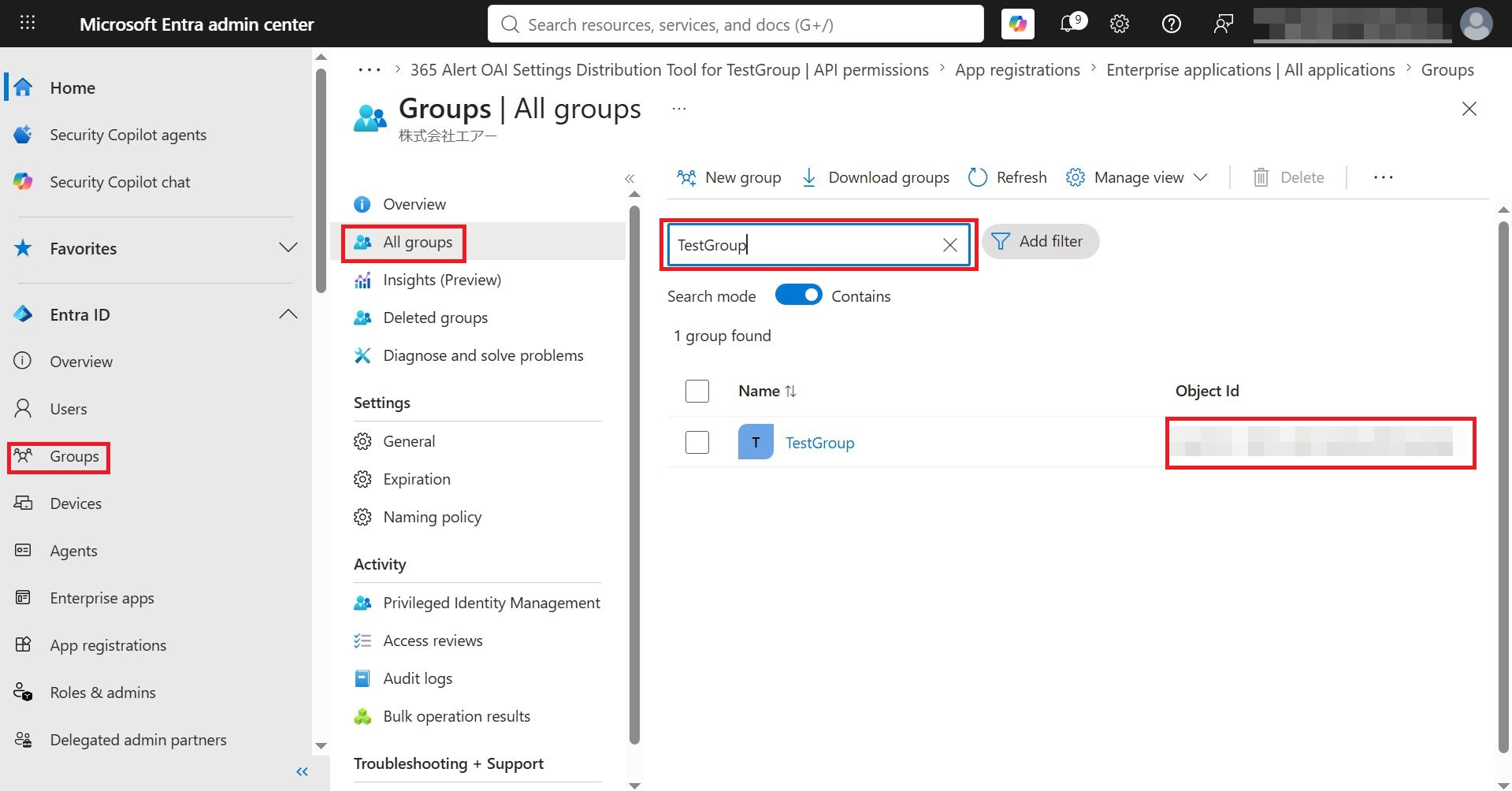
$GroupObjectId = "xxxxxxxx-xxxx-xxxx-xxxx-xxxxxxxxxxxx"tipThe object ID of the target distribution group can be obtained as follows.
- From the menu on the left of the screen, click Groups.
- From the menu of the displayed Groups screen, click All groups.
- In the search box of the displayed All groups screen, enter
TestGroup, and copy the value in the Object ID column of the row namedTestGroup.
-
Perform the following steps to connect to Exchange Online PowerShell.
Run the following cmdlets in sequence to connect to Exchange Online PowerShell.
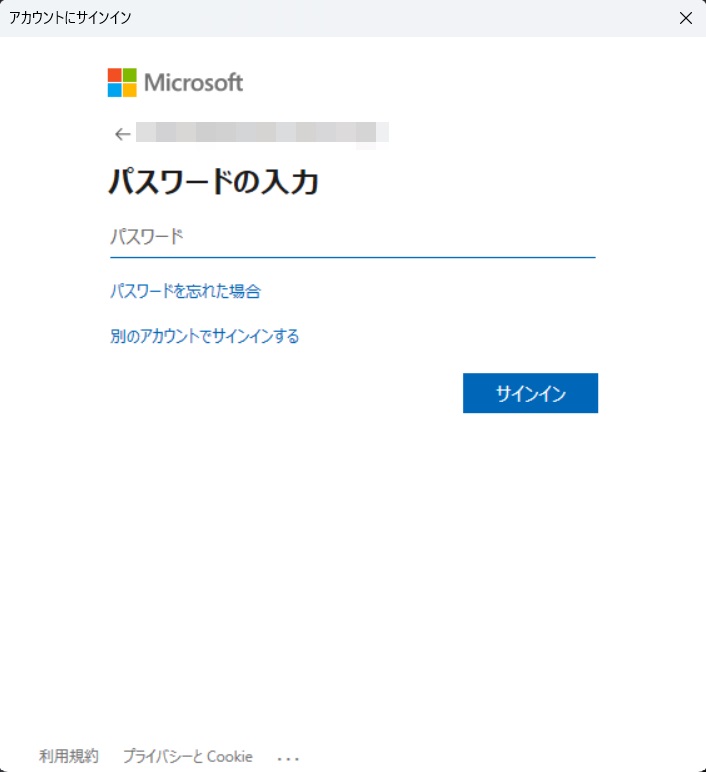
Set-ExecutionPolicy -ExecutionPolicy RemoteSigned -Scope ProcessConnect-ExchangeOnline -UserPrincipalName $UserPrincipalNameThe following screen appears, so enter the administrator account's password and click Sign in.
-
Perform the following steps to grant the app the
Mail.ReadWritepermission scoped to theTestGroupgroup.Run the following cmdlets in sequence to grant the app the
Mail.ReadWritepermission scoped to theTestGroupgroup.New-ServicePrincipal -AppId $AppId -ObjectId $ObjectId -DisplayName $DisplayNameNew-ManagementRoleAssignment -App $ObjectId -Role "Application Mail.ReadWrite" -RecipientGroupScope $GroupObjectId
-
Settings Distribution Tool App Removal Procedure
This section describes the procedure for deleting the Settings Distribution Tool app.
-
With an administrator account, sign in to the Microsoft Entra admin center from the following URL.
-
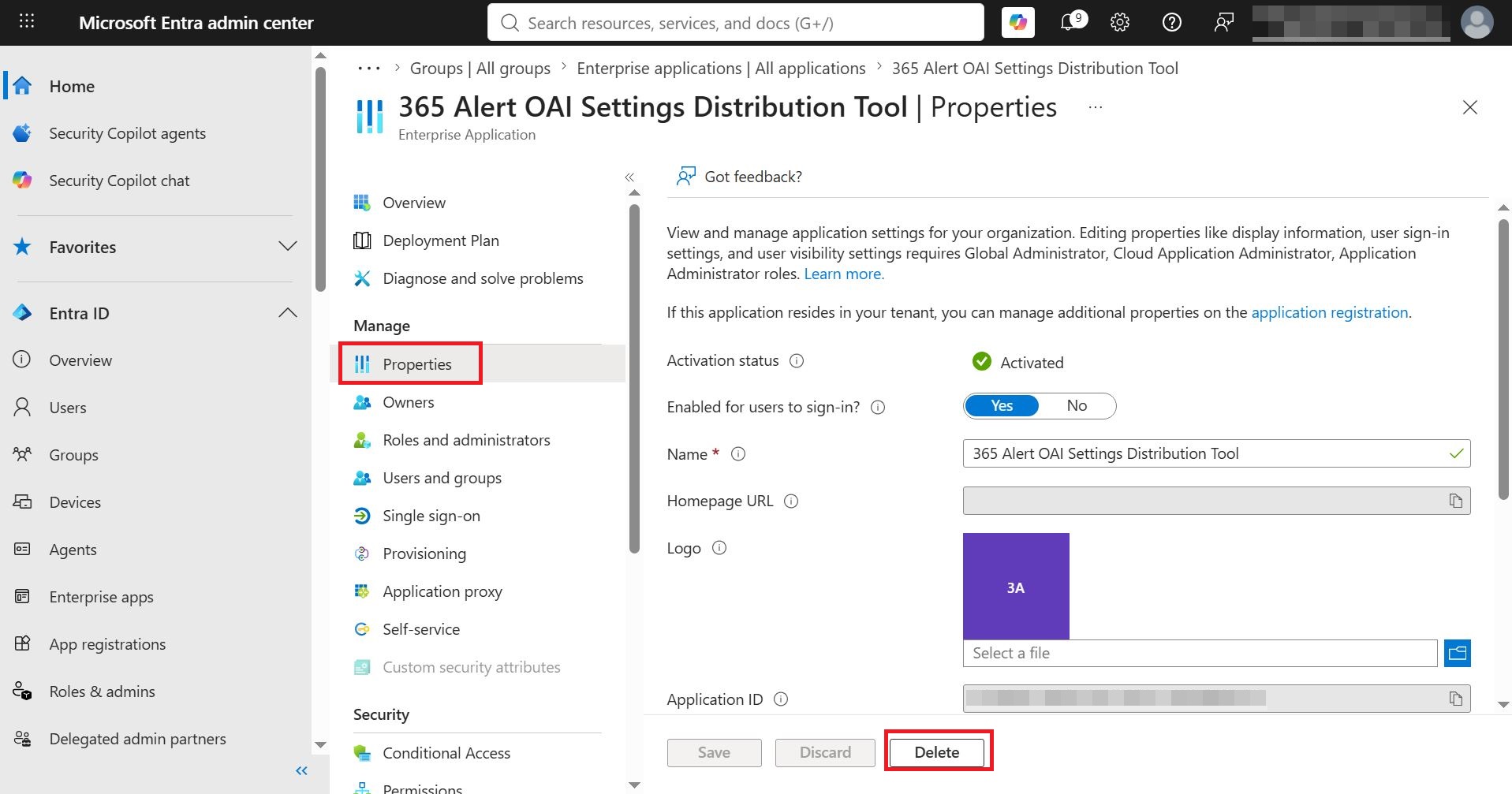
From the menu on the left of the screen, click Enterprise applications, and in the displayed screen click Manage > All applications.
-
Enter
365 Alert OAI Settings Distribution Toolin the search box and click 365 Alert OAI Settings Distribution Tool in the results.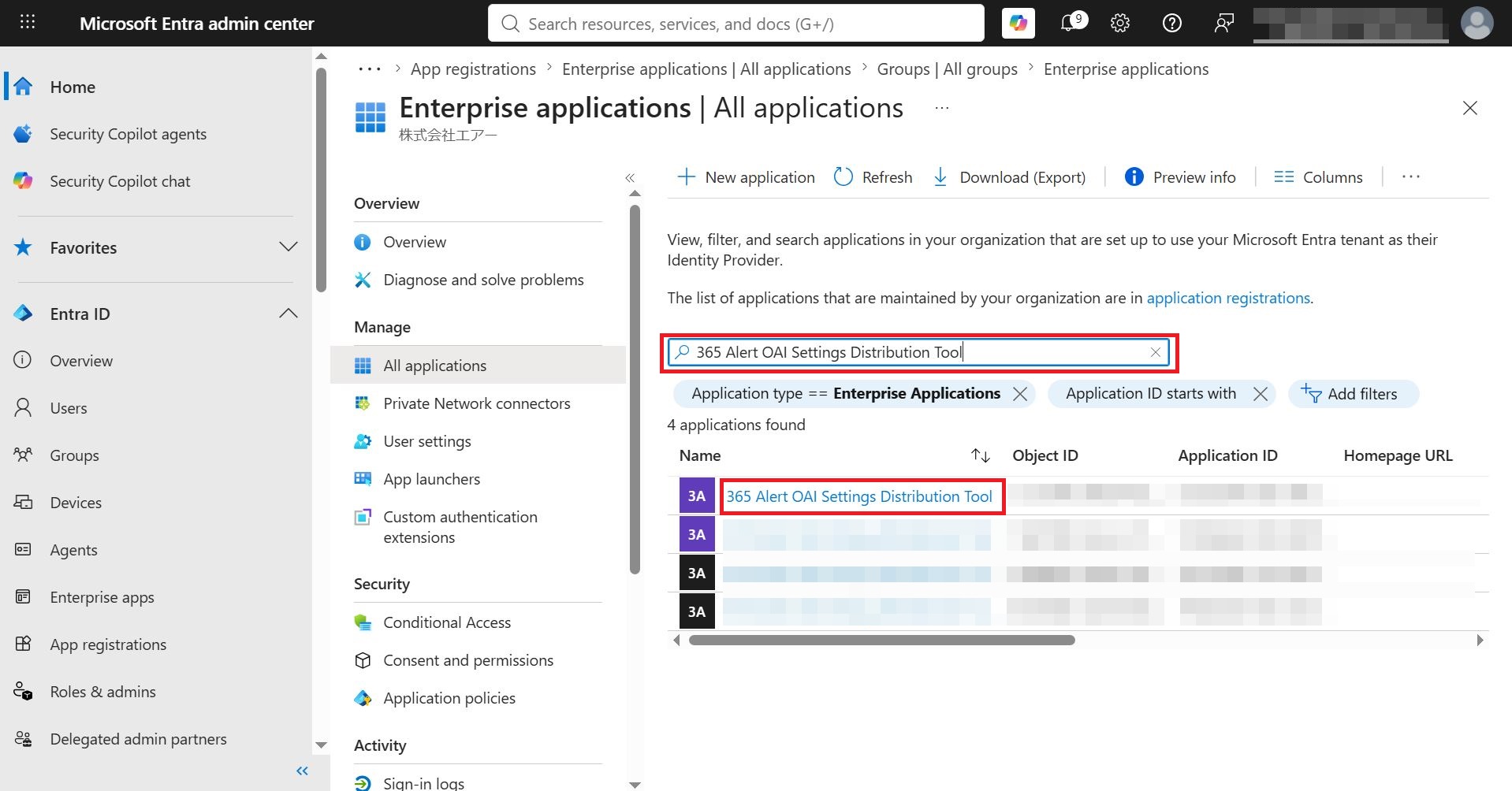
-
Click Manage > Properties, and in the displayed screen click Delete.