Admin Outlook Add-in Setup (Bulk)
To install the Admin Outlook Add-in individually, refer to here.
Admin Outlook Add-in Deployment Procedure
This section describes the procedure for deploying the Admin Outlook Add-in in bulk so that administrators in the organization can use it.
-
With an administrator account, sign in to the Microsoft 365 admin center from the following URL.
-
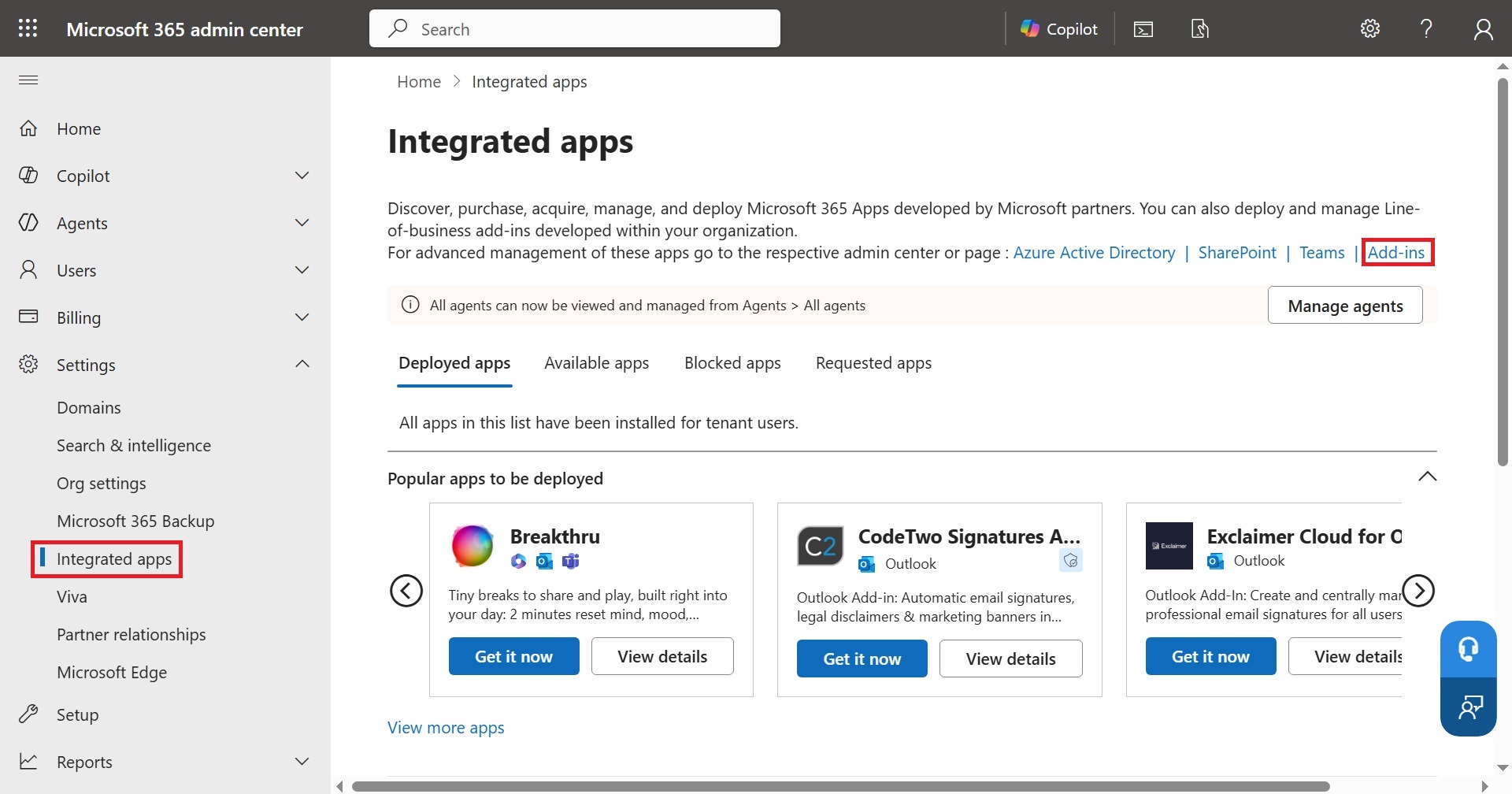
From the menu on the left of the screen, click Settings > Integrated apps. In the displayed screen, click Add-ins.
-
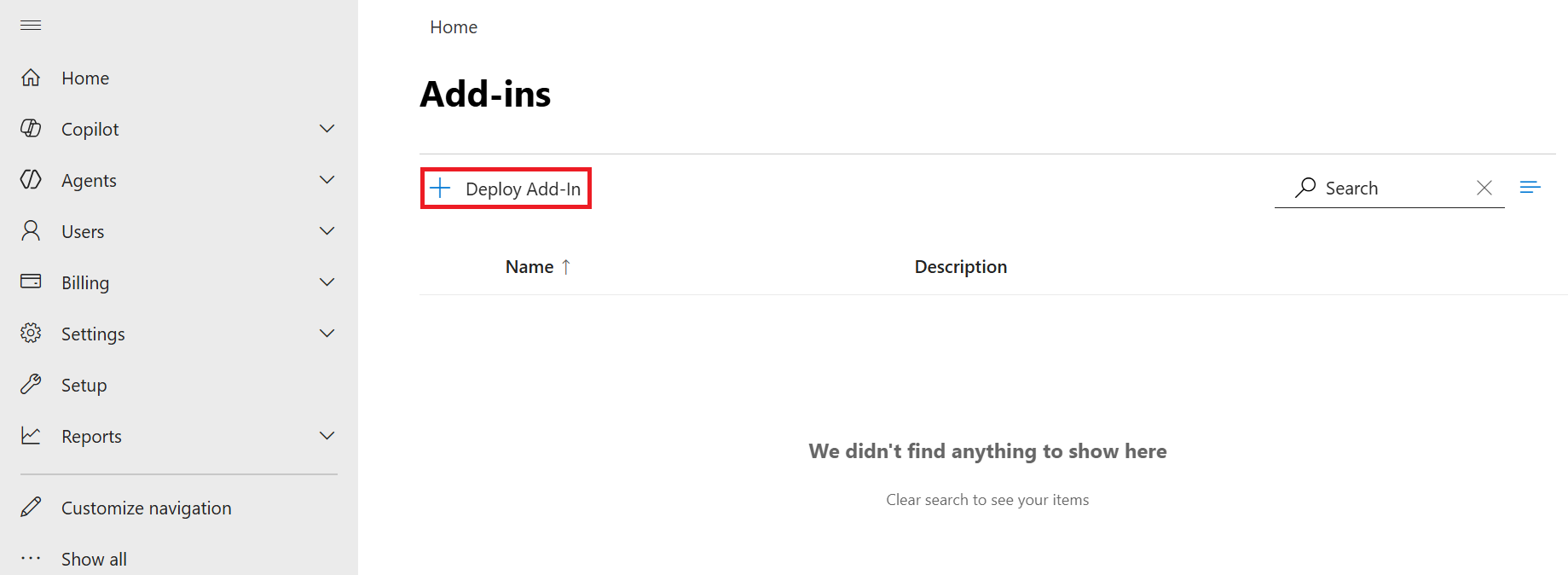
On the following screen, click + Deploy Add-in.
-
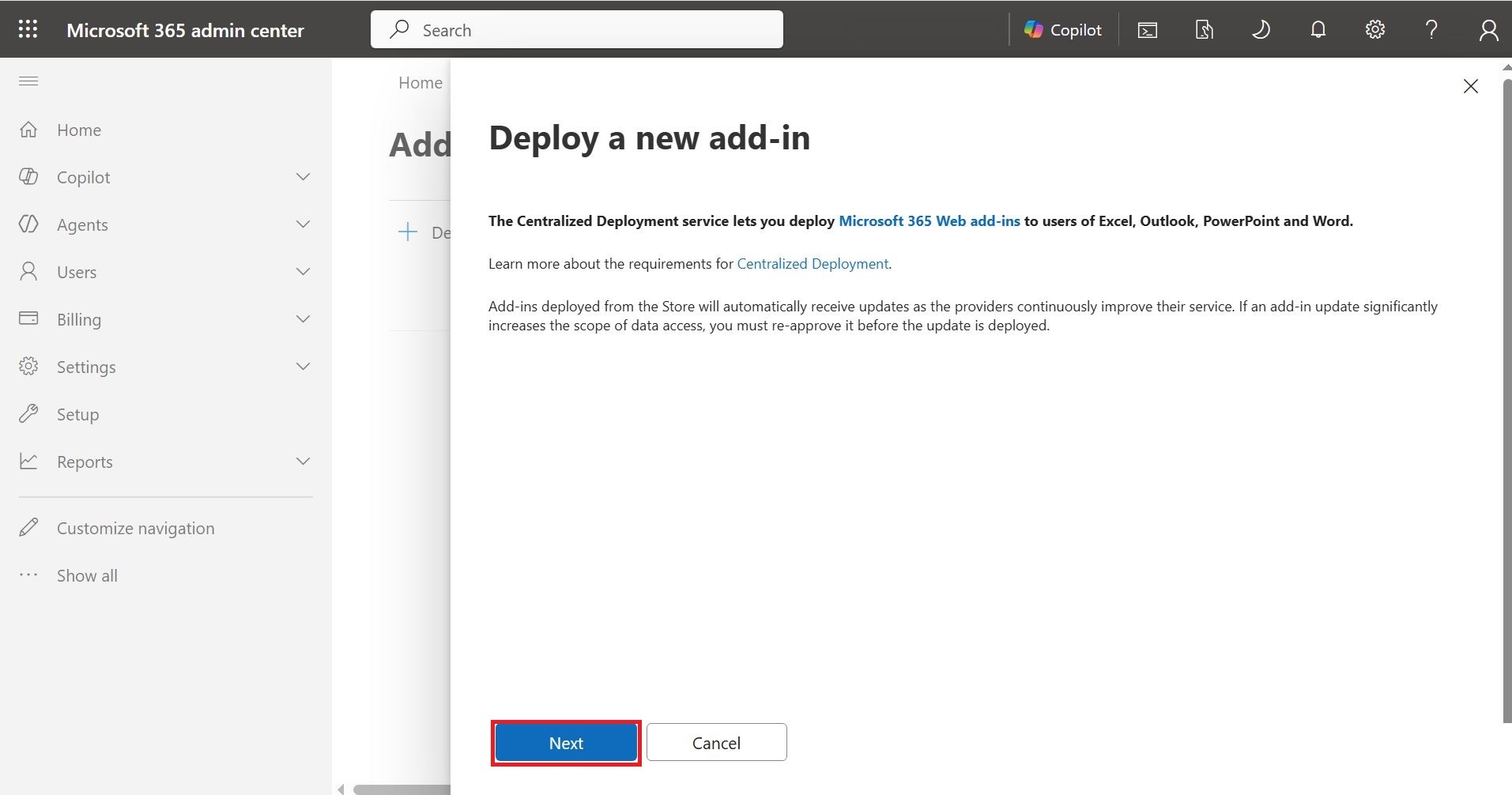
On the following screen, click Next.
-
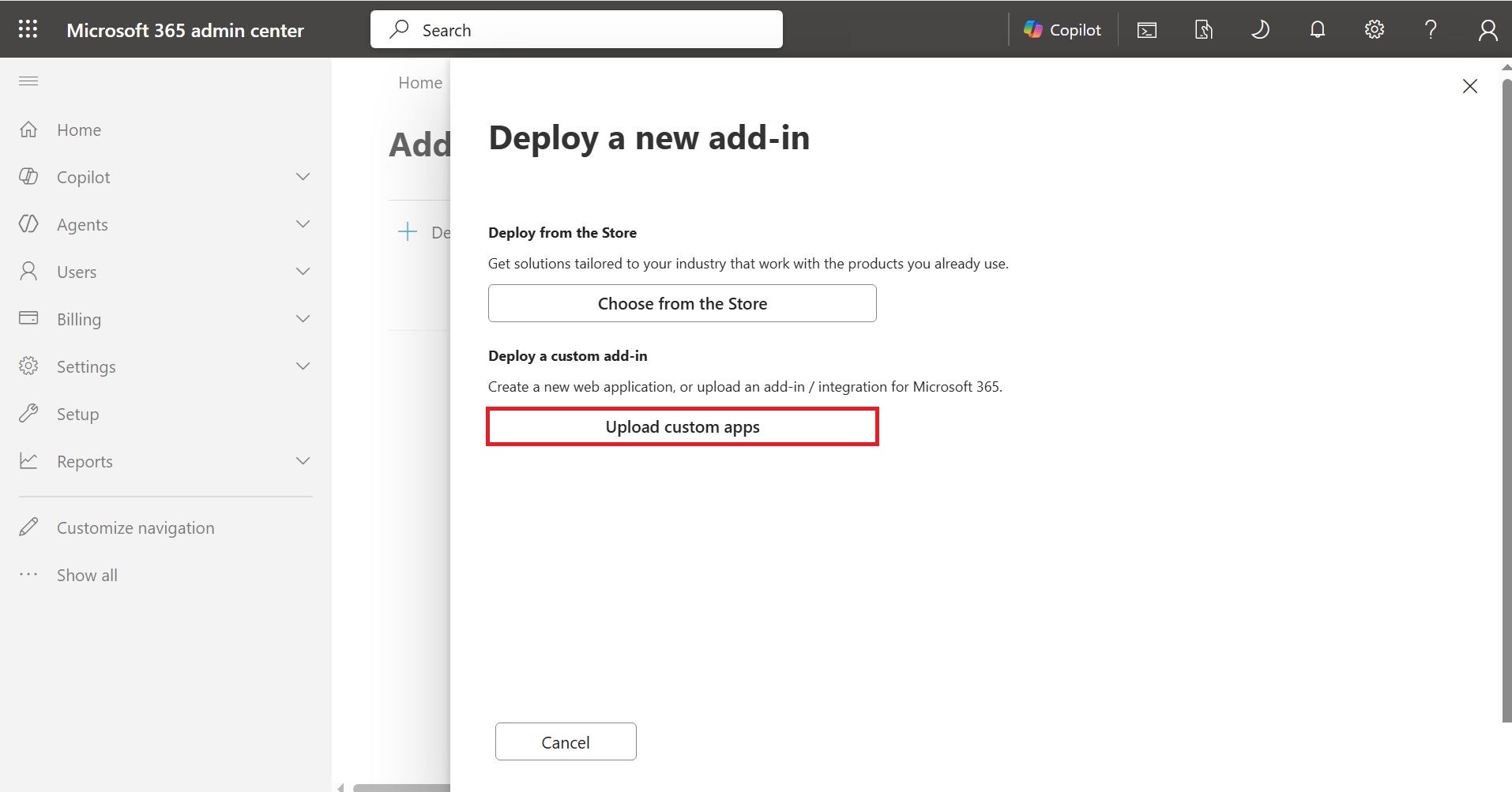
On the following screen, click Upload custom apps.
-
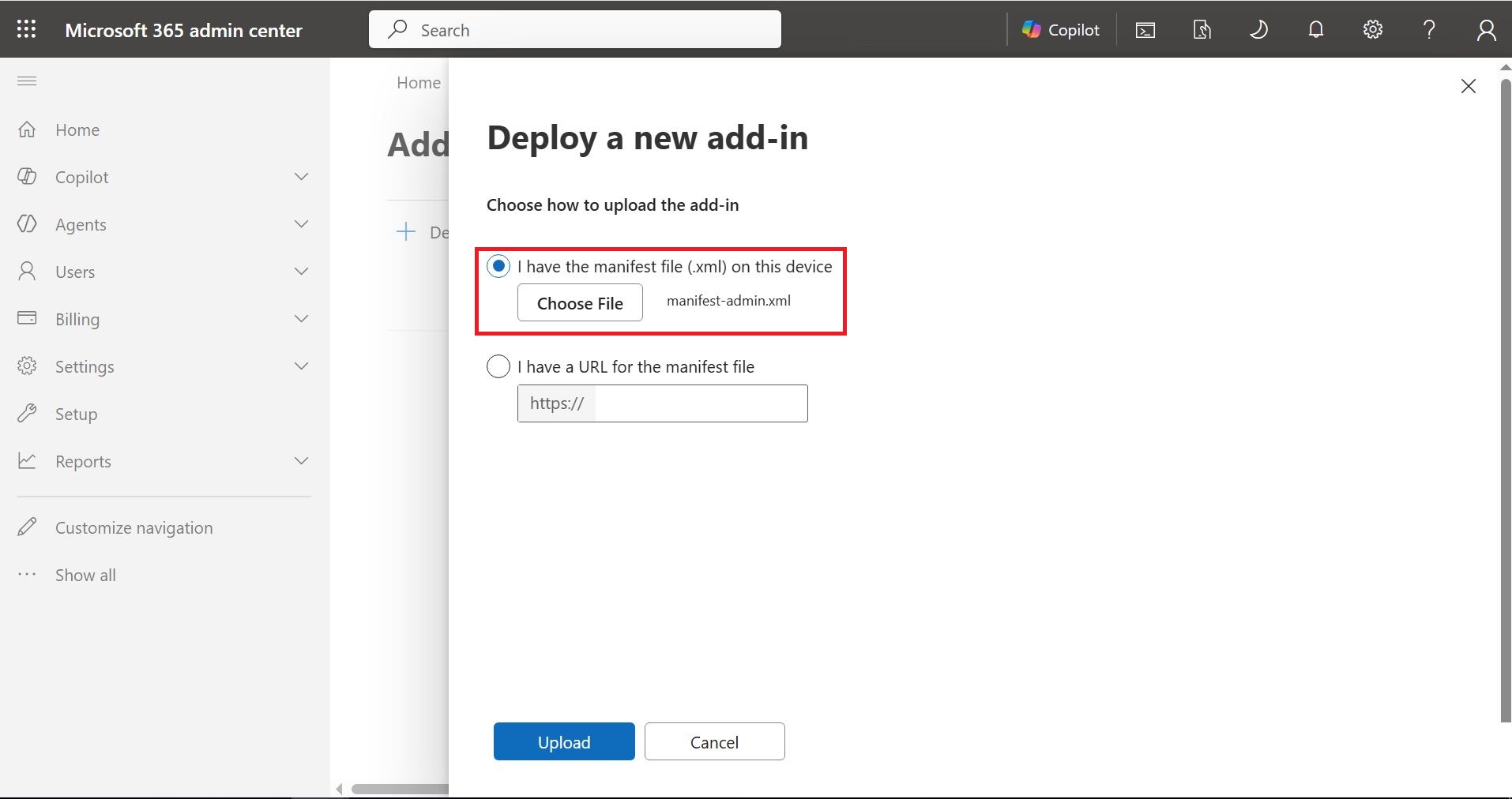
On the following screen, select I have the manifest file (.xml) on this device, click Choose File to specify the Admin Outlook Add-in manifest file, and click Upload.
cautionThe Admin Outlook Add-in manifest file can be downloaded from the support site.
-
On the following screen, select appropriate values for Assign users and Deployment method, then click Deploy.
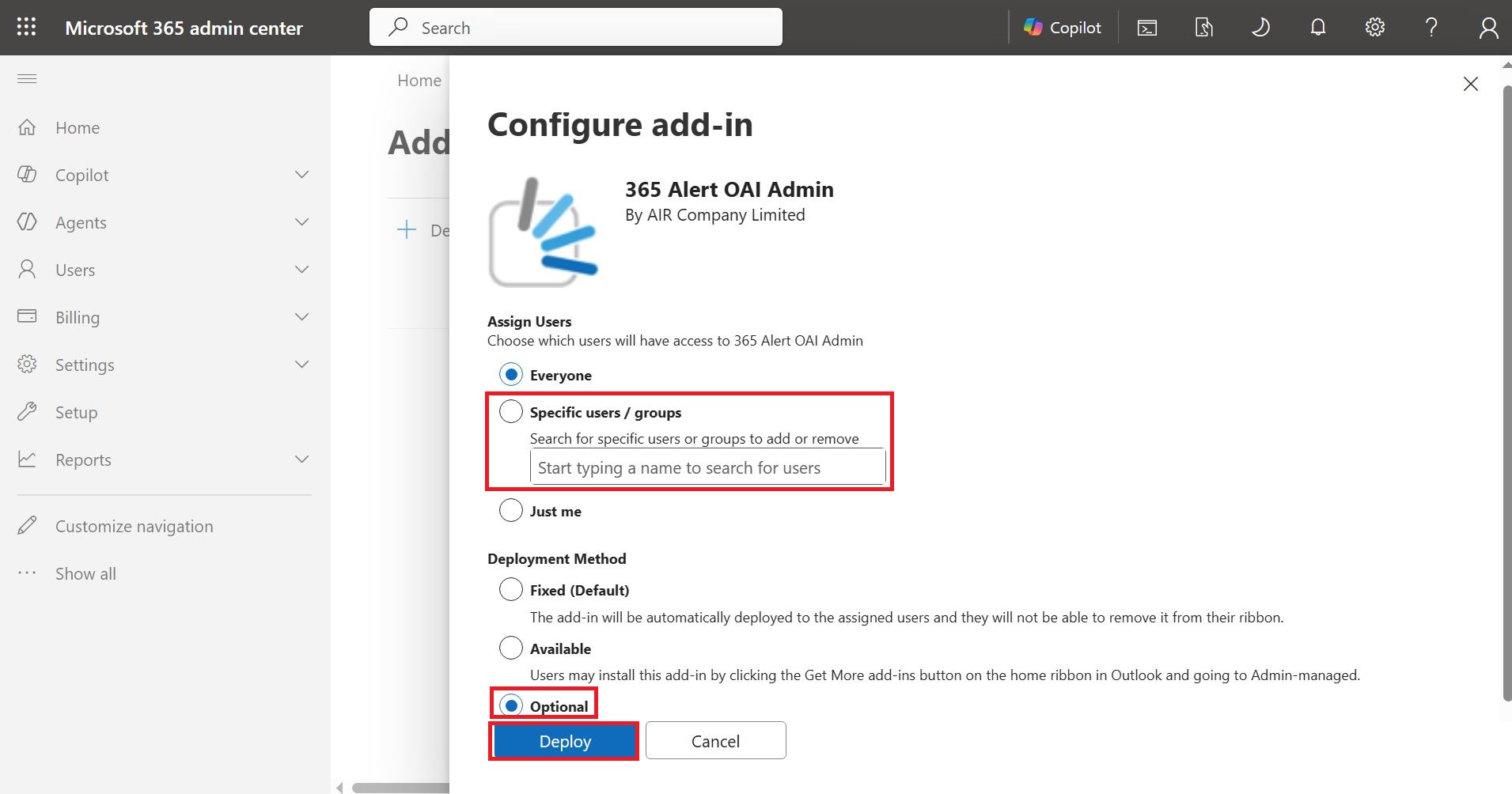
Select Assign users by referring to the following.
Assign users Description EveryoneSelect this when you want to deploy the Admin Outlook Add-in to all users in the organization. Specific users/groupsSelect this when you want to deploy the Admin Outlook Add-in only to specific users in the organization, and specify the users or groups you want to deploy to. Just meSelect this when you want to deploy the Admin Outlook Add-in only to yourself (the administrator account signed in to the Microsoft 365 admin center), for testing purposes, etc. Select Deployment method by referring to the following.
Deployment method Description FixedThe Admin Outlook Add-in is automatically deployed and installed for the users specified in Assign users. Users cannot remove the installed Admin Outlook Add-in. AvailableThe users specified in Assign users install the Outlook Add-in themselves. For how users install the Admin Outlook Add-in deployed by the administrator, refer to here. OptionalThe Admin Outlook Add-in is automatically deployed and installed for the users specified in Assign users. Users can remove the installed Admin Outlook Add-in. -
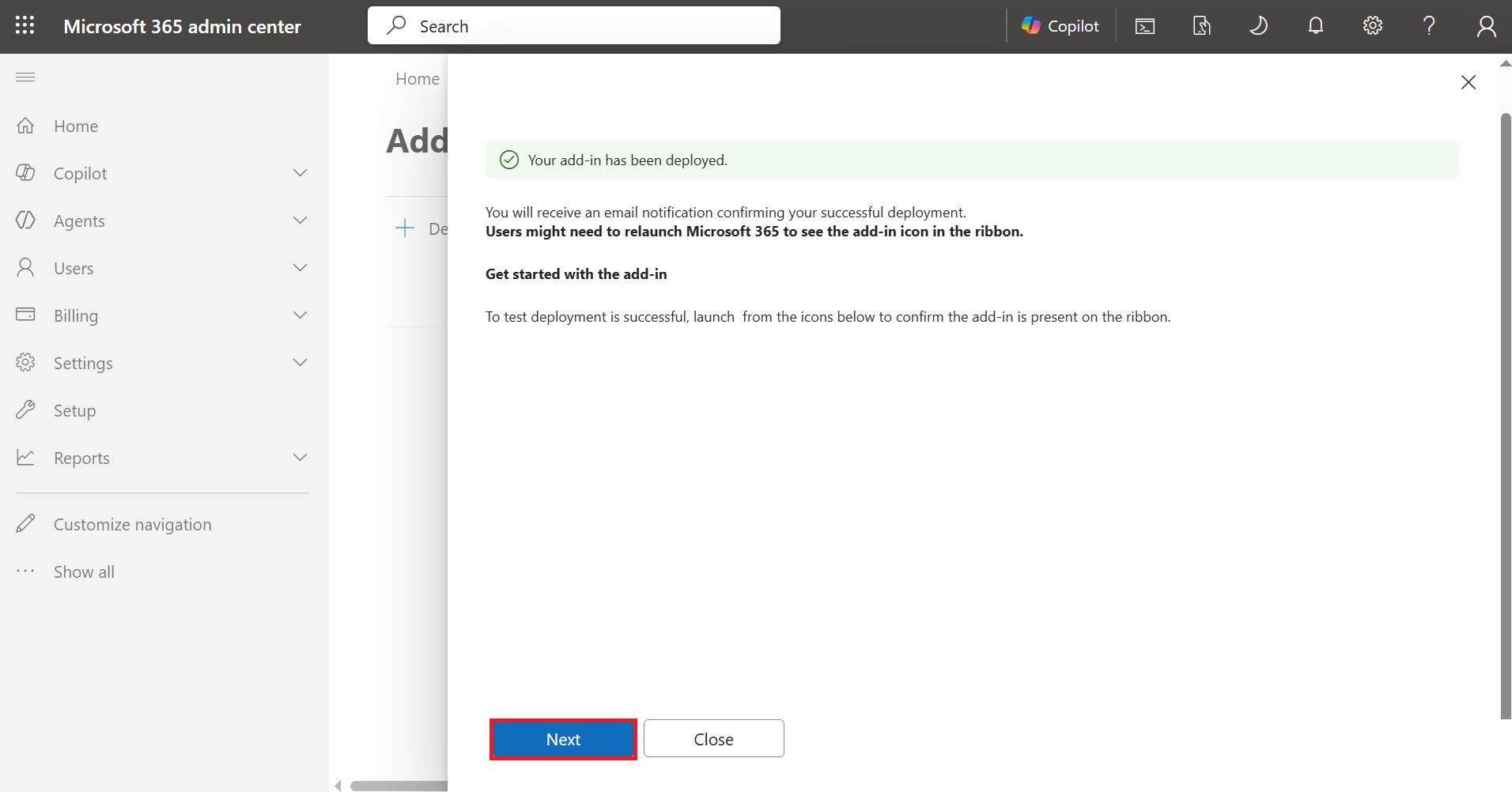
On the following screen, click Next.
-
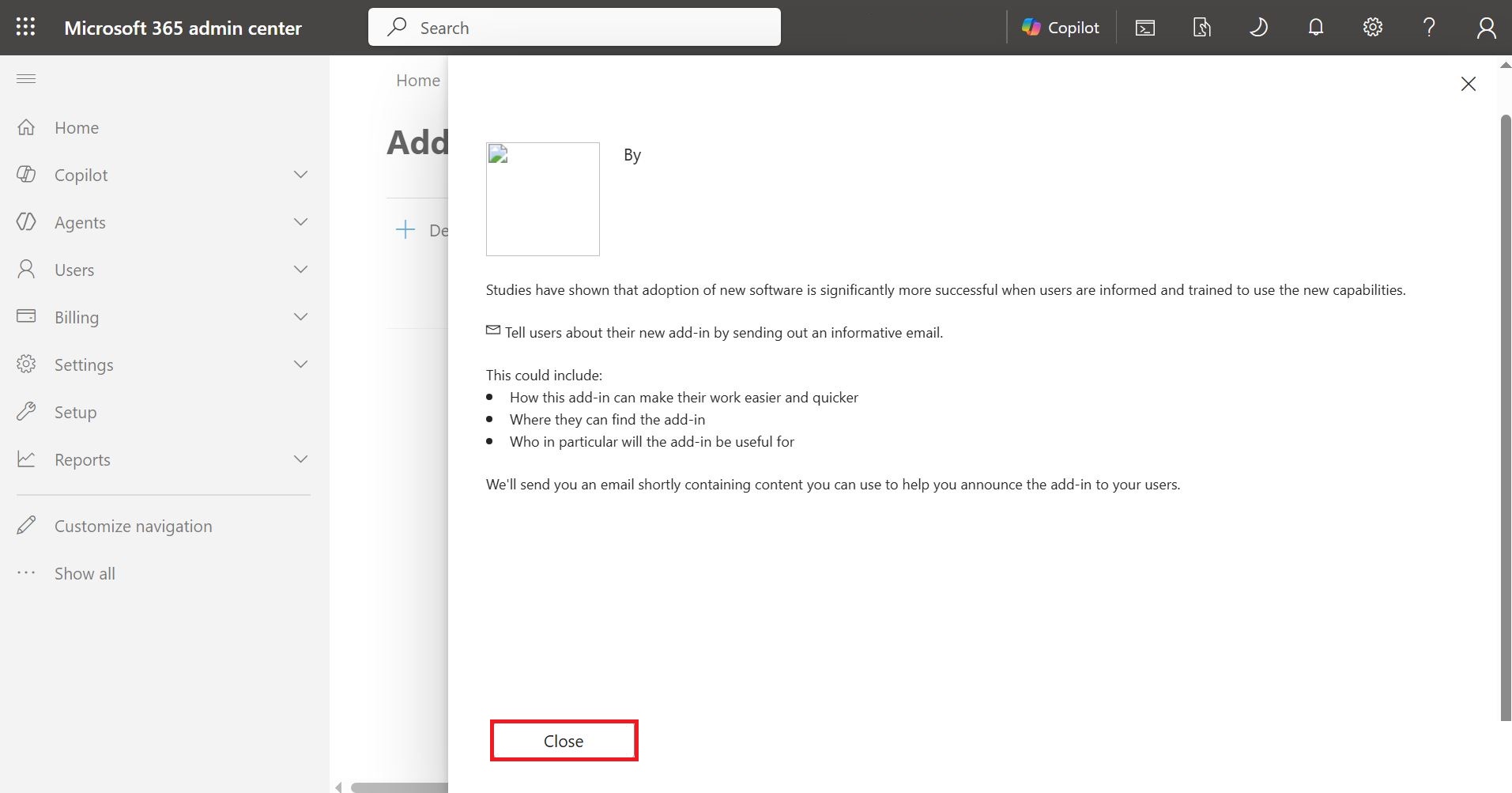
On the following screen, click Close.
-
On the following screen, confirm that the add-in with the Name
365 Alert OAI Adminis displayed.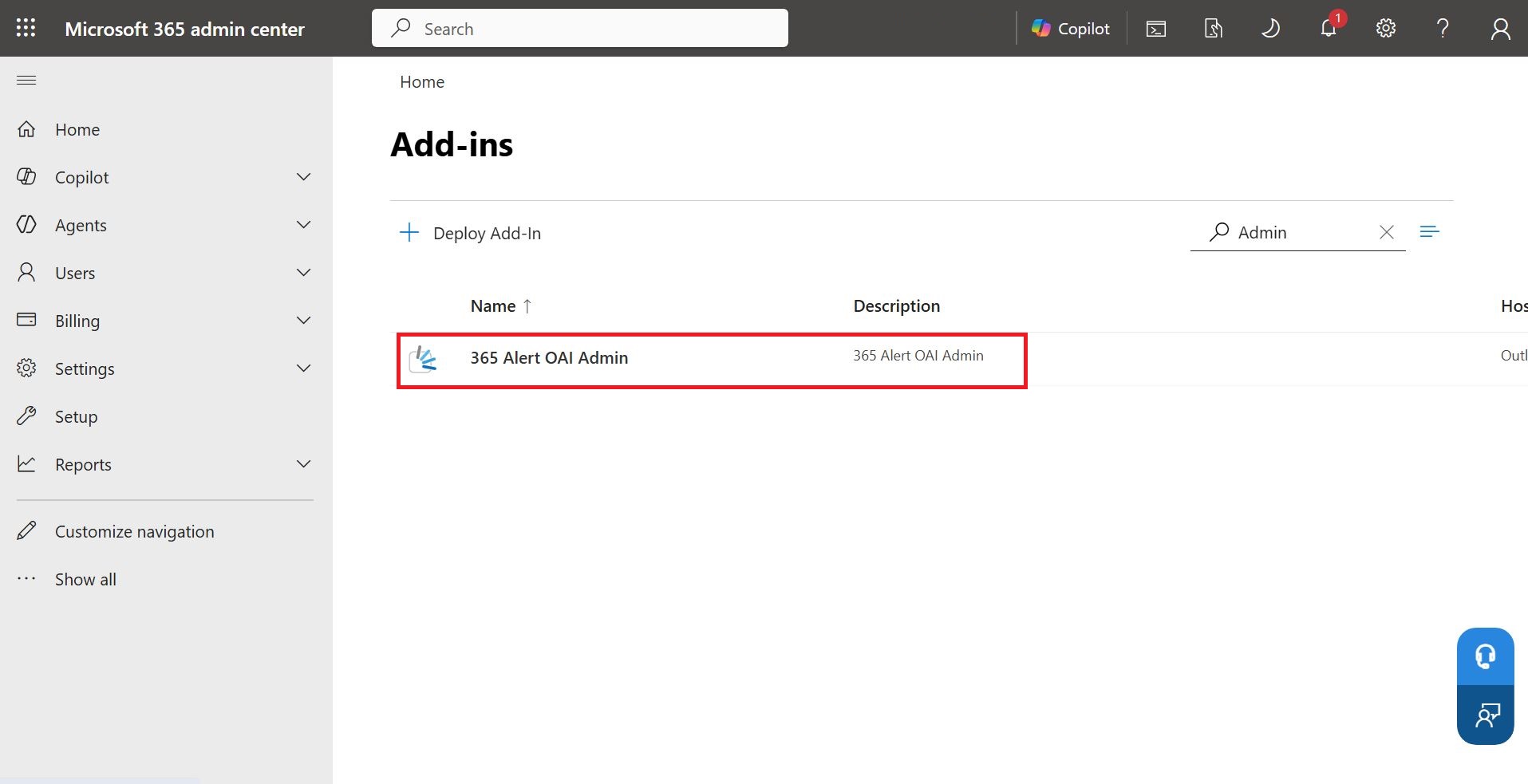 caution
It may take more than 24 hours before users in the organization can use the Admin Outlook Add-in. Each user must also restart Outlook.
This completes the Admin Outlook Add-in deployment procedure.
Admin Outlook Add-in Update Procedure
This section describes the procedure for an administrator to update the Admin Outlook Add-in.
-
With an administrator account, sign in to the Microsoft 365 admin center from the following URL.
-
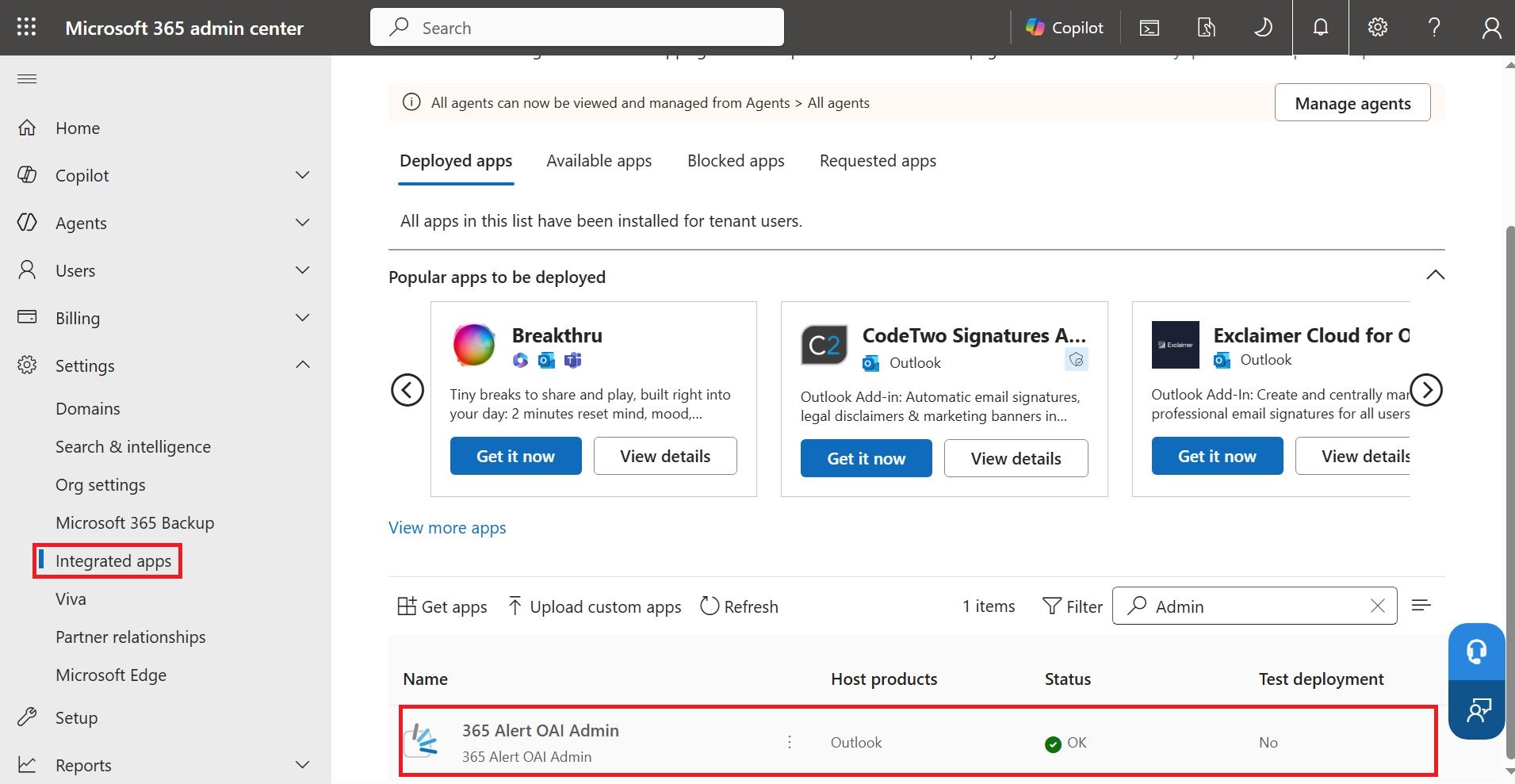
From the menu on the left of the screen, click Settings > Integrated apps. In the displayed screen, click the row named 365 Alert OAI Admin.
-
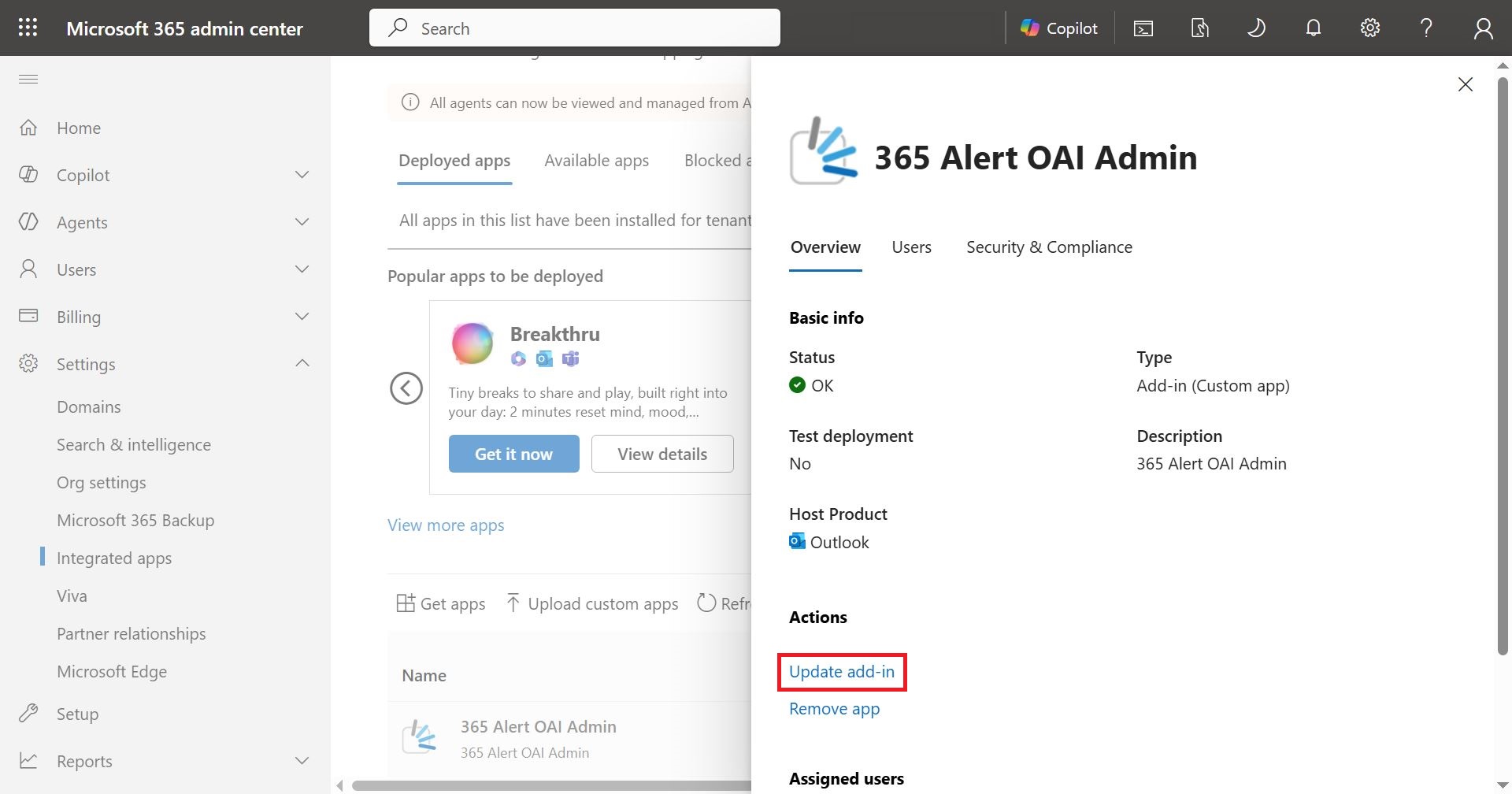
On the following screen, click Update add-in.
-
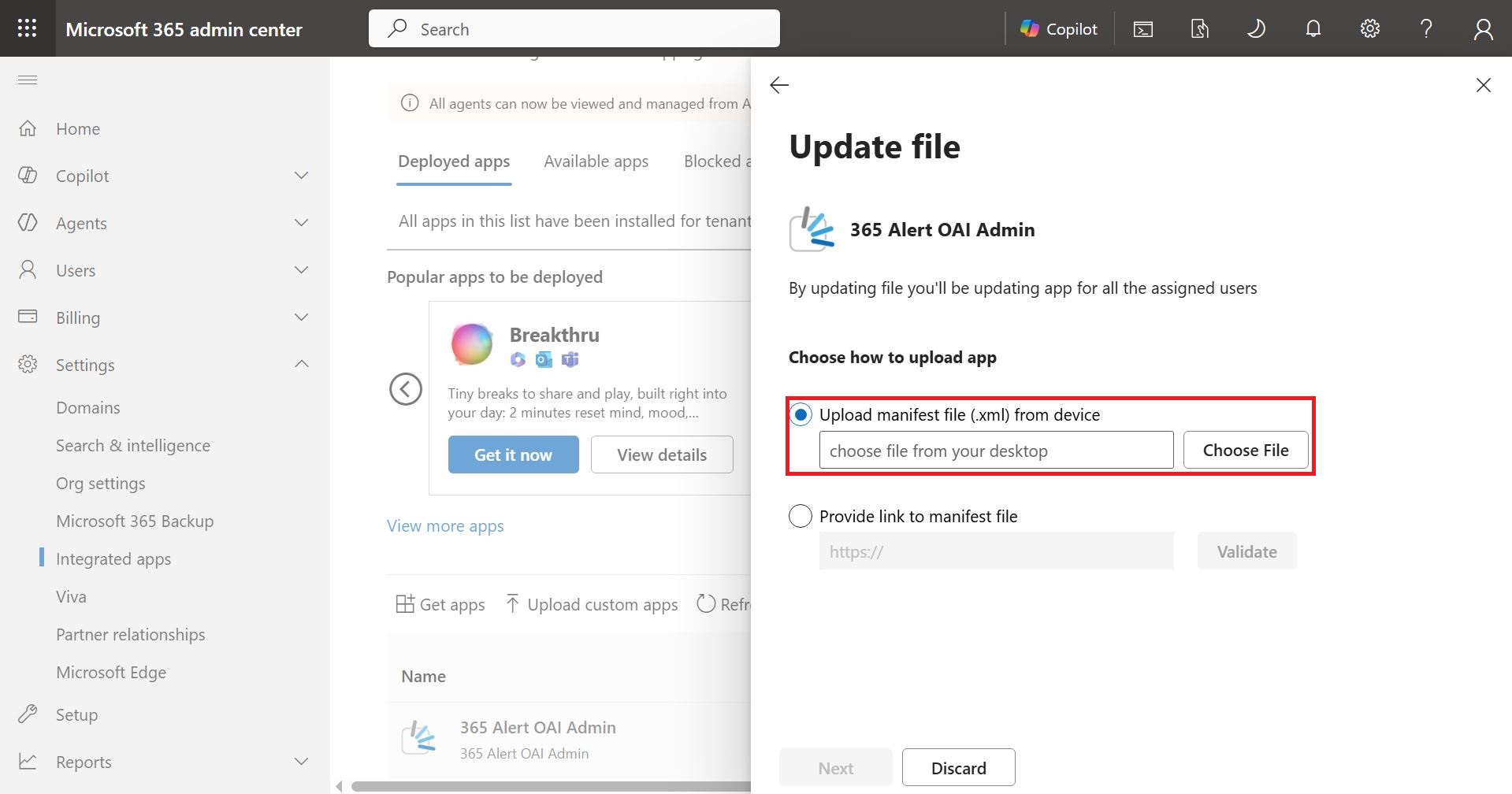
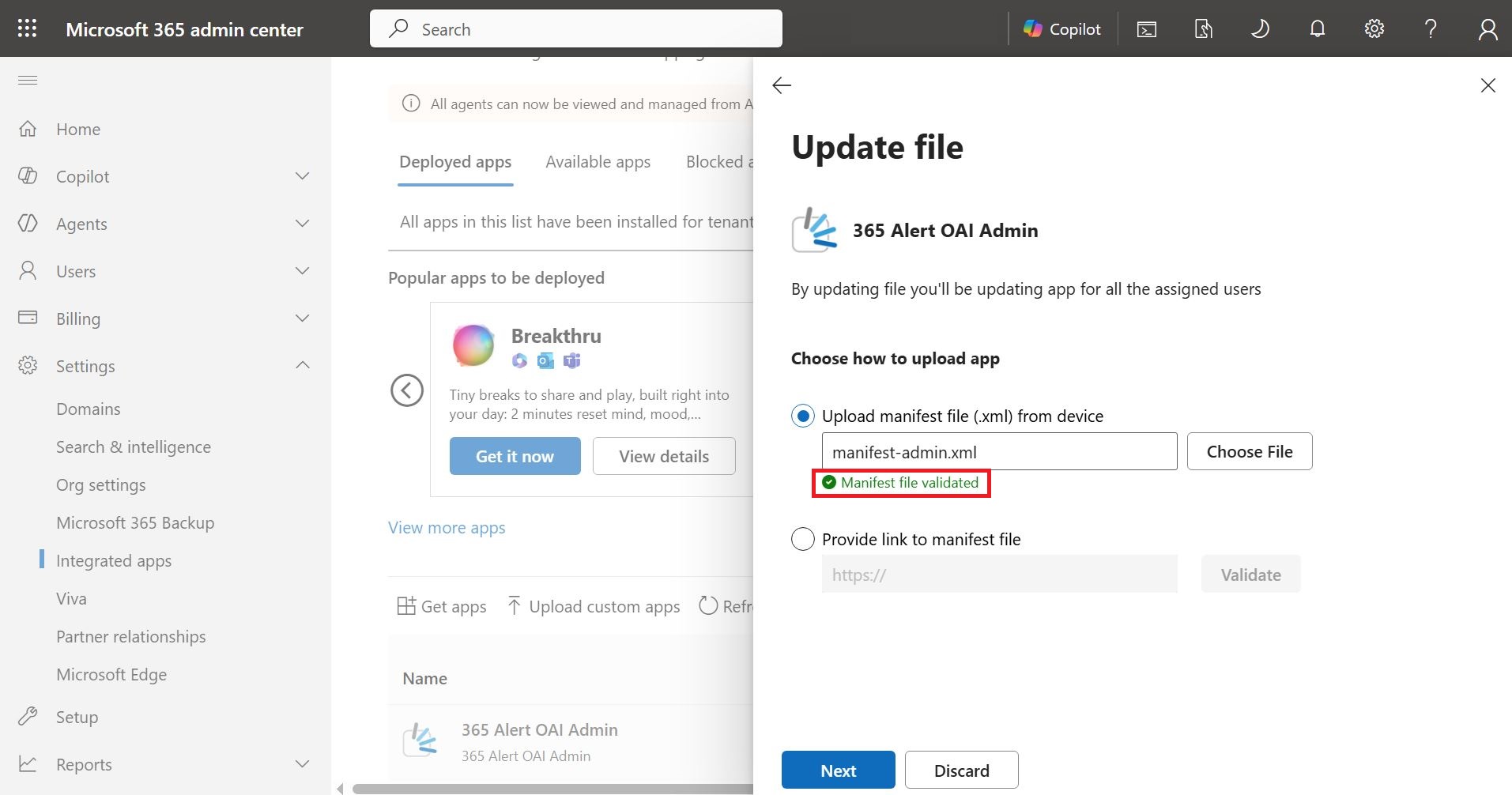
On the following screen, select Upload the manifest file (.xml) from this device, then click Choose File to specify the Admin Outlook Add-in manifest file.
-
When validation succeeds, The manifest file has been validated is displayed, so click Next.
-
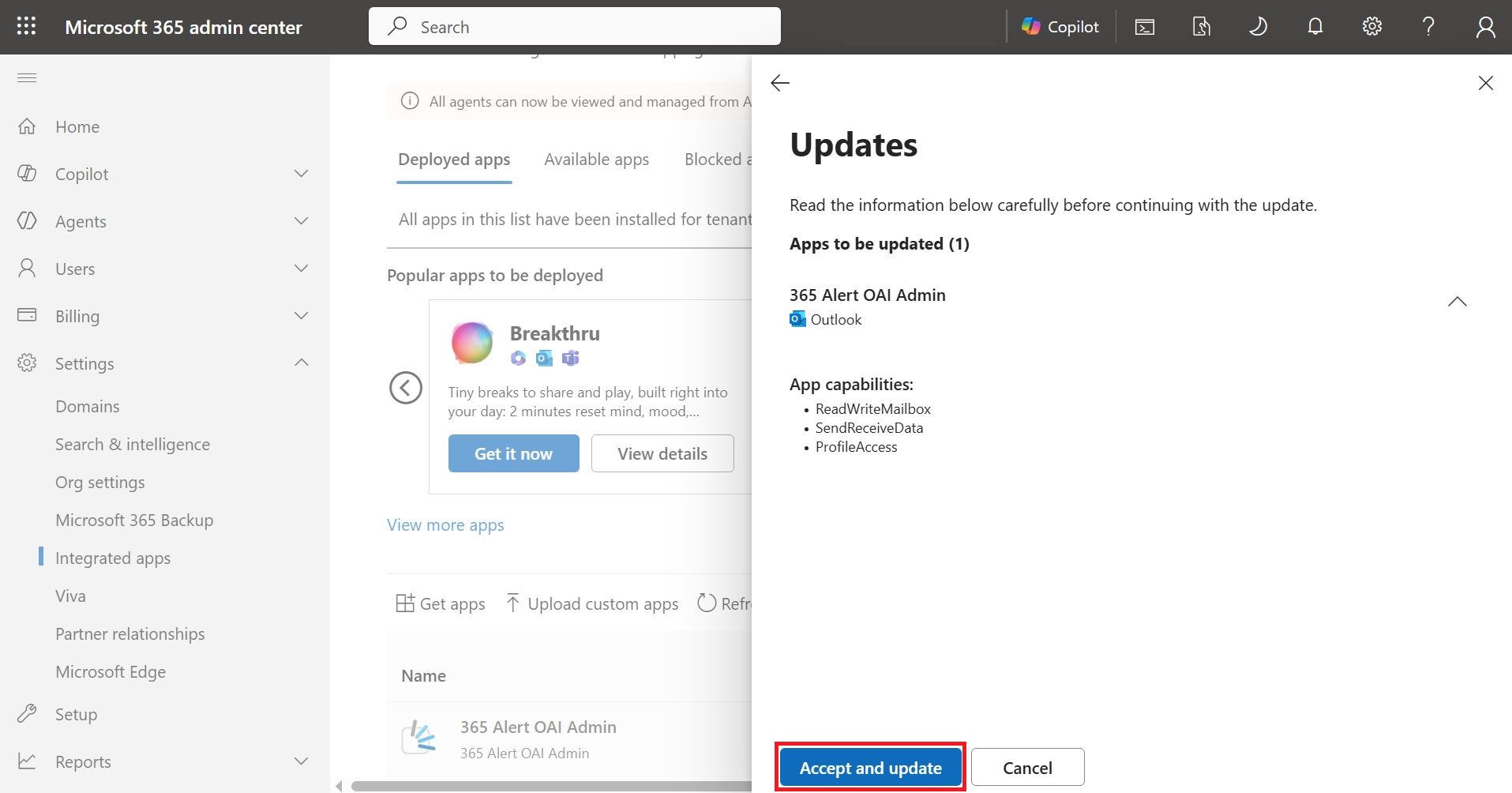
On the following screen, click Accept and Update.
-
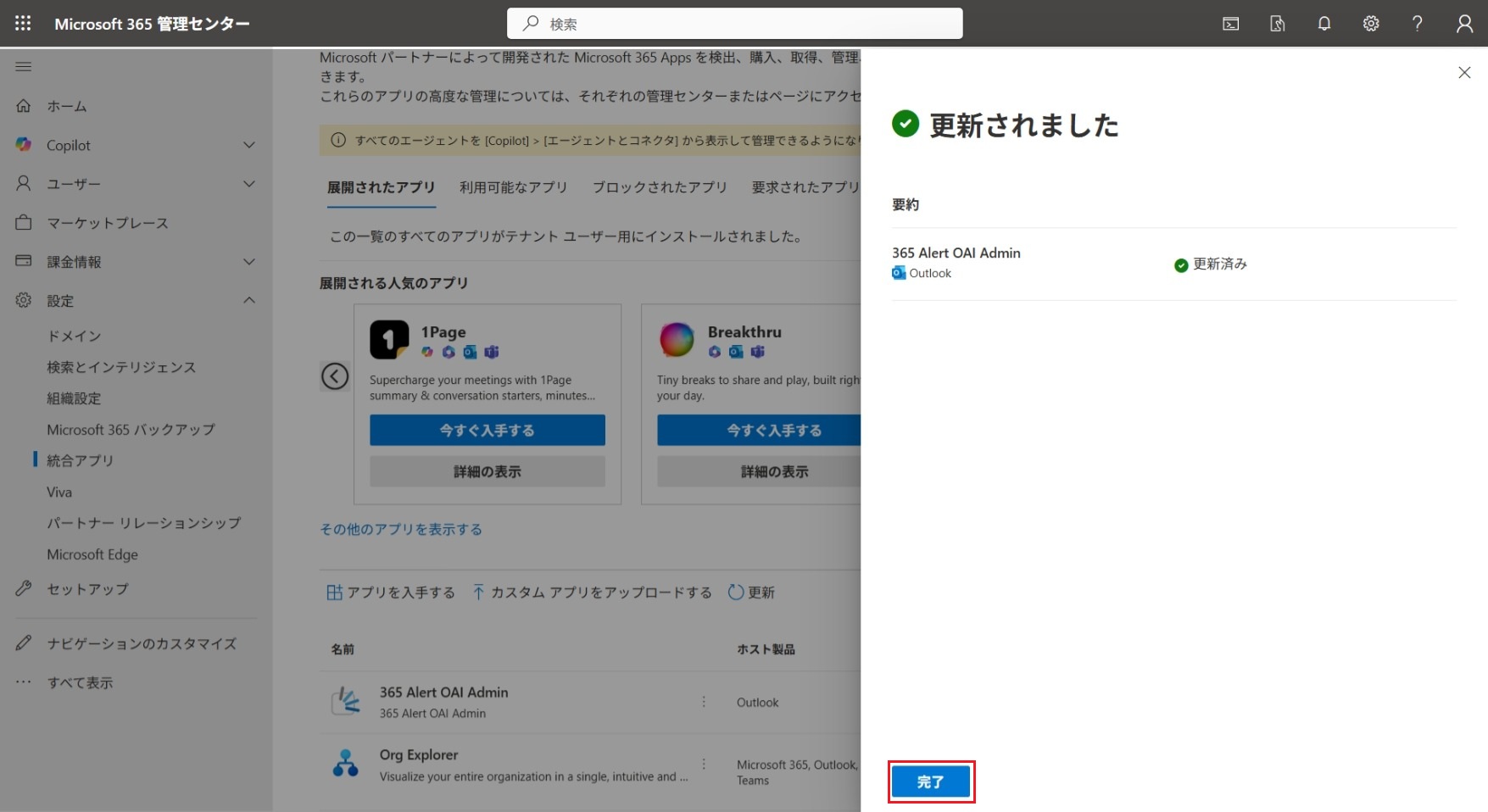
When the update succeeds, Updated is displayed, so click Finish.
 caution
It may take some time for the Admin Outlook Add-in update to take effect.
This completes the Admin Outlook Add-in update procedure.
Admin Outlook Add-in Removal Procedure
This section describes the procedure for an administrator to remove the Admin Outlook Add-in from users in the organization.
-
With an administrator account, sign in to the Microsoft 365 admin center from the following URL.
-
From the menu on the left of the screen, click Settings > Integrated apps. In the displayed screen, click
365 Alert OAI Admin.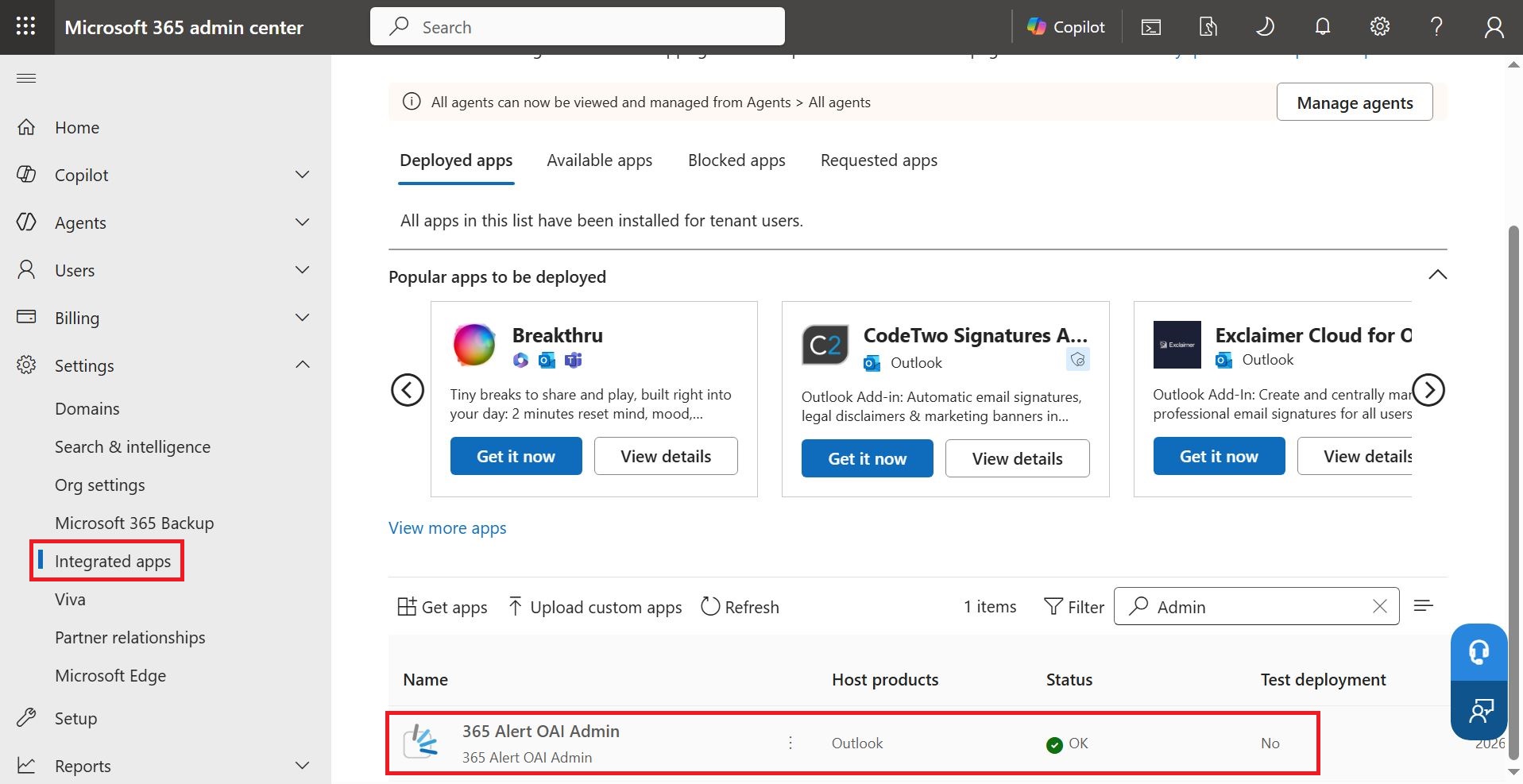
-
In the displayed screen, click
Remove app.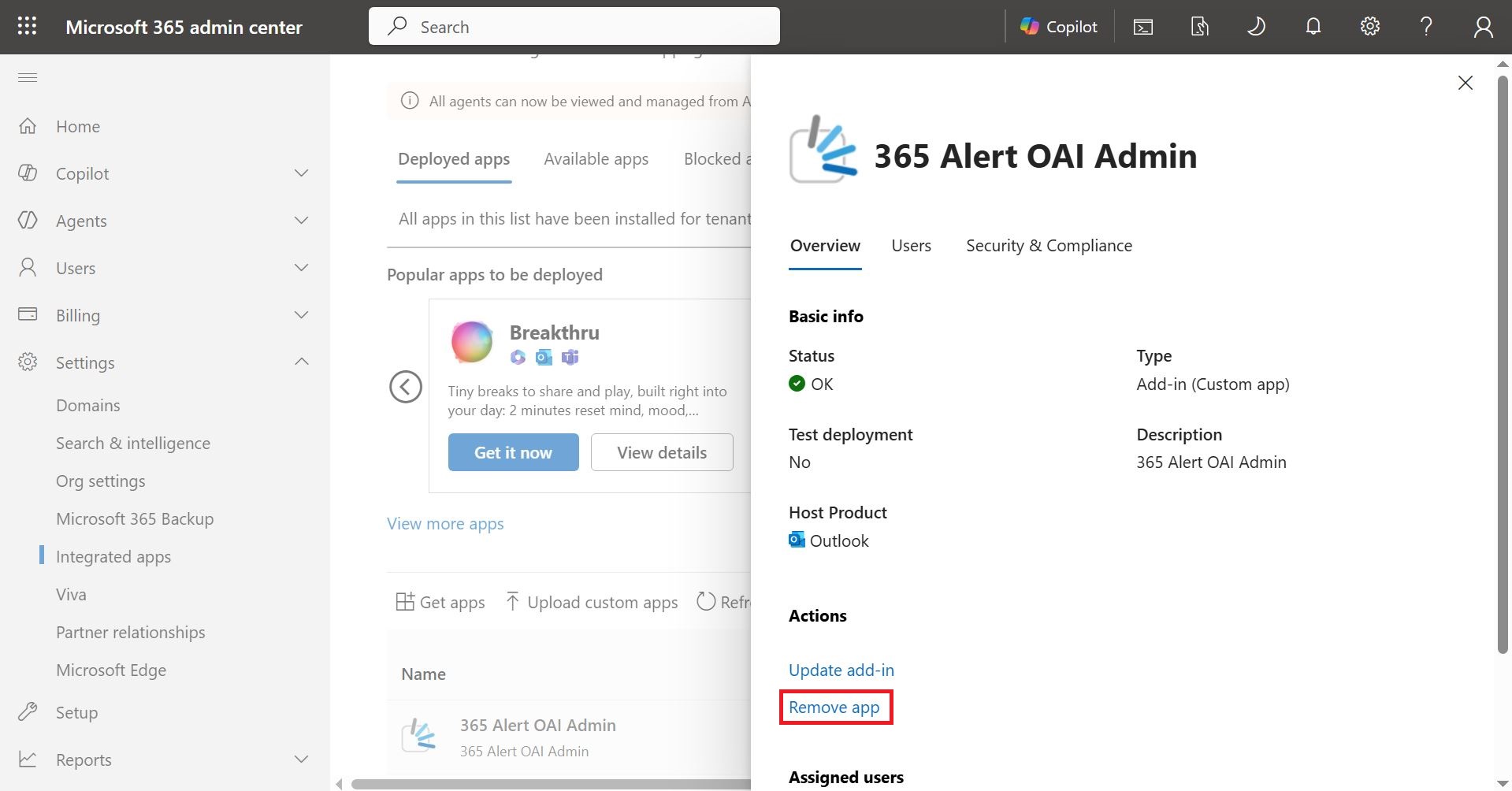
-
In the displayed screen, select
Yes, delete the app and the data associated with the app.and clickDelete.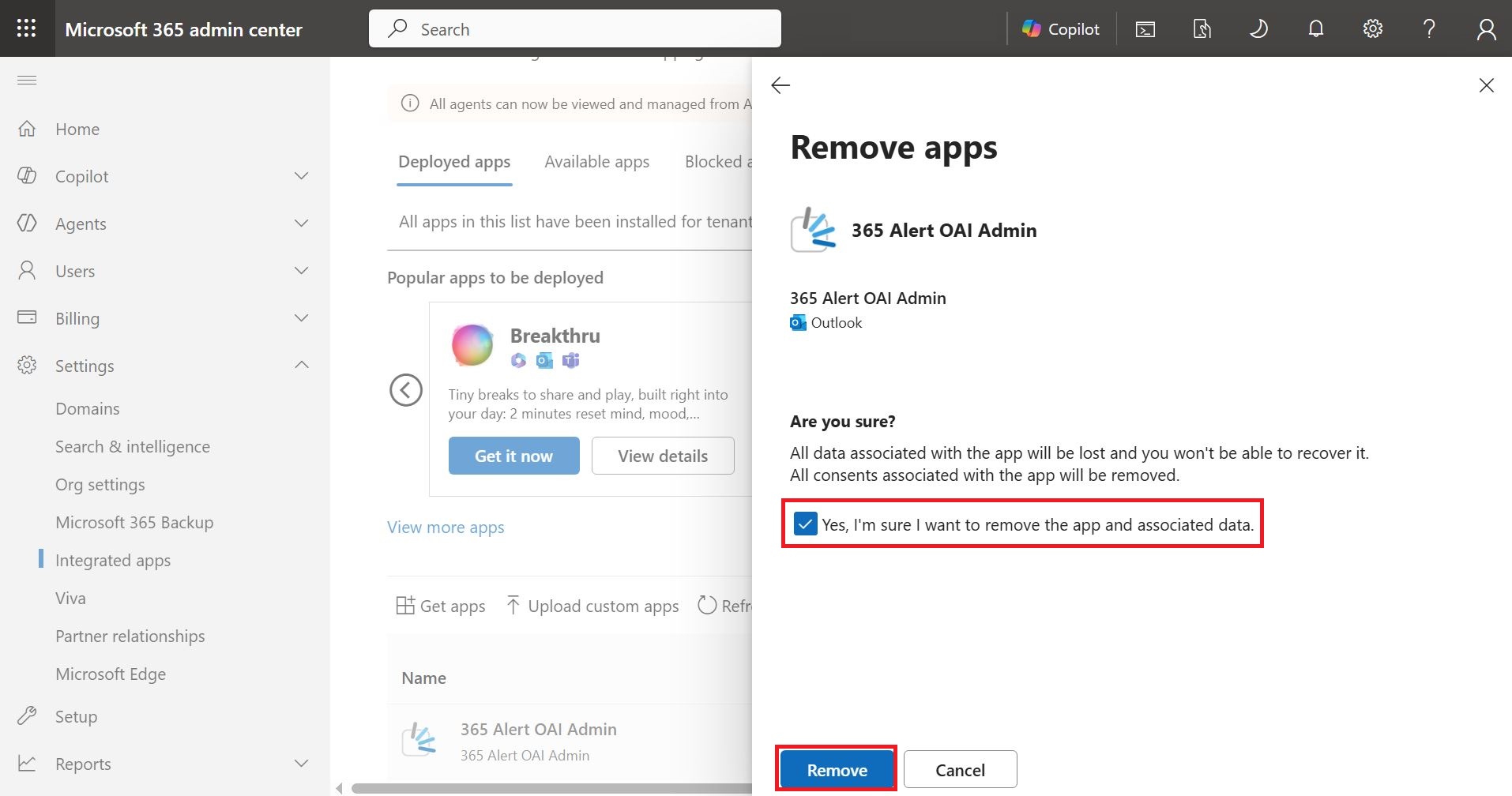
-
The following screen appears, so click
Finish.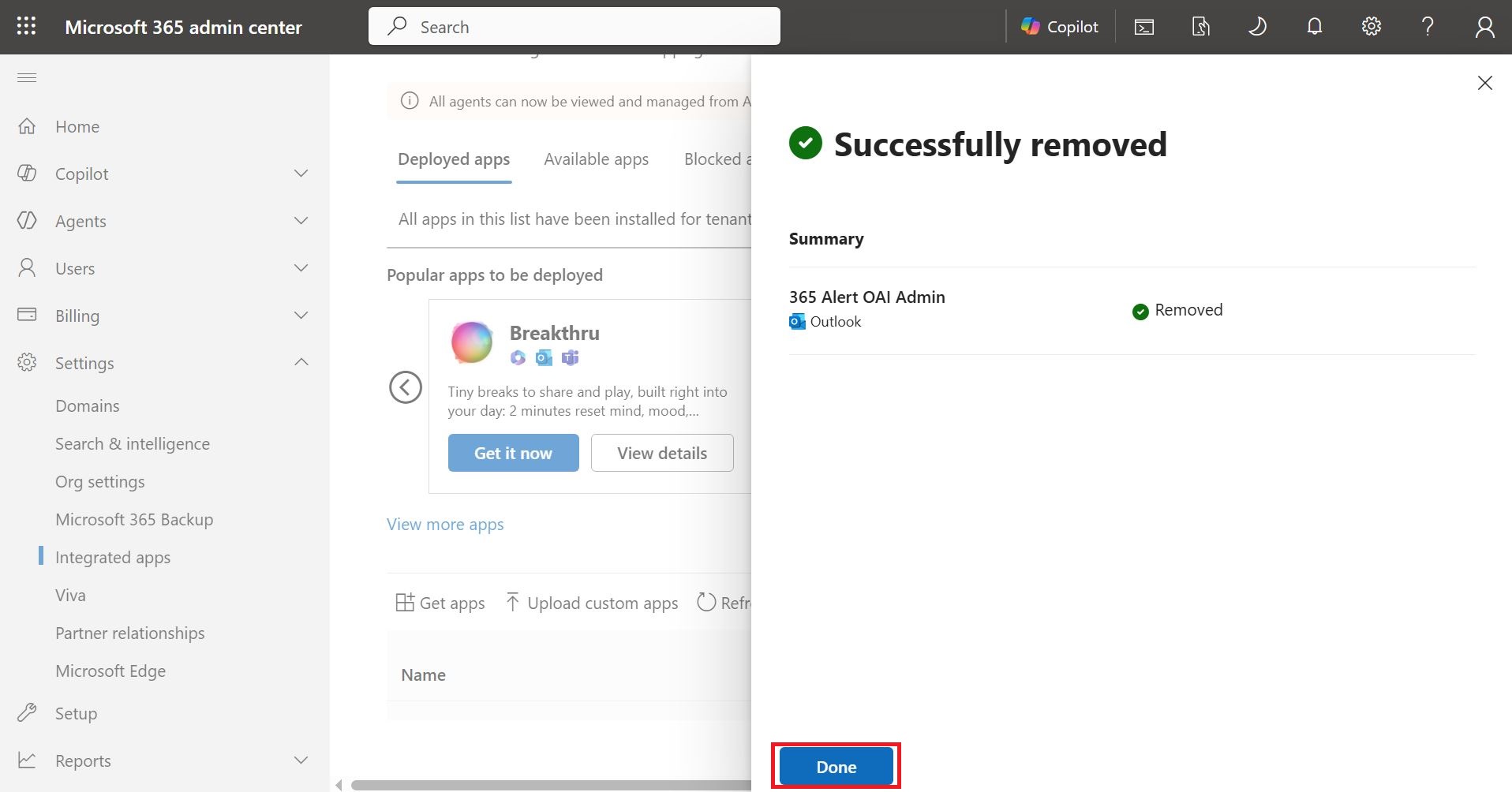 caution
It may take some time for the Admin Outlook Add-in to be removed from users in the organization.
This completes the Admin Outlook Add-in removal procedure.