Admin Outlook Add-in Setup (Self-Install)
Admin Outlook Add-in Installation Procedure
This section describes the procedure for individually installing the Admin Outlook Add-in.
If the Admin Outlook Add-in has already been deployed in bulk with Deployment method set to Fixed or Optional, installation is not required. Installation is required in the following cases.
※ For the bulk deployment procedure for the Admin Outlook Add-in, refer to here.
- If the Admin Outlook Add-in was deployed in bulk with Deployment method set to
Available
Install it by referring to "When Individually Installing a Bulk-Deployed Admin Outlook Add-in". - If the Admin Outlook Add-in is not deployed in bulk
Install it by referring to "When Adding the Admin Outlook Add-in Individually".
When Individually Installing a Bulk-Deployed Admin Outlook Add-in
This section describes the procedure for individually installing a bulk-deployed Admin Outlook Add-in.
-
Open the Outlook add-in dialog from the following URL.
https://aka.ms/olksideload
※ If you are prompted to sign in to Outlook, sign in with the account that will use the Admin Outlook Add-in. -
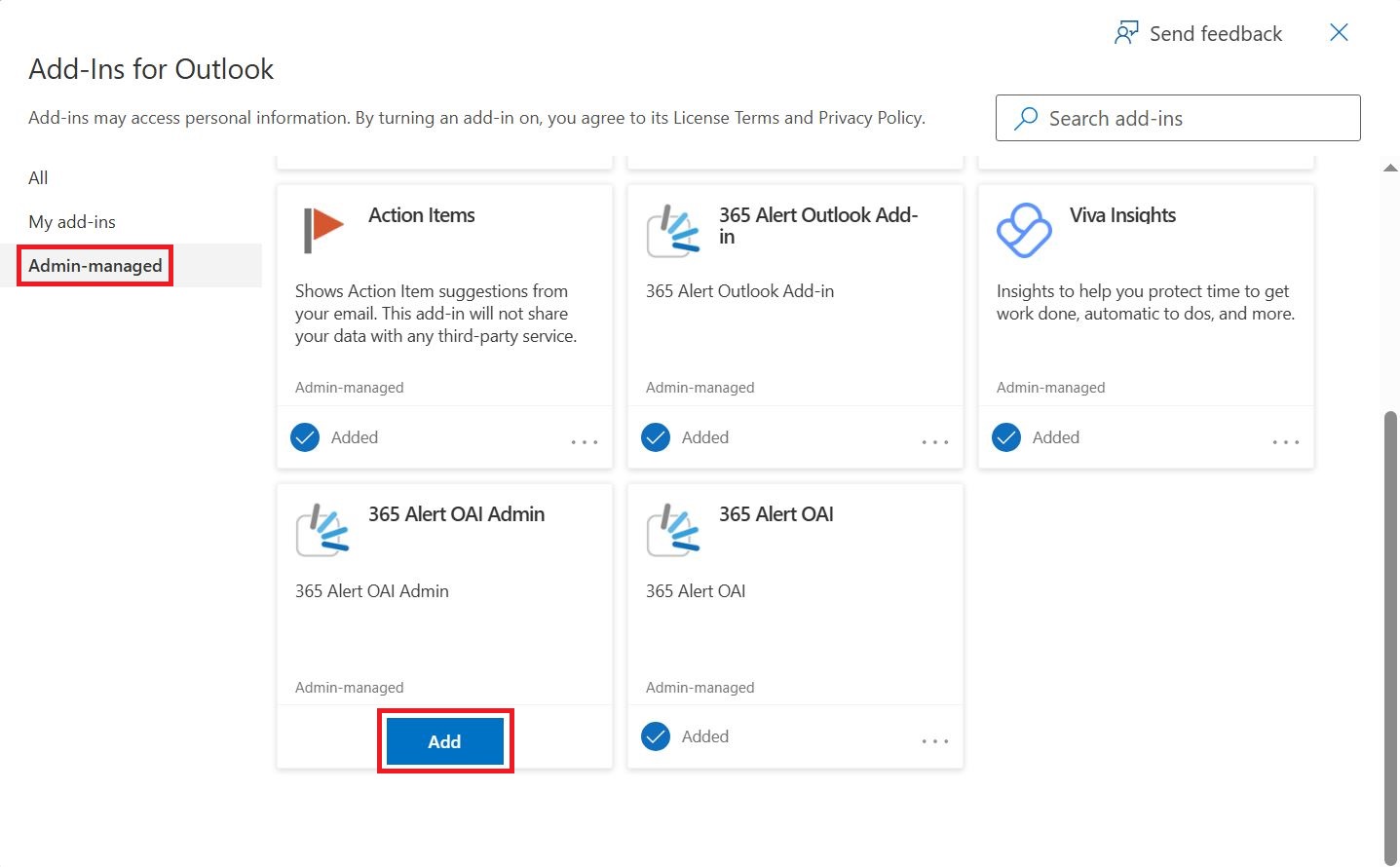
On the following screen, click Admin managed and click the Add button for 365 Alert OAI Admin.
-
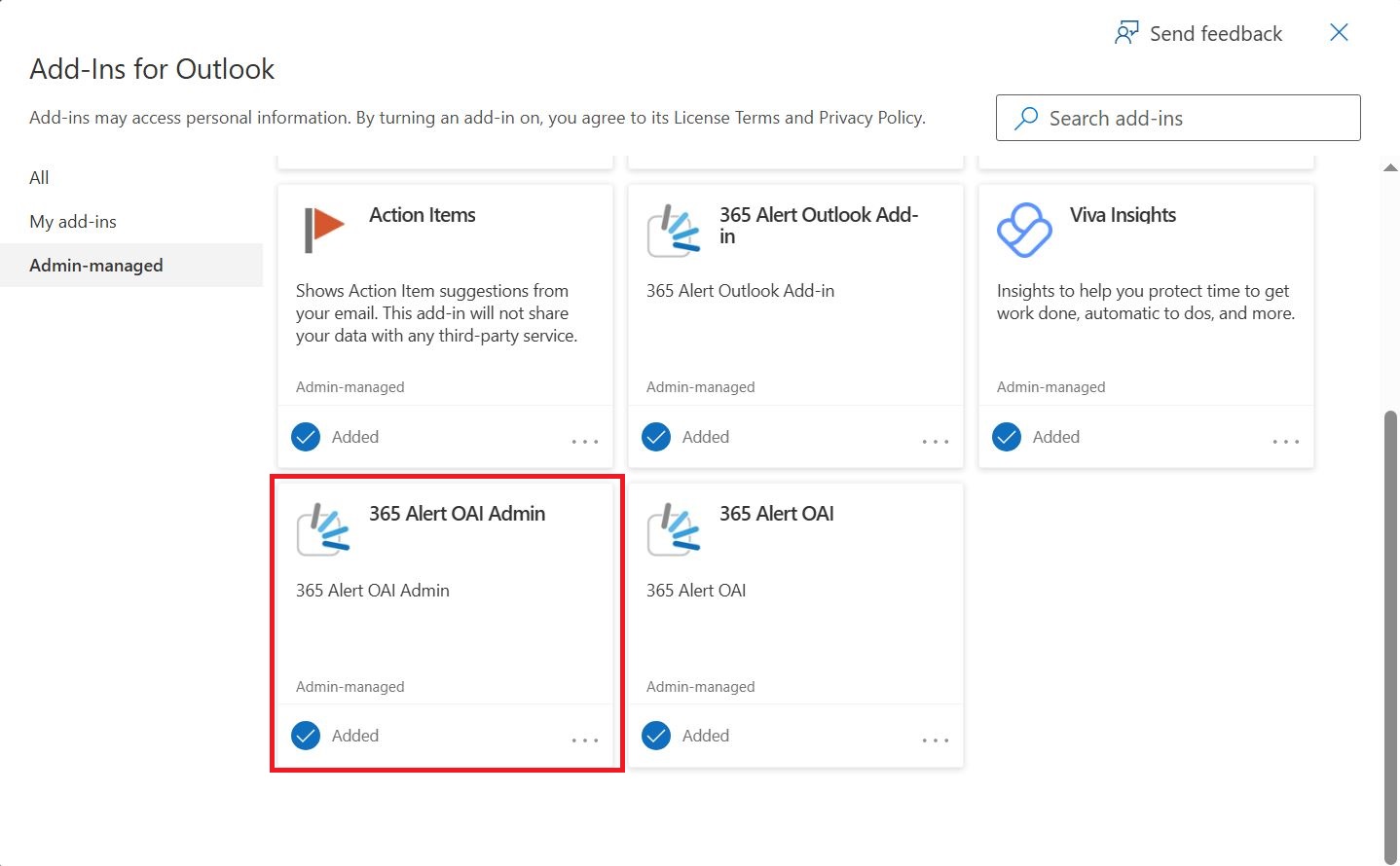
The following screen appears.
When Adding the Admin Outlook Add-in Individually
This section describes the procedure for individually installing the Admin Outlook Add-in.
-
Open the Outlook add-in dialog from the following URL.
https://aka.ms/olksideload
※ If you are prompted to sign in to Outlook, sign in with the account that will use the Admin Outlook Add-in. -
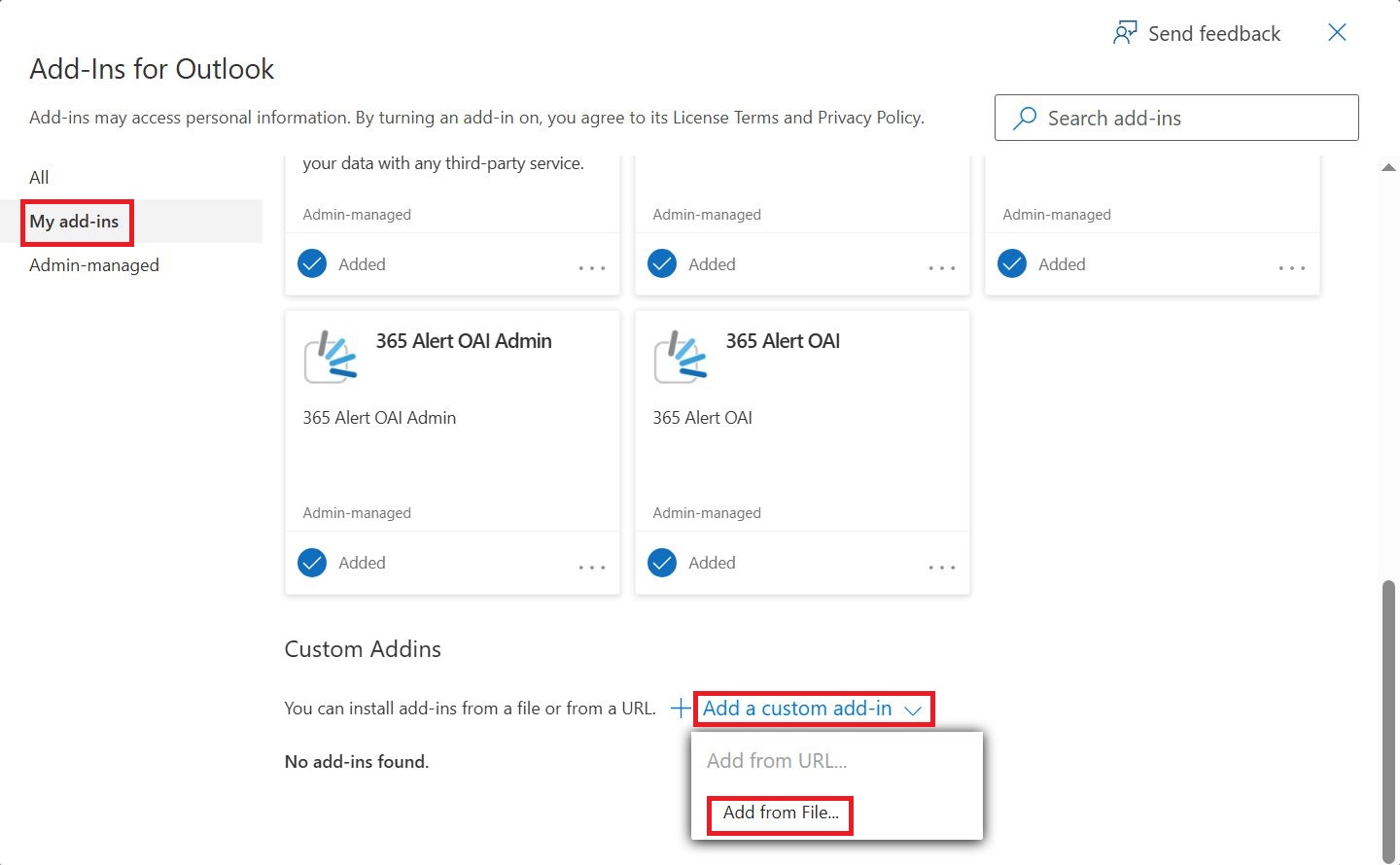
On the following screen, click My add-ins, then click Add a custom add-in > Add from file....
-
Select the Admin Outlook Add-in manifest file and click Open.
cautionThe Admin Outlook Add-in manifest file can be downloaded from the support site.
-
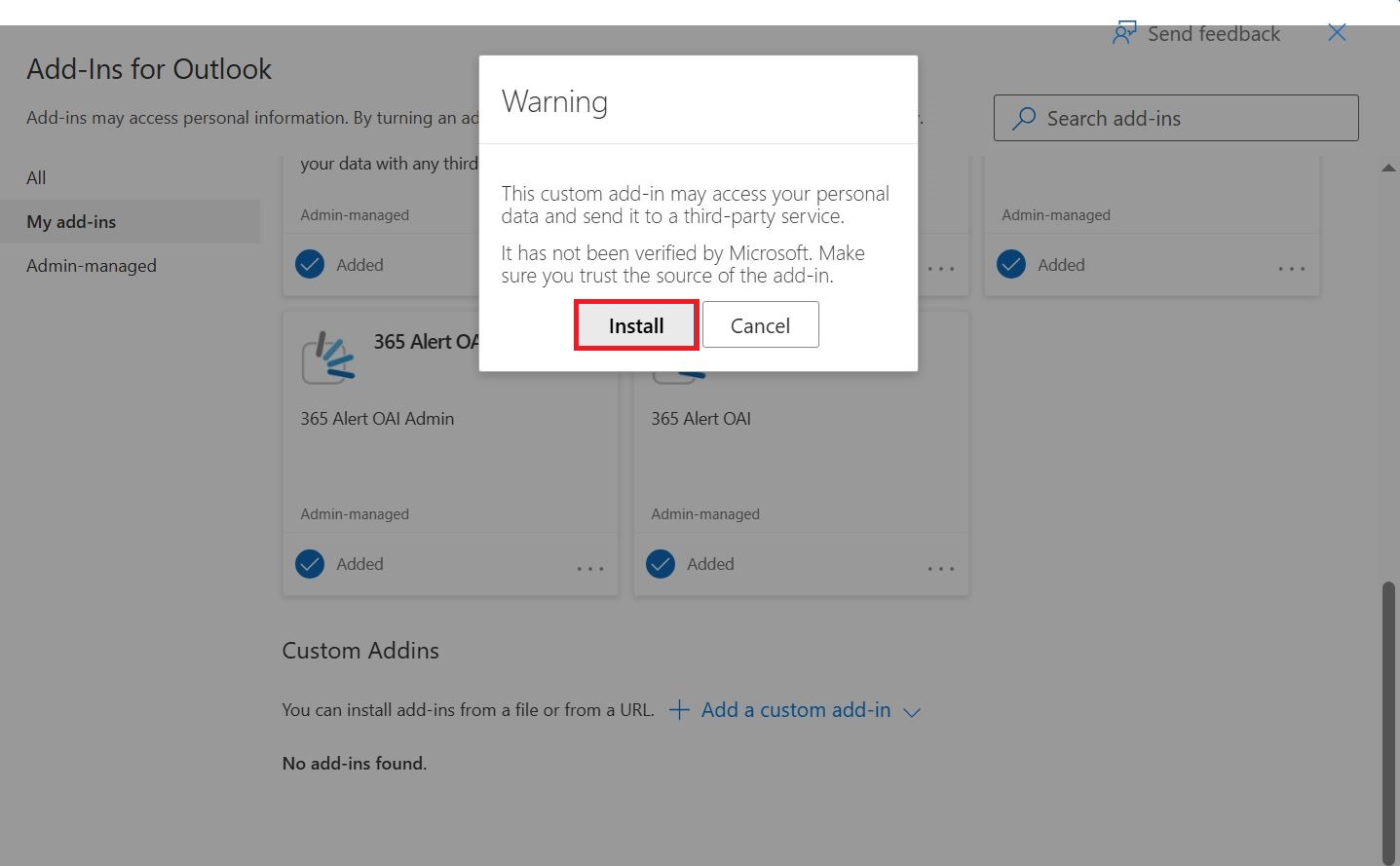
On the following screen, click Install.
-
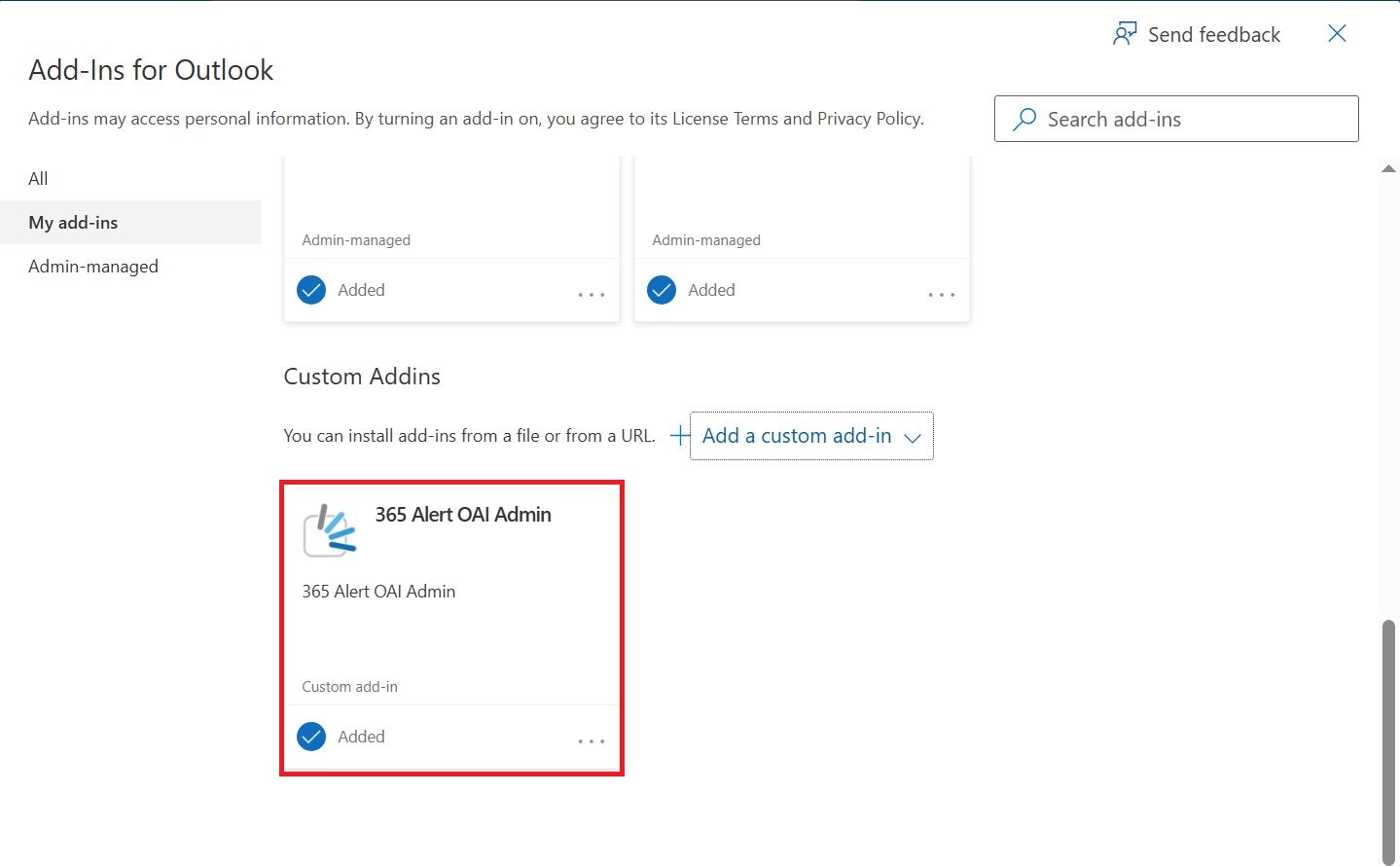
The following screen appears.
Admin Outlook Add-in Update Procedure
This section describes the procedure for updating the Admin Outlook Add-in.
-
Remove the Admin Outlook Add-in by referring to Admin Outlook Add-in Removal Procedure.
-
Install the Admin Outlook Add-in by referring to Admin Outlook Add-in Installation Procedure.
Admin Outlook Add-in Removal Procedure
This section describes the procedure for removing the Admin Outlook Add-in.
Depending on the Microsoft 365 tenant administrator's settings, users may not be able to remove the Admin Outlook Add-in. If you want to remove it, consult your organization's tenant administrator.
-
Open the Outlook add-in dialog from the following URL.
https://aka.ms/olksideload
※ If you are prompted to sign in to Outlook, sign in with the account that uses the Admin Outlook Add-in. -
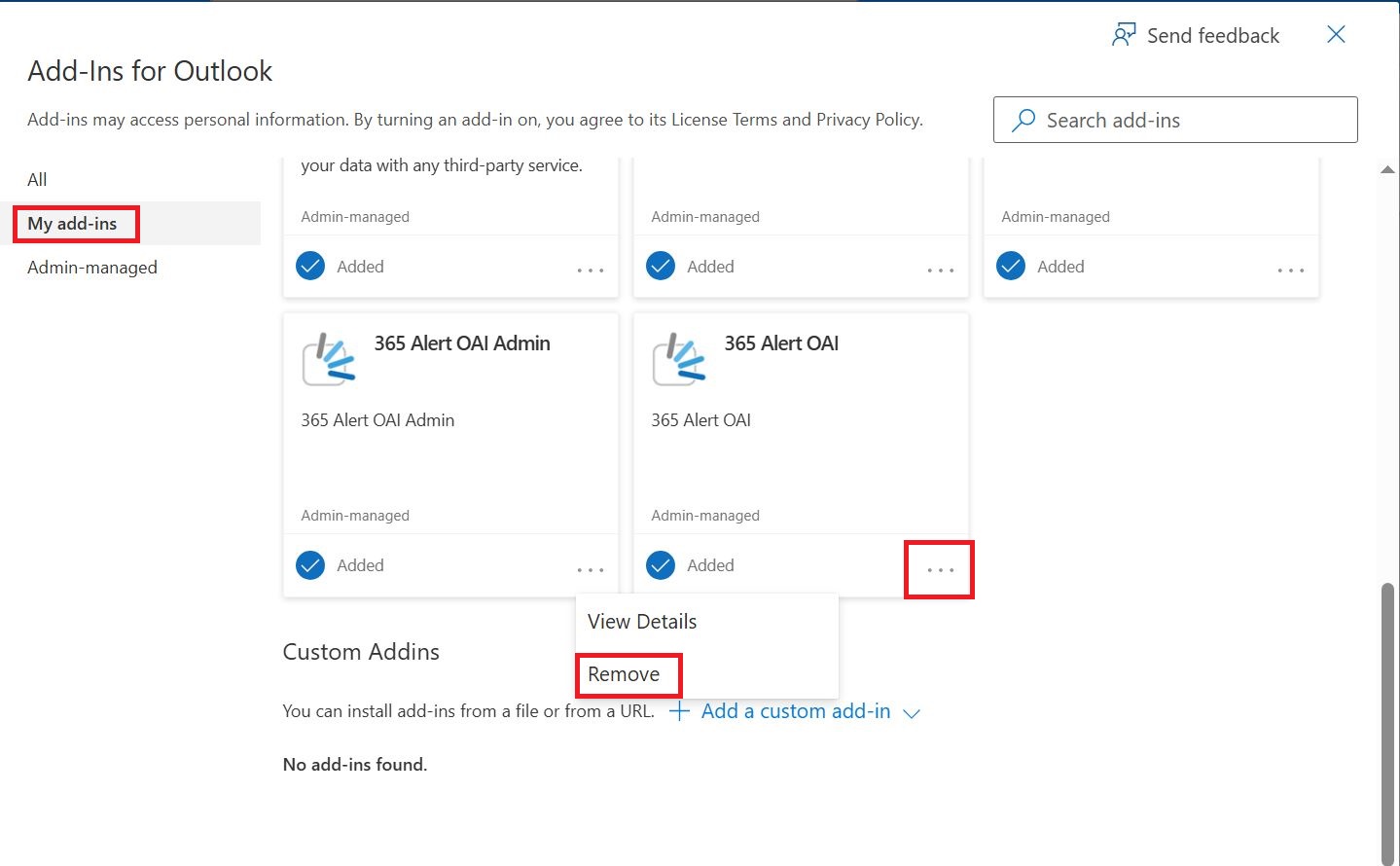
On the following screen, click My add-ins, then click ... > Remove for 365 Alert OAI Admin.
 note
noteIf you installed it individually, 365 Alert OAI Admin is displayed under Custom add-ins. Similarly, click Remove.
-
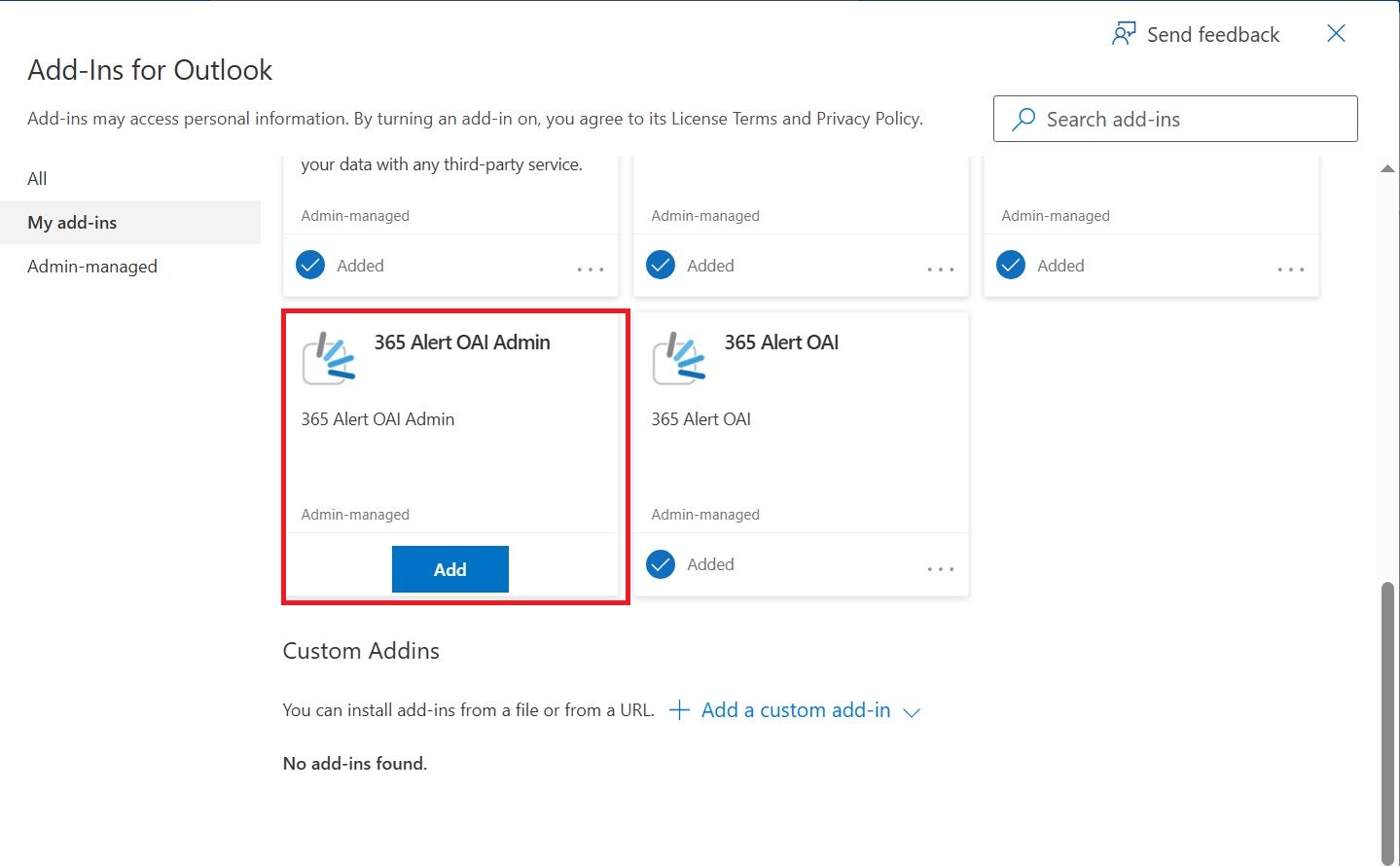
The following screen appears.
 note
noteIf you installed it individually, 365 Alert OAI Admin will no longer be displayed.