About the Home Screen
Overview
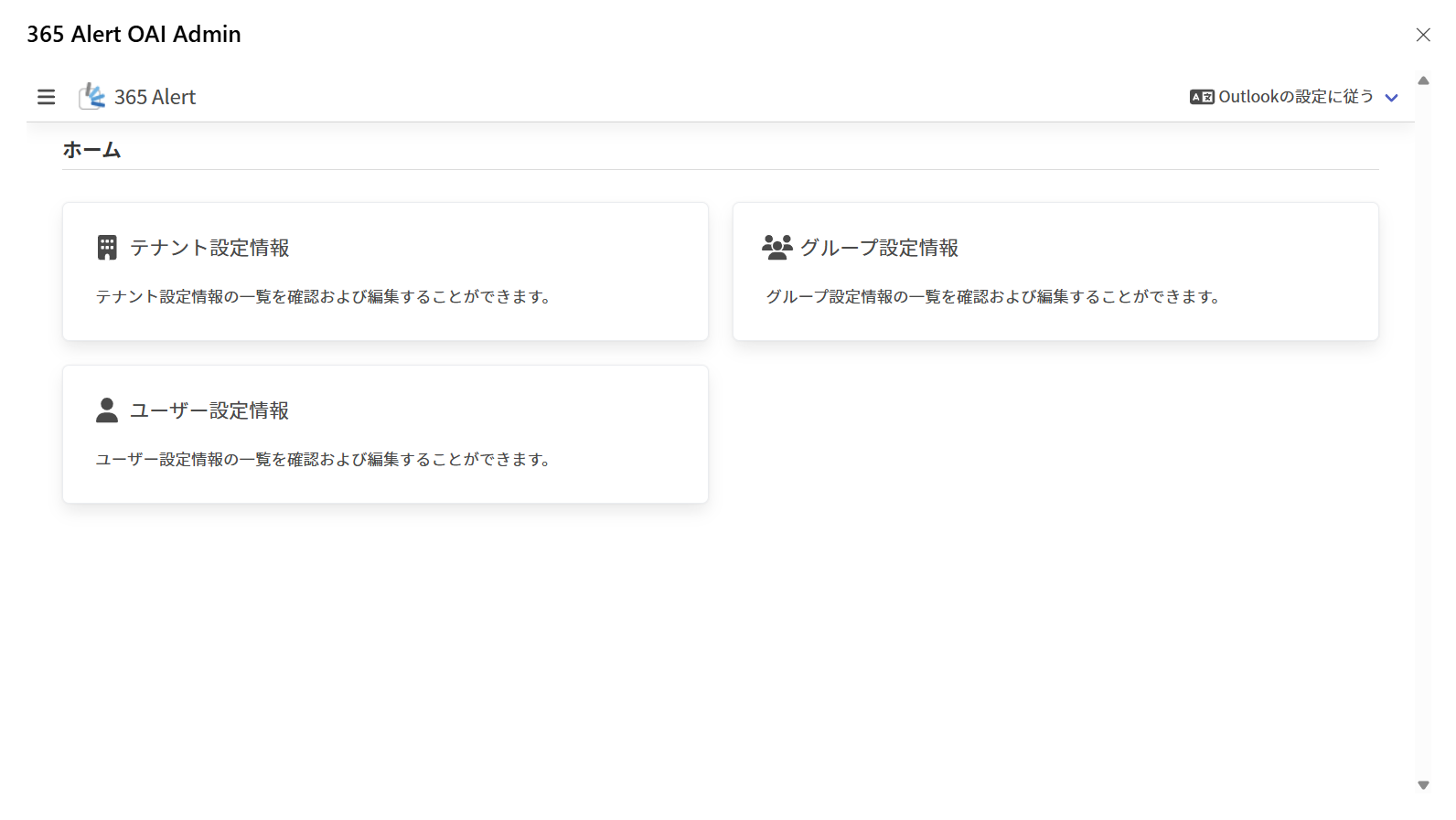
On the Home screen, links to the Tenant Settings List screen, the Group Settings List screen, and the User Settings List screen are displayed.
How to Access the Home Screen
In the Outlook Add-in Settings Menu, click Settings > Open Settings Screen.
Home Screen
Common Header Items
These are header items common to all screens.
| Item | Overview |
|---|---|
| Clicking this displays the menu. The menu shows links to the Tenant Settings List screen, the Group Settings List screen, and the User Settings List screen. 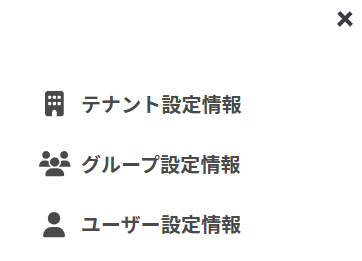 | |
| Icon | Clicking this displays the Home screen. |
| Language Settings | Selects the display language for the Outlook Add-in. You can select from the following five options.Follow Outlook settingsJapaneseEnglishChinese (Simplified)Chinese (Traditional)※ If you select Follow Outlook settings, it becomes Japanese when Outlook's language setting is Japanese, and English otherwise. |
Home Screen Items
| Item | Overview |
|---|---|
| Tenant Settings | A link to the Tenant Settings List screen. For details on the Tenant Settings List screen, refer to here. |
| Group Settings | A link to the Group Settings List screen. For details on the Group Settings List screen, refer to here. |
| User Settings | A link to the User Settings List screen. For details on the User Settings List screen, refer to here. |