About the Tenant Settings List Screen
Overview
In the Tenant Settings list, you can view the list of Tenant Settings and add, update, delete, and import Tenant Settings.
How to Access the Tenant Settings List Screen
Click the Tenant Settings link on the Home screen or in the common header.
Tenant Settings List Screen

Items in the Tenant Settings List
| Item | Description |
|---|---|
| Name | Specify a name to identify the Tenant Settings within 256 characters. The name must be unique among Tenant Settings. Clicking the name displays the Tenant Settings screen for that Tenant Settings. |
| Operation () | Performs the update operation for that Tenant Settings. |
| Operation () | Performs the delete operation for that Tenant Settings. |
Adding Tenant Settings
-
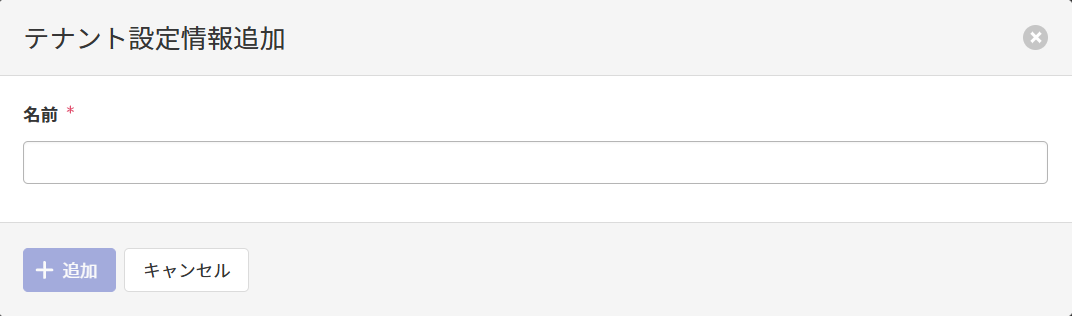
Clicking Add displays the Add Tenant Settings screen.
-
Referring to the Name item here, enter the Name and click Add.
Importing Tenant Settings
-
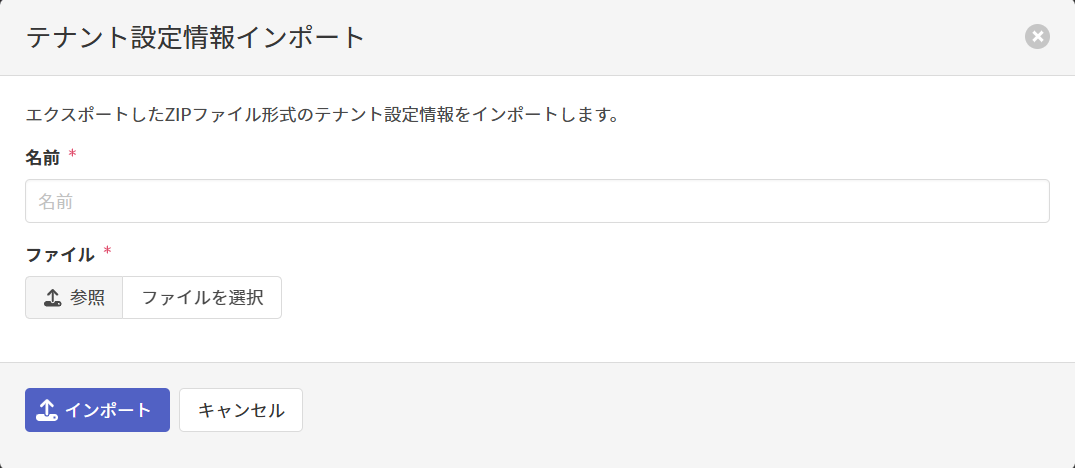
Clicking Import displays the Import Tenant Settings screen.
-
Referring to the Name item here, enter the Name, set the ZIP file exported here as the File, and click Import.
Updating Tenant Settings
-
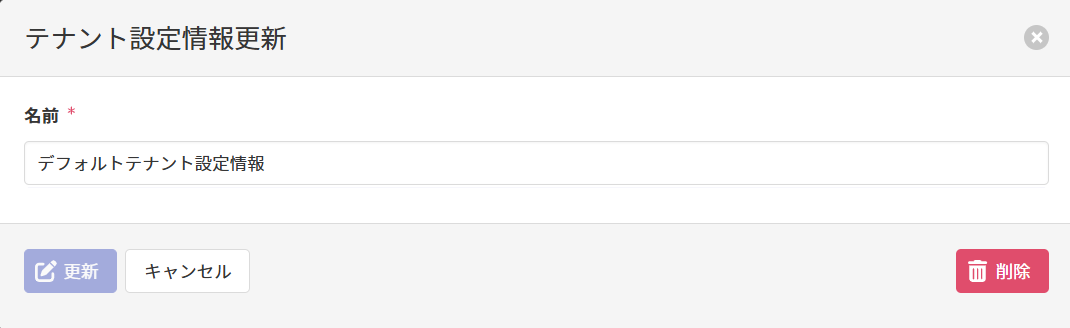
Clicking displays the Update Tenant Settings screen.
-
Referring to the Name item here, update the Name and click Update.
Deleting Tenant Settings
-
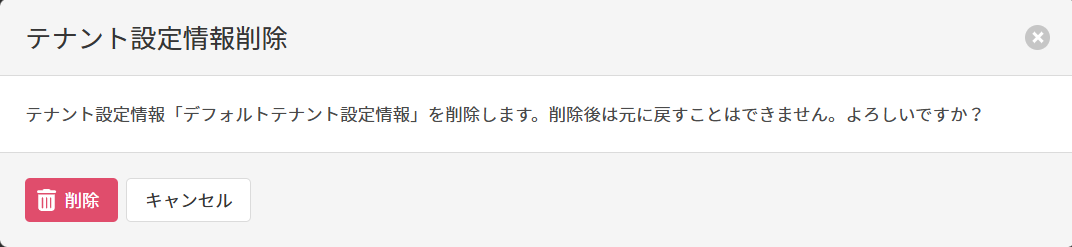
Clicking displays the Delete Tenant Settings screen.
-
Click Delete.