About the Tenant Settings Screen
Overview
On the Tenant Settings screen, you can view and update the settings information applied to all users belonging to the tenant.
How to Access the Tenant Settings Screen
In the Tenant Settings List screen, click the name of the target Tenant Settings.
Tenant Settings Screen
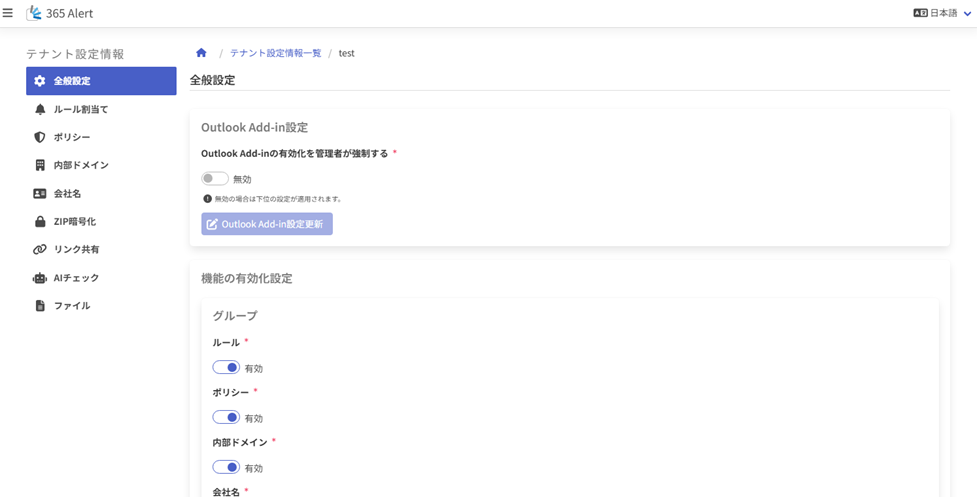
Screen List
| Screen | Overview |
|---|---|
| General Settings | You can view and update the settings applied to all users belonging to the tenant. For a detailed description of the General Settings screen, refer to here. |
| Rule Assignment | You can view, add, update, and delete the rules applied to all users belonging to the tenant. For a detailed description of the Rule Assignment screen, refer to here. |
| Policy | You can view, add, update, and delete the policies applied to all users belonging to the tenant. For a detailed description of the Policy screen, refer to here. |
| Internal Domain | You can view, add, update, and delete the internal domains and excluded addresses applied to all users belonging to the tenant. For a detailed description of the Internal Domain screen, refer to here. |
| Company Name | You can view, add, update, and delete the company names displayed to users. For a detailed description of the Company Name screen, refer to here. |
| ZIP Encryption | You can configure the password notification email template for ZIP encryption. For a detailed description of the ZIP Encryption screen, refer to here. |
| Link Sharing | You can configure link-sharing integration (SharePoint/Box) and delete shared files / unshare. For a detailed description of the Link Sharing screen, refer to here. |
| AI Check | You can view, add, update, and delete the AI Check basic settings and prompt configurations. For a detailed description of the AI Check screen, refer to here. |
| Files | You can export the Tenant Settings in ZIP file format. For a detailed description of the Files screen, refer to here. |