About the Link Sharing Screen
Overview
On the Link Sharing screen, you can configure settings for each integration destination (SharePoint/Box).
On the SharePoint tab, you can view, add, update, and delete site configurations; on the Box tab, you can configure the password notification email template.
How to Access the Link Sharing Screen
In each settings information screen (Tenant Settings / Group Settings / User Settings), click Link Sharing in the menu on the left of the screen.
SharePoint Tab
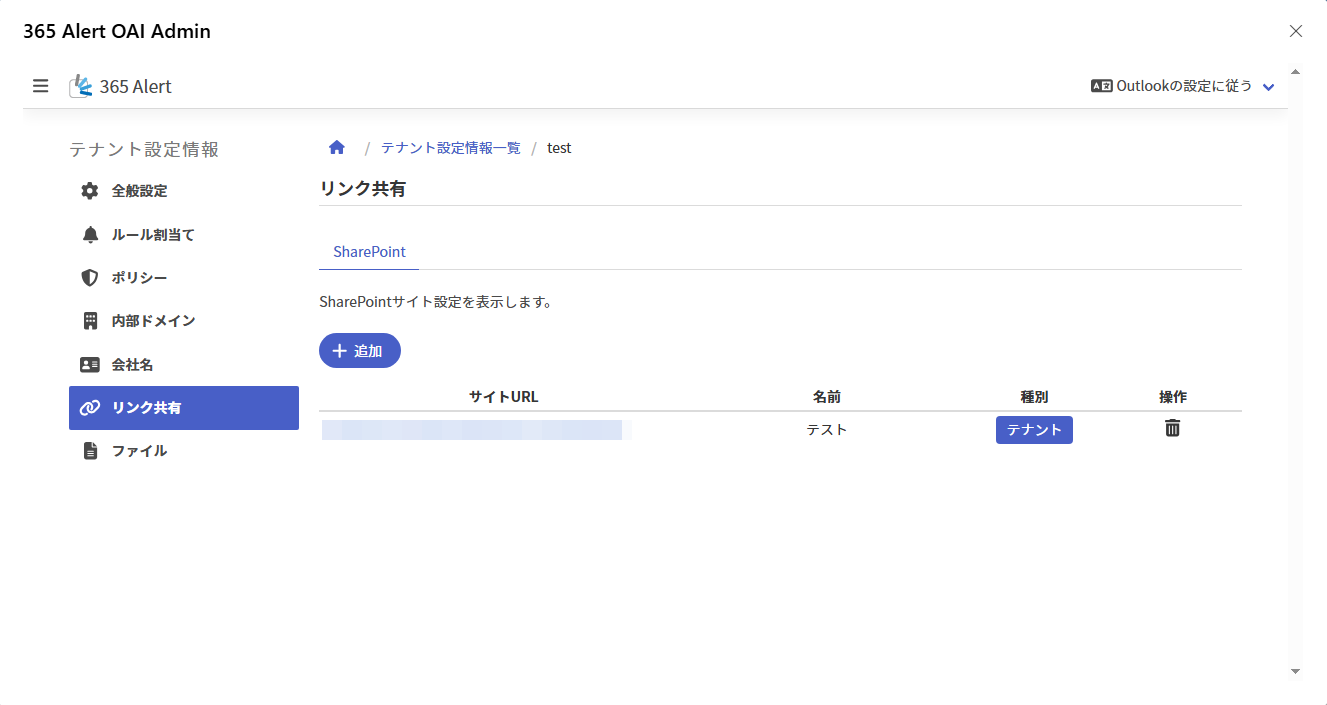
Items in the Site Configuration List
| Item | Description |
|---|---|
| Site URL | Refer to Site URL here. |
| Name | Refer to Site name here. |
| Type | Refer to Scope here. |
| Operation () | Performs the delete operation for that site configuration. ※ Not displayed when the Type of that site configuration is other than User. |
Adding a Site Configuration
Clicking Add displays the Add Site Configuration screen.
For details on the Add Site Configuration screen, refer to here.
Updating a Site Configuration
Clicking a site URL in the site configuration list displays the Site Configuration Update screen for that site configuration.
For details on the Site Configuration Update screen, refer to here.
Deleting a Site Configuration
Clicking in the Operation column of the site configuration list deletes that site configuration.
Box Tab
On the Box tab, you can configure the email template (subject, body) used to notify passwords in Box link sharing, per language.
The template configured here is used when sharing with "Anyone with the link" in the Box link-sharing action and a password is required to access the shared link.
The password notification email is not sent automatically, so review the content and send it if there are no issues.
When sending a meeting request email in the new Outlook or Outlook on the web, the password notification email window is not displayed and is saved to the Drafts folder.
Open the Drafts folder, review the content of the relevant email, and send it.
In classic Outlook, when sending a meeting request email, if "Insert recipients into the password notification email" is ON, the email sender is also inserted into the recipients.
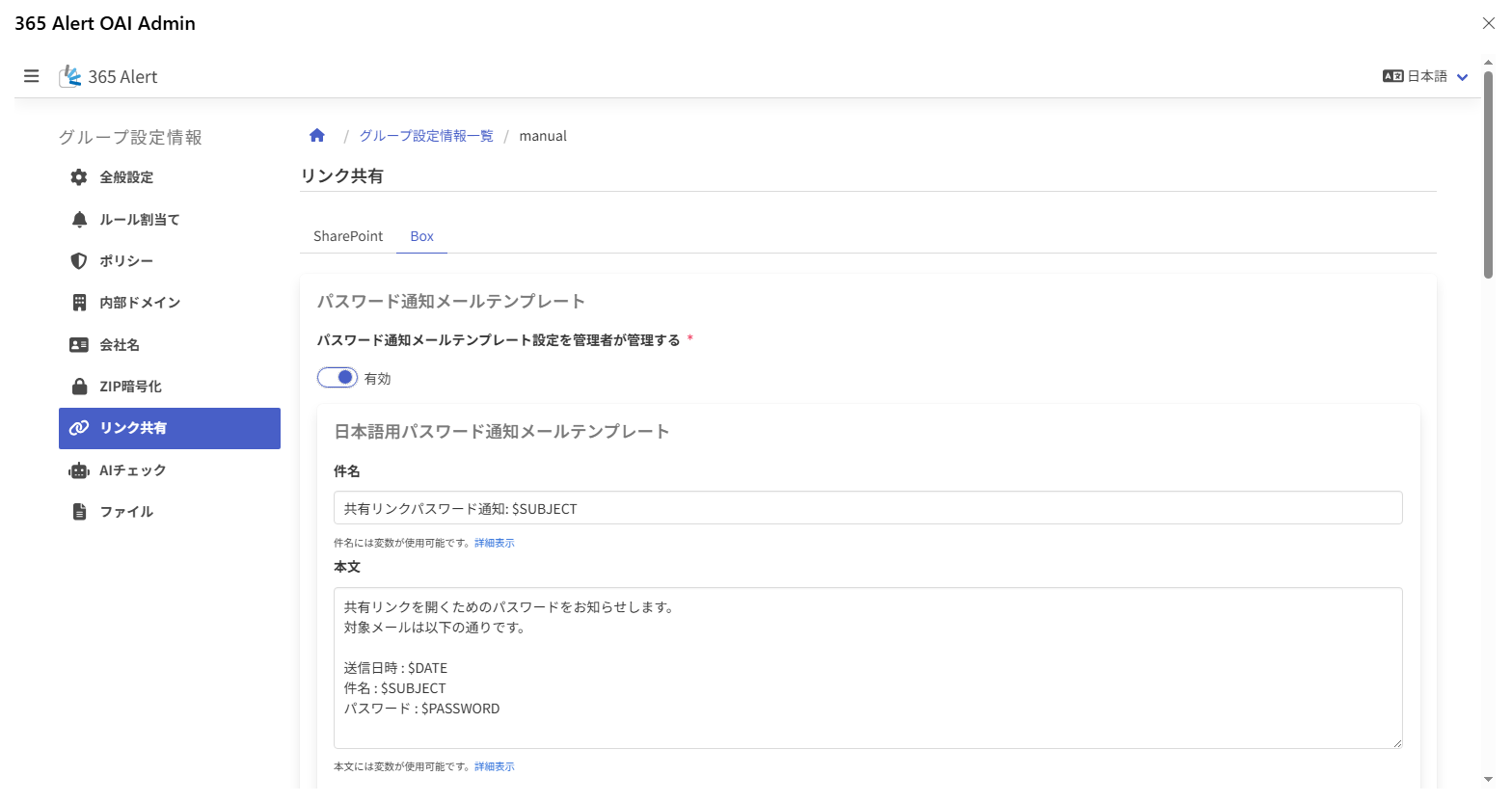
| Item | Description |
|---|---|
| Administrator manages the password notification email template settings | Enabled Prevents changing the settings in the User Outlook Add-in, and displays the template setting fields for each language.Disabled Allows changing the settings in the User Outlook Add-in, and hides the template setting fields for each language. |
| Subject | Sets the subject of the password notification email template for the relevant language. |
| Body | Sets the body of the password notification email template for the relevant language. |
The configurable languages are Japanese, English, Japanese + English, Chinese (Simplified), and Chinese (Traditional).
Variables can be used in the subject and body. Clicking View Details for each input field displays a list of available variables.
The following variables can be used in the subject and body.
| Variable name | Description |
|---|---|
| $SUBJECT | The email subject |
| $DATE | The email send date/time |
| $FROM | The email sender (email address) |
| $PASSWORD | The shared link password |
After changing the settings, click Update to save the settings.