About the General Settings Screen
Overview
On the General Settings screen, you can view and update the general settings.
There are two types of General Settings screen: one for Tenant Settings and one for Group Settings.
How to Access the General Settings Screen
-
Tenant Settings
In the Tenant Settings screen, click General Settings in the menu on the left of the screen. -
Group Settings
In the Group Settings screen, click General Settings in the menu on the left of the screen.
General Settings Screen
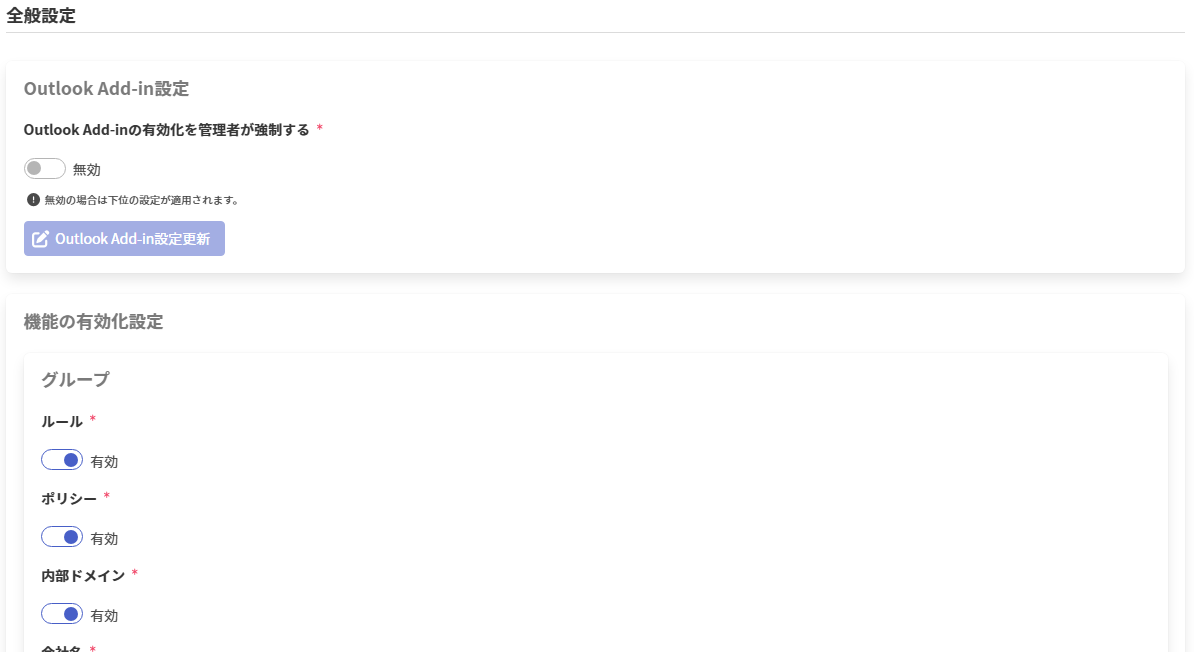
Updating the Outlook Add-in Settings
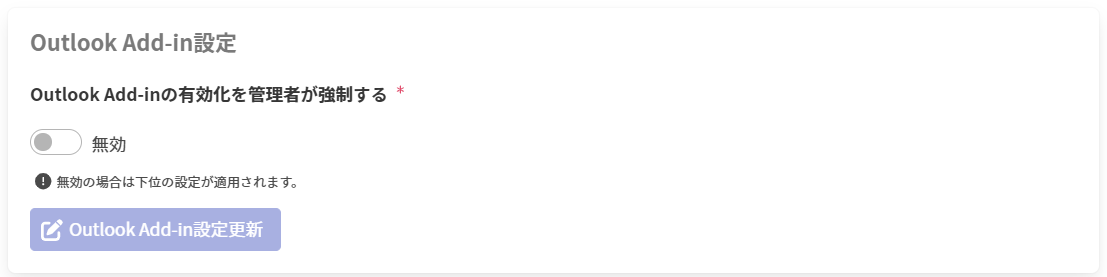
-
Enter the following items and click Update Outlook Add-in Settings to update the Outlook Add-in settings.
Item Description Administrator enforces the enablement of the Outlook Add-in EnabledUsers can no longer disable the Outlook Add-in.DisabledThe lower-level setting is applied. When both Tenant Settings and Group Settings areDisabled, users can disable the Outlook Add-in.
Updating the Feature Enablement Settings
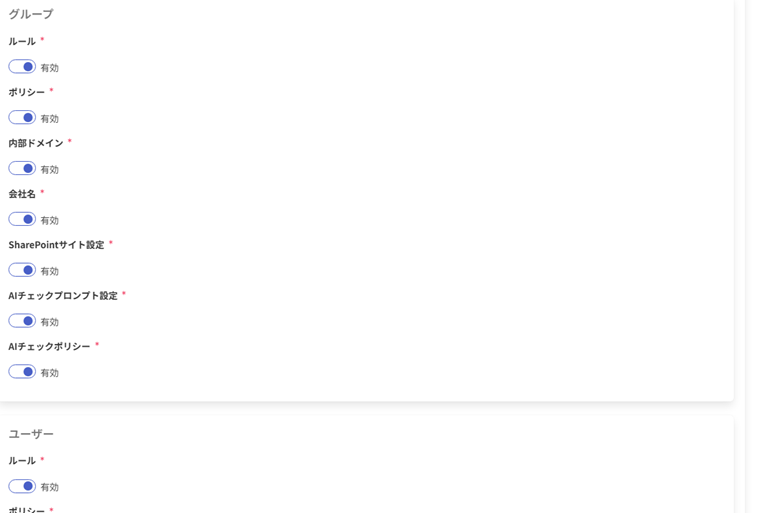
-
Enter the following items and click Update Feature Enablement Settings to update the feature enablement settings.
For Tenant Settings, you can configure the group and user settings; for Group Settings, you can configure the user settings.Item Description Rule EnabledThe rule feature is enabled.DisabledThe rule feature is disabled.Policy EnabledThe policy feature is enabled.DisabledThe policy feature is disabled.Internal Domain EnabledThe internal domain feature is enabled.DisabledThe internal domain feature is disabled.Company Name EnabledThe company name feature is enabled.DisabledThe company name feature is disabled.SharePoint site configuration EnabledThe SharePoint site configuration feature is enabled.DisabledThe SharePoint site configuration feature is disabled.AI Check prompt configuration EnabledApplies the lower-level type's AI Check prompt configurations to users.DisabledDoes not apply the lower-level type's AI Check prompt configurations to users.AI Check policy EnabledApplies policy settings whose policy action isAI Checkto users.DisabledDoes not apply policy settings whose policy action isAI Checkto users. Also, does not display the policy actionAI Checkin the Add Policy dialog of the User Outlook Add-in.
When you distribute a rule configured in Group Settings (type: Group), it is displayed (applied) in the rule list on the user add-in side.
On the other hand, when "Group" rules are disabled, even if you distribute a rule in Group Settings, it is not displayed (not applied) on the user add-in side.
When you do not want group-specific rules to be applied to users, disable "Group" rules.
When you distribute a rule configured in User Settings (type: User), it is displayed (applied) in the rule list on the user add-in side.
Also, users themselves can add rules.
On the other hand, when "User" rules are disabled, even if you distribute a rule in User Settings, it is not displayed (not applied) in the user add-in.
Also, users themselves cannot add rules.
Updating the Limit Values
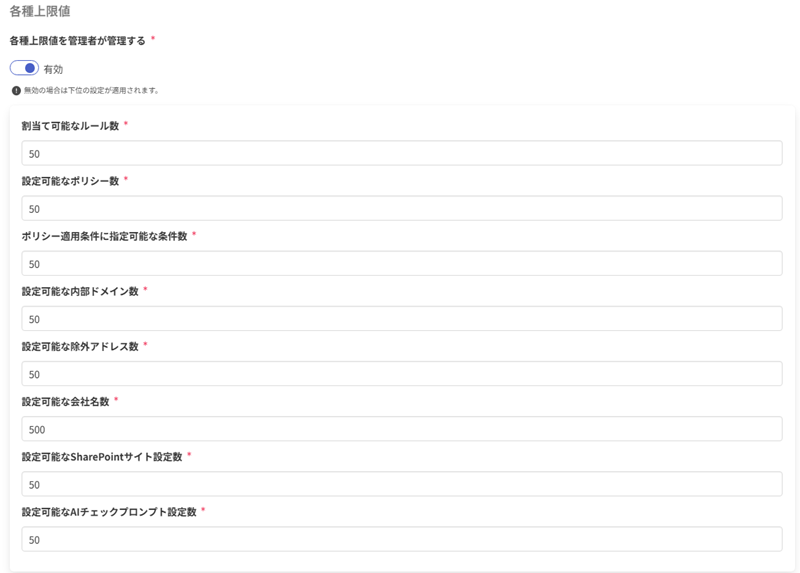
-
Enter the following items and click Update Limit Values to update the limit values.
Item Description Administrator manages the limit values EnabledSpecifies the upper limits of the various setting values that users can configure.DisabledThe lower-level setting is applied. When both Tenant Settings and Group Settings areDisabled, there is no limit.Number of assignable rules Specify the number of rules a user can assign, in the range 1-9999.
※ This item is hidden when Administrator manages the limit values isDisabled.Number of configurable policies Specify the number of policies a user can configure, in the range 1-9999.
※ This item is hidden when Administrator manages the limit values isDisabled.Number of conditions specifiable in a policy application condition Specify the number of conditions a user can specify in a policy application condition, in the range 1-9999.
※ This item is hidden when Administrator manages the limit values isDisabled.Number of configurable internal domains Specify the number of internal domains a user can configure, in the range 1-9999.
※ This item is hidden when Administrator manages the limit values isDisabled.Number of configurable excluded addresses Specify the number of excluded addresses a user can configure, in the range 1-9999.
※ This item is hidden when Administrator manages the limit values isDisabled.Number of configurable company names Specify the number of company names a user can configure, in the range 1-9999.
※ This item is hidden when Administrator manages the limit values isDisabled.Number of configurable SharePoint sites Specify the number of SharePoint sites a user can configure, in the range 1-9999.
※ This item is hidden when Administrator manages the limit values isDisabled.Number of configurable AI Check prompt configurations Specify the number of AI Check prompt configurations a user can configure, in the range 1-9999.
※ This item is hidden when Administrator manages the limit values isDisabled.