About Policies
Overview
A policy consists of conditions and actions; the action is executed for emails that match the conditions.
For example, execute Bulk BCC conversion (action) when any recipient address domain is an external domain (condition), and so on.
Policy Attributes
The list of policy attributes is as follows.
| Attribute | Description |
|---|---|
| Scope | Determines the range of users to which the policy applies. For the types of scope, refer to here. |
| Priority | Refer to here. |
| Name | The name of the policy. The name must be unique among policies with the same scope. |
| Description | The description of the policy. |
| Policy application condition | Refer to here. |
| Policy exclusion condition | Refer to here. |
| Action | Refer to here. |
| Action options | Refer to here. |
| Stop subsequent processing | Refer to here. |
| Status | The status of the policy. The following statuses exist.EnabledDisabled |
Policy Scope
The policy scope includes the following.
| Scope | Description |
|---|---|
| Tenant | A policy applied to all users belonging to the tenant. Created by the administrator. A policy whose scope is Tenant is called a Tenant policy. |
| Group | A policy applied to all users belonging to a group. Created by the administrator. A policy whose scope is Group is called a Group policy. |
| User | A policy applied to an individual user. A policy whose scope is User is called a User policy. |
Policy Priority
The priority among policies with different scopes is as follows.
Tenant policy > Group policy > User policy
The priority among policies with the same scope is set on the Policy screen.
Policy Application Condition
A policy application condition is a condition for determining whether to execute the action for an email.
A policy application condition consists of a condition made up of the following four items: Mail item, Mail item (option), Match method, and Value. You can also combine multiple conditions with and or or to form a condition group. Furthermore, you can combine multiple condition groups with and or or.

The values that can be specified for the items that make up a condition differ for each mail item. Refer to the table below.
| Mail item | Condition description |
|---|---|
| Sender address | Mail item (option) is not used. For Match method, specify one of Equals, Does not equal, Contains, or Does not contain.For Value, specify an email address. ※ Email address matching is not case-sensitive. |
| Any recipient address | For Mail item (option), specify the recipient type. Specify one of (To/Cc/Bcc), (To/Cc), (To/Cc/Bcc to internal domains), (To/Cc to internal domains), (To/Cc/Bcc to external domains), or (To/Cc to external domains).For Match method, specify one of Equals, Does not equal, Contains, or Does not contain.For Value, specify an email address or group name. ※ Email address matching is not case-sensitive. |
| All recipient addresses | For Mail item (option), specify the recipient type. Specify one of (To/Cc/Bcc), (To/Cc), (To/Cc/Bcc to internal domains), (To/Cc to internal domains), (To/Cc/Bcc to external domains), or (To/Cc to external domains).For Match method, specify one of Equals, Does not equal, Contains, or Does not contain.For Value, specify an email address or group name. ※ Email address matching is not case-sensitive. |
| Any recipient address domain | Mail item (option) is not used. For Match method, specify one of Equals, Does not equal, Contains, Does not contain, Starts with, Ends with, Internal domain, or External domain.For Value, specify a domain. However, it is not used when Match method is Internal domain or External domain.※ Domain matching is not case-sensitive. |
| All recipient address domains | Mail item (option) is not used. For Match method, specify one of Equals, Does not equal, Contains, Does not contain, Starts with, Ends with, Internal domain, or External domain.For Value, specify a domain. However, it is not used when Match method is Internal domain or External domain.※ Domain matching is not case-sensitive. |
| Recipient count | For Mail item (option), specify the recipient type. Specify one of (To/Cc/Bcc), (To/Cc), (To/Cc/Bcc to internal domains), (To/Cc to internal domains), (To/Cc/Bcc to external domains), or (To/Cc to external domains).For Match method, specify one of or more or or less.For Value, specify the recipient count of the specified type. |
| Subject | Mail item (option) is not used. For Match method, specify one of Contains, Does not contain, Is empty, Starts with, or Ends with.For Value, specify the string to match. However, it is not used when Match method is Is empty. |
| Body | Mail item (option) is not used. For Match method, specify one of Contains, Does not contain, Is empty, Contains inline images, or Does not contain inline images.For Value, specify the string to match. However, it is not used when Match method is Is empty, Contains inline images, or Does not contain inline images. |
| Attachment | Mail item (option) is not used. For Match method, specify one of Exists, Does not exist, Contains a ZIP-encrypted file, or Does not contain a ZIP-encrypted file.Value is not used. |
| Any attachment file name | Mail item (option) is not used. For Match method, specify one of Equals, Does not equal, Contains, Does not contain, Starts with, or Ends with.For Value, specify an attachment file name. ※ Attachment file name matching is not case-sensitive and does not distinguish half-width/full-width characters. |
| Any attachment file name (excluding extension) | Mail item (option) is not used. For Match method, specify one of Equals, Does not equal, Contains, Does not contain, Starts with, or Ends with.For Value, specify the part of the attachment file name excluding the extension. ※ Attachment file name matching is not case-sensitive and does not distinguish half-width/full-width characters. |
| Any attachment file name extension | Mail item (option) is not used. For Match method, specify one of Equals or Does not equal.For Value, specify an extension. ※ Extension matching is not case-sensitive and does not distinguish half-width/full-width characters. ※ When specifying an extension, do not include the leading ".(dot)". Example: xlsx |
| Attachment size (total) | Mail item (option) is not used. For Match method, specify one of or more or or less.For Value, specify the total attachment size in KiB. |
Policy Exclusion Condition
Specifies the conditions for excluding a policy that matched the policy application condition and became a target for application. The conditions that can be specified are the same as the policy application condition.
Action
Types of Actions
There are the following types of executable actions.
| Name | Description |
|---|---|
Immediate delivery | Delivers the email immediately. |
Send block | Blocks email sending. |
Send Alert display | Displays the Send Alert screen when sending an email. |
Rule skip | Skips the application processing of rules. |
Bulk BCC conversion | Converts the email addresses specified in To and Cc to Bcc in bulk. For the options that can be specified, refer to here. |
Manager CC | Automatically adds the manager address as a recipient when sending an email. For the options that can be specified, refer to here. |
Delayed Send | Holds email sending for the specified time when sending an email. The held email waits in the Drafts folder. For the options that can be specified, refer to here. The final email delivery processing is performed on the Exchange (mail server) side. Depending on the environment and circumstances, the actual send timing may vary from the specified wait time. |
ZIP Encryption | When sending an email with attachments, encrypts the attachments into a password-protected ZIP file. A password notification email can be created automatically as needed. For the options that can be specified, refer to here. For configuring the password notification email template, refer to ZIP Encryption. |
Link Sharing | When sending an email with attachments, automatically uploads the attachments to a cloud file storage destination. You can select SharePoint or Box as the integration destination.After the files are uploaded to the cloud, the files attached to the email are deleted. Also, the link-sharing URL is inserted into the email body or as an HTML attachment. In link-sharing processing, when the email's format is Rich Text, any inline images inserted into the body may be treated as empty attachments. In this case, a warning message indicating that link sharing cannot be executed is displayed and sending is canceled. For the options that can be specified, refer to here. To use this feature, configure the integration in advance by referring to Link Sharing. |
AI Check | Checks the email content with AI when sending an email, and prompts the user to recheck the content on the Send Alert screen depending on the judgment result. For the options that can be specified, refer to here. To use this feature, configure the basic settings and prompt configurations in advance by referring to AI Check. |
Action Options
The options that can be specified for each action are as follows.
Options for the Bulk BCC Conversion Action
The options that can be specified are as follows.
| Item | Description |
|---|---|
| Convert only external recipient addresses to BCC | If you want to convert only external recipient addresses to BCC, check the checkbox. |
| Insert the sender's address into To | If you want to insert the sender's address into To, check the checkbox. However, even if checked, the sender's address is not inserted if it is already in To or Cc after the bulk BCC conversion. |
| Allow choosing whether to convert to BCC at send time | If you want to allow choosing whether to convert to BCC at send time, check the checkbox. When checked, the following screen appears.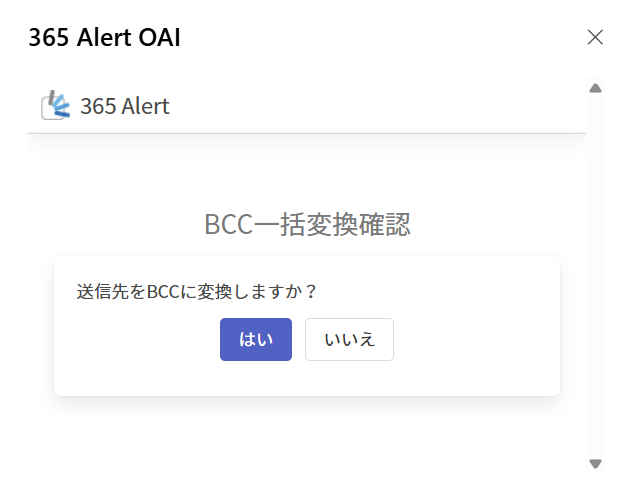 |
Options for the Manager CC Action
The options that can be specified are as follows.
| Item | Description |
|---|---|
| Recipient field for manager addresses | Specifies whether to add the manager address to Cc or Bcc. |
| Manager addresses to add automatically | Specifies whether to add only the topmost manager address among those in the manager address list, or all manager addresses in the list. When set to "Only the topmost email address", if none of the manager addresses are included in the recipient addresses, the topmost configured manager address is added to Cc or Bcc. When set to "All email addresses", if any manager address is not included in the recipient addresses, all missing manager addresses are added to Cc or Bcc. |
| Manager addresses | Specify one manager address per line. |
Options for the Delayed Send Action
The options that can be specified are as follows.
| Item | Description |
|---|---|
| Send wait time (minutes) | Specify the wait time from pressing the send button until sending actually occurs, in the range 1 to 99 minutes. |
Options for the ZIP Encryption Action
The options that can be specified are as follows.
| Item | Description |
|---|---|
| Allow choosing whether to encrypt attachments at send time | Enable this if you want to allow the user to choose whether to encrypt attachments at send time. |
| Automatically generate a password | Enable this to automatically generate the ZIP encryption password. |
| Number of characters for the auto-generated password | Specify the number of characters for the auto-generated password as one of 8 characters, 16 characters, or 32 characters.※ Specify this when Automatically generate a password is enabled. |
| Include symbol characters in the auto-generated password | If you want to include symbol characters in the auto-generated password, check the checkbox. ※ Specify this when Automatically generate a password is enabled. |
| Automatically create a password notification email | Enable this to automatically create an email that notifies the password. While using Outlook on the web, the password notification for "Link Sharing" or "ZIP Encryption" may not pop up and may remain in the Drafts folder. This is resolved by allowing pop-ups in the browser settings. The content of the notification email can be configured in the password notification email template of ZIP Encryption. |
| Insert recipients into the password notification email | If you want to insert recipients into the password notification email, check the checkbox. ※ Specify this when Automatically create a password notification email is enabled. |
| Language of the password notification email | Specify one of Specify at send time, Japanese, English, Japanese + English, Chinese (Simplified), or Chinese (Traditional).※ Specify this when Automatically create a password notification email is enabled. |
Options for the Link Sharing Action
The options that can be specified are as follows.
The options differ depending on the integration destination (SharePoint/Box).
| Item | Description | Integration |
|---|---|---|
| Integration platform | Specify the link-sharing integration platform as SharePoint or Box. | Common |
| Specify the upload destination at send time | If you want to specify the upload destination, sharing method, etc. at send time, check the checkbox. When checked, you specify the upload destination at send time. | Common |
| Upload destination site | Specify the upload destination site from Select site.Add the site configuration in advance by referring to Link Sharing. 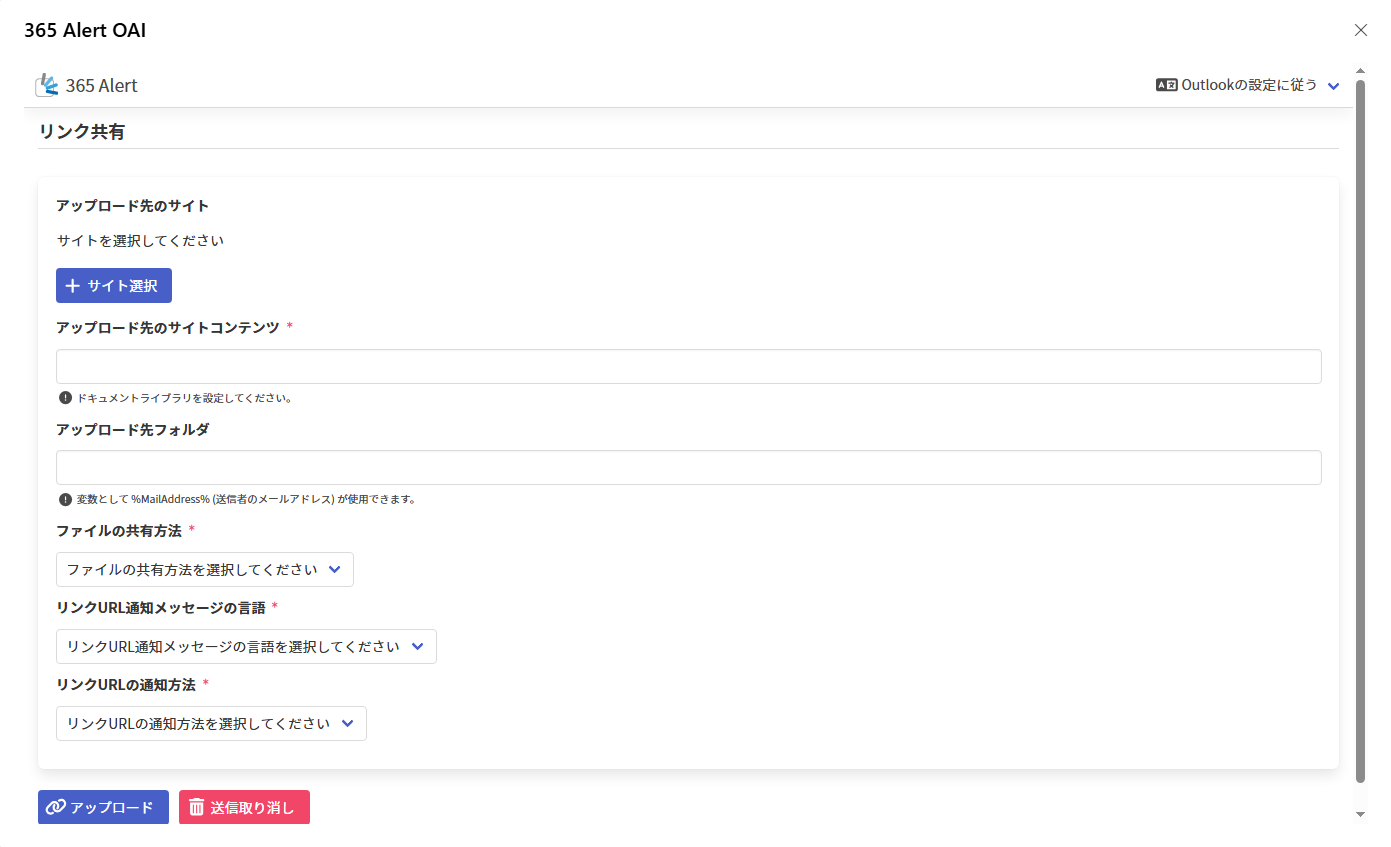 | SharePoint |
| Upload destination site content | Specify one of the document libraries (the default "Documents" and user-created document libraries) within the selected SharePoint site as the upload destination site content. Only content belonging to a document library can be specified. ※ Enter the document library name, not a URL or path (e.g., Documents). | SharePoint |
| Upload destination folder | Specify the name of the destination folder. You can use %MailAddress% (the sender's email address) as a variable. The folder path can be specified with / separators, but a leading / cannot be used.If the specified folder does not exist, it is created automatically. | Common |
| File sharing method | Specify one of Specify at send time, Share by folder, or Share by file. | Common |
| File sharing target | Specify one of Specify at send time, Only invited users, Company users, or Anyone with the link.Only invited users: The email recipients must sign in with a Box account to view the file. Also, when link sharing is executed, a sharing notification email is automatically sent from Box.Company users: Only when you have set up integration with a paid Box account, users with a Box account of the same email domain or users with a Box account of the same Box Enterprise ID can view the file. They must sign in with a Box account to view the file.Anyone with the link: Anyone who knows the shared link can view the file. They do not need to sign in with a Box account to view the file. | Box |
| Password required to access the shared link | If you want to require a password to access the shared link, check the checkbox. Only when you have set up integration with a paid Box account can you share with a password set for accessing the shared link. ※ Can be specified when File sharing target is Anyone with the link, etc. | Box |
| Automatically generate a password | Enable this to automatically generate the shared link password. | Box |
| Number of characters for the auto-generated password | Specify the number of characters for the auto-generated password as one of 8 characters, 16 characters, or 32 characters.※ Specify this when Automatically generate a password is enabled. | Box |
| Include symbol characters in the auto-generated password | If you want to include symbol characters in the auto-generated password, check the checkbox. ※ Specify this when Automatically generate a password is enabled. | Box |
| Automatically create a password notification email | Enable this to automatically create an email that notifies the password. While using Outlook on the web, the password notification for "Link Sharing" or "ZIP Encryption" may not pop up and may remain in the Drafts folder. This is resolved by allowing pop-ups in the browser settings. | Box |
| Insert recipients into the password notification email | If you want to insert recipients into the password notification email, check the checkbox. ※ Specify this when Automatically create a password notification email is enabled. | Box |
| Language of the password notification email | Specify one of Specify at send time, Japanese, English, Japanese + English, Chinese (Simplified), or Chinese (Traditional).※ Specify this when Automatically create a password notification email is enabled. | Box |
| Shared link validity period | Specify one of Specify at send time, Do not set a validity period for the shared link, or Set a validity period for the shared link.When setting a validity period, you can specify the default validity period (days). Only when you have set up integration with a paid Box account can you share with a validity period set for the shared link. | Box |
| Default validity period | Specify the default validity period (days) that is initially displayed on the Send Alert screen, between 0 and 99 days. If 0 days, the shared link can be accessed on the same day it is shared; if 1 day, it can be accessed until the day after it is shared. | Box |
| Language of the link URL notification message | Specify one of Specify at send time, Japanese, English, Japanese + English, Chinese (Simplified), or Chinese (Traditional). | Common |
| Link URL notification method | Specify one of Specify at send time, HTML attachment, Top of email body, or Bottom of email body. | Common |
Options for the AI Check Action
The options that can be specified are as follows.
| Item | Description |
|---|---|
| Prompt to run | Specify the prompt configuration to run in the AI Check from among the enabled prompt configurations already registered in AI Check. |
| Warning detection level | Specify the lower and upper bounds of the AI judgment level that requires confirmation based on the AI Check result, each in the range 1 to 10. When the AI judgment level is within this range, the user is prompted to recheck the content on the Send Alert screen. ※ Specify the lower bound at or below the upper bound, and the upper bound at or above the lower bound. |
Stop Subsequent Processing
"Stop subsequent processing" is an item that specifies whether to continue the application determination of policies with lower priority than the policy applied to an email.
| Item | Description |
|---|---|
| Enabled | Does not perform the application determination of policies with lower priority than that policy. |
| Disabled | Continues the application determination of policies with lower priority. |
For policies with the immediate delivery action and the send block action, stop subsequent processing is always Enabled.
Policies Applied to a User
The policies applied to a user are determined by the following procedure.
- Sort the
Tenant policies,Group policies, andUser policieslinked to the user whose status isEnabledin order of highest priority. - Perform the policy application condition determination starting from the highest-priority policy, and if it matches, apply that policy.
However, if a policy in conflicting policy actions has already been applied, that policy is not applied. - The determination in step 2 continues until the application determination of all policies is complete or until a policy with stop subsequent processing set to
Enabledis applied.
The Tenant policies, Group policies, and User policies linked to a user can be checked on the Policy screen of the User Outlook Add-in.
Policy Application Condition Determination
Whether to apply a policy to an email is determined by the following procedure.
- If a policy application condition is specified and does not match the policy application condition, it is judged as No match.
Otherwise, proceed to step 2. - If a policy exclusion condition is specified and matches the policy exclusion condition, it is judged as No match.
Otherwise, it is judged as Match.
| Policy application condition | Policy exclusion condition | Result |
|---|---|---|
| Match | Match | The policy is not applied. |
| Match | No match | The policy is applied. |
| No match | Match | The policy is not applied. |
| No match | No match | The policy is not applied. |
Conflicting Policy Actions
The conflicting policy actions are as follows.
| Policy action | Conflicting policy actions |
|---|---|
Immediate delivery | Send Alert displayAI CheckZIP EncryptionLink Sharing |
Send block | Send Alert displayBulk BCC conversionLink SharingManager CCDelayed SendZIP Encryption |
Send Alert display | Send Alert display |
Rule skip | Rule skip |
Bulk BCC conversion | Bulk BCC conversion |
ZIP Encryption | ZIP EncryptionLink Sharing |
Link Sharing | ZIP EncryptionLink Sharing |
AI Check | AI Check |
Manager CC | Manager CC |
Delayed Send | Delayed Send |