About the Policy Screen
Overview
On the Policy screen, you can view, add, update, and delete policies.
There are three types of Policy screen: one for Tenant Settings, one for Group Settings, and one for User Settings.
How to Access the Policy Screen
-
Tenant Settings
In the Tenant Settings screen, click Policy in the menu on the left of the screen. -
Group Settings
In the Group Settings screen, click Policy in the menu on the left of the screen. -
User Settings
In the User Settings screen, click Policy in the menu on the left of the screen.
Policy Screen
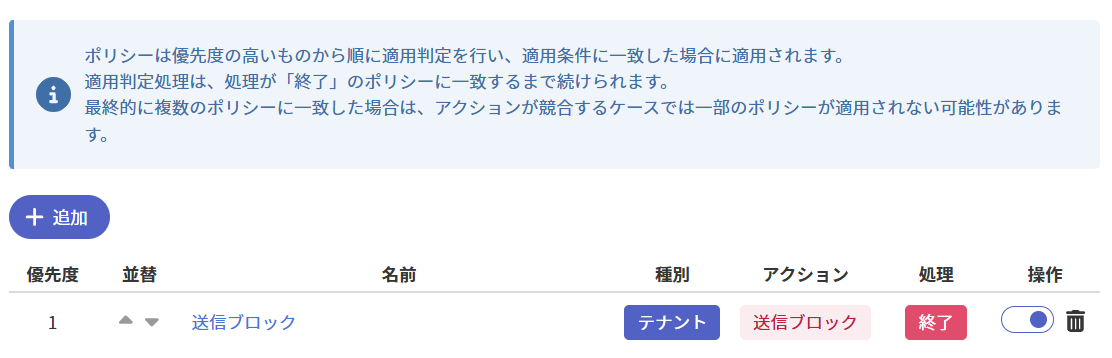
Adding a Policy
Clicking Add displays the Add Policy screen.
For details on the Add Policy screen, refer to here.
Items in the Policy List
| No | Item | Description |
|---|---|---|
| 1 | Priority | Refer to Priority here. |
| 2 | Reorder | Performs the priority change for that policy. |
| 3 | Name | Refer to Name here. |
| 4 | Type | Refer to Scope here. |
| 5 | Action | Refer to Action here. |
| 6 | Processing | Displayed as End when stop subsequent processing for that policy is Enabled, and Continue when Disabled. |
| 7 | Operation () | Performs the status change operation for that policy. |
| 8 | Operation () | Performs the delete operation for that policy. |
Changing a Policy's Priority
Clicking in the Reorder column raises that policy's priority by one, and clicking lowers that policy's priority by one.
Updating a Policy
Clicking a policy's name in the policy list displays the Policy Update screen for that policy.
For details on the Policy Update screen, refer to here.
Changing a Policy's Status
The meaning of the toggle buttons in the Operation column of the policy list is as follows.
| Toggle button | Description |
|---|---|
| Means that the policy is enabled. Clicking it disables the policy. | |
| Means that the policy is disabled. Clicking it enables the policy. |
Deleting a Policy
Clicking in the Operation column of the policy list deletes that policy.