Rule Settings
This section describes the operations available on the rule settings tab, which is accessible from the Rule Assignment screen.
Rule Settings Tab
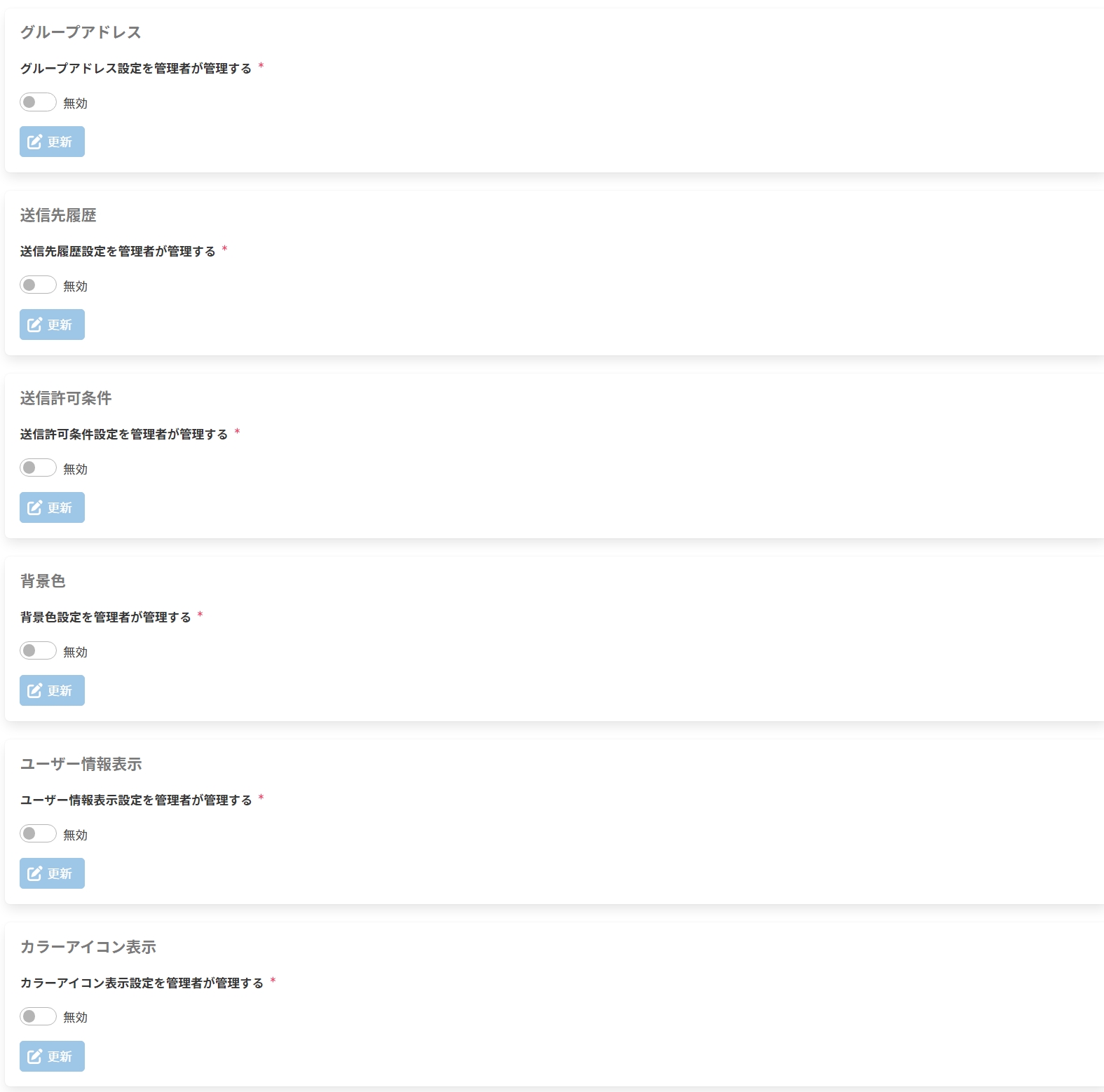
Updating Group Address Settings
-
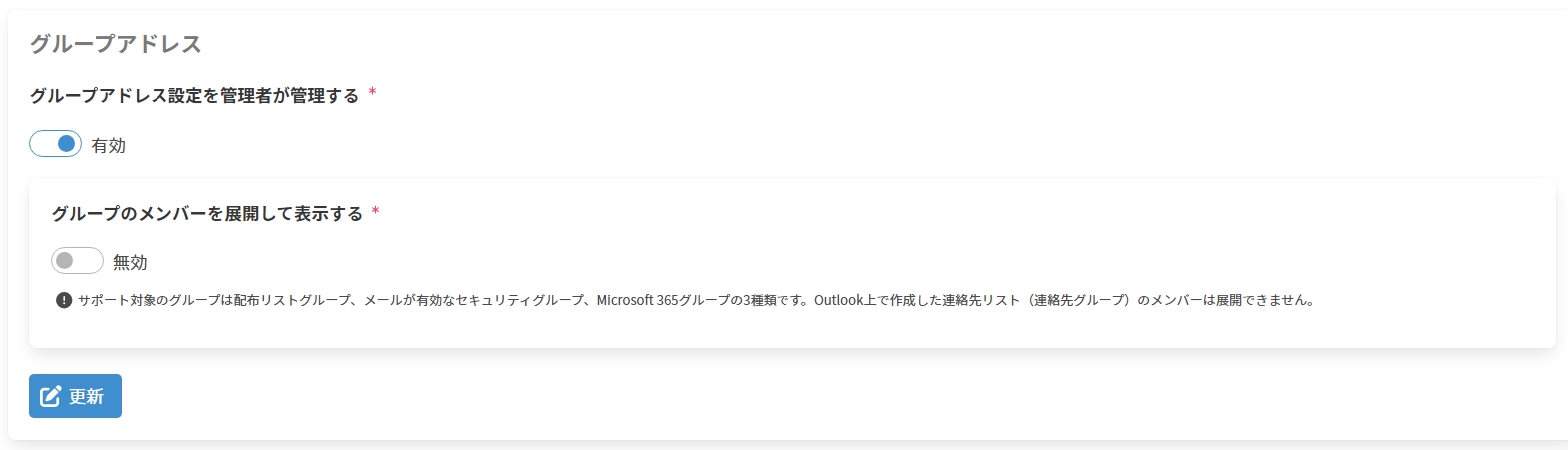
Enter the following items and click Update to update the group address settings.
Item Description Administrator manages the group address settings An item that can be configured only in a Tenant rule or Group rule. EnabledThe group address settings configured in the Tenant rule or Group rule take effect. They cannot be configured in lower-level rules.DisabledThe group address settings configured in a lower-level rule take effect.Expand and display group members EnabledGroup members can be expanded and reviewed on the Send Alert screen.DisabledGroup members cannot be expanded on the Send Alert screen.
※ This item is hidden when Administrator manages the group address settings isDisabledin the Tenant rule or Group rule.cautionThe supported group types are three: distribution list groups, mail-enabled security groups, and Microsoft 365 groups.
Members of contact lists (contact groups) created in Outlook cannot be expanded. -
When the members of the distribution list group with the email address
distribution_list_001@example.comareadmin@example.com,test002@example.com,test003@example.com, andexternal001@example.co.jp, the Send Alert screen display is as follows depending on the value of Expand and display group members.-
When
Disabled
-
When
Enabled note
note- The number shown in parentheses () is the number of members belonging to the group.
- Clicking displays the following screen, where you can review the group members.
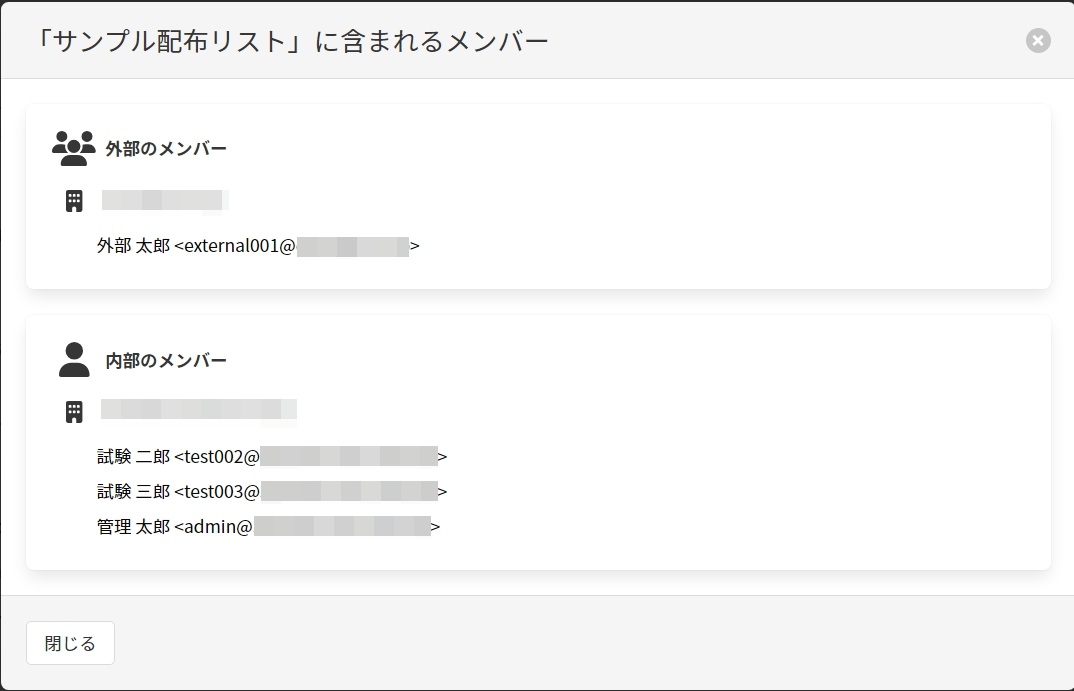
- Up to 999 group members are displayed. When displaying members of a group with 1,000 or more members, the following warning message appears at the top of the above screen.

-
Updating Recipient History Settings
-
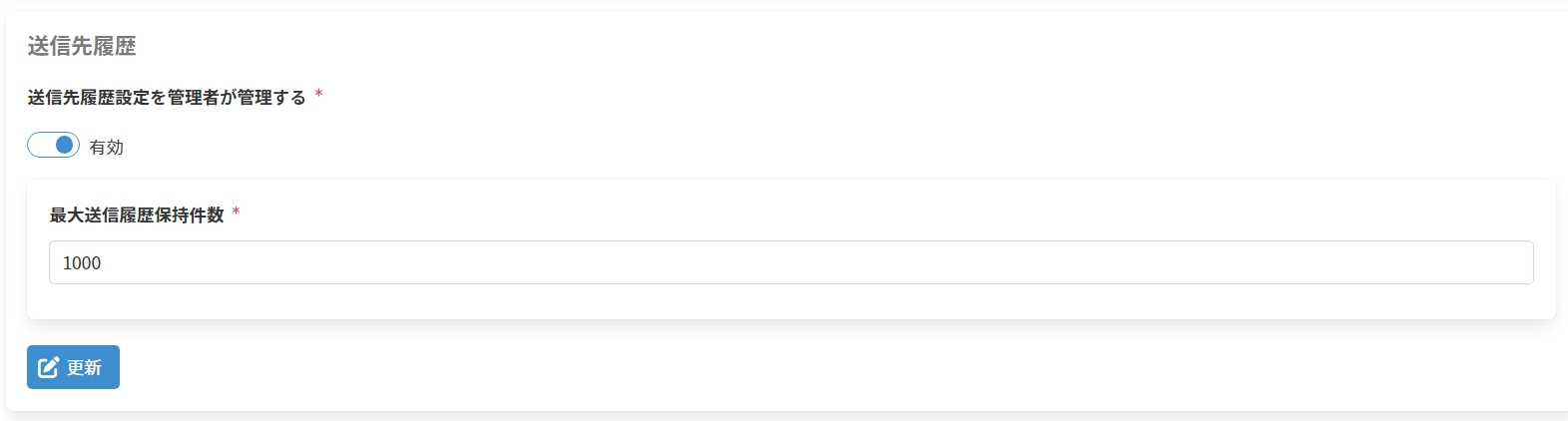
Enter the following items and click Update to update the recipient history settings.
Item Description Administrator manages the recipient history settings An item that can be configured only in a Tenant rule or Group rule. EnabledThe recipient history settings configured in the Tenant rule or Group rule take effect. They cannot be configured in lower-level rules.DisabledThe recipient history settings configured in a lower-level rule take effect.Maximum number of send history entries Specify the maximum number of send history entries in the range 1-9999.
※ This item is hidden when Administrator manages the recipient history settings isDisabledin the Tenant rule or Group rule.
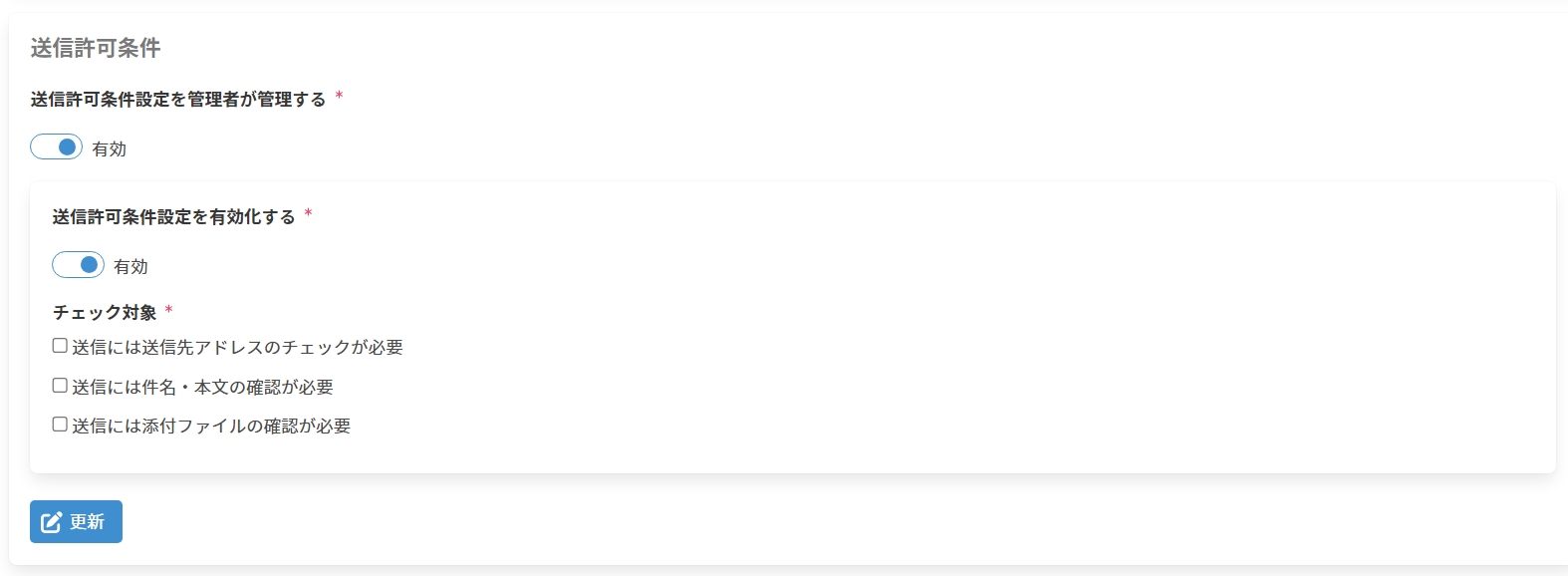
Updating Send Permission Condition Settings
-
Enter the following items and click Update to update the send permission condition settings.
Item Description Administrator manages the send permission condition settings An item that can be configured only in a Tenant rule or Group rule. EnabledThe send permission condition settings configured in the Tenant rule or Group rule take effect. They cannot be configured in lower-level rules.DisabledThe send permission condition settings configured in a lower-level rule take effect.Enable the send permission condition settings EnabledDisabled
※ This item is hidden when Administrator manages the send permission condition settings isDisabledin the Tenant rule or Group rule.Check targets When Enable the send permission condition settings is Enabled, you must enable at least one of the following check targets.- Recipient address check is required before sending
When this check target is enabled, you can choose whether to enable the [Allow bulk checking of internal recipient addresses], [Mark internal recipient addresses as checked by default], and [Allow bulk checking of external recipient addresses] features. When [Allow bulk checking of external recipient addresses] is enabled, the [Recipient count threshold for allowing bulk checking of external recipient addresses] can be set to a value from 1 to 999. - Subject and body confirmation is required before sending
- Attachment confirmation is required before sending
When this check target is enabled, you can choose whether to enable this check item [Only when recipients include an external domain].
※ This item is hidden when Administrator manages the send permission condition settings isDisabledin the Tenant rule or Group rule, or when Enable the send permission condition settings isDisabled. - Recipient address check is required before sending
-
When the Send Alert screen is displayed, the behavior is as follows depending on the enabled check targets.
- When Recipient address check is required before sending is
Enabled
To be able to send the email, the recipient addresses must be checked.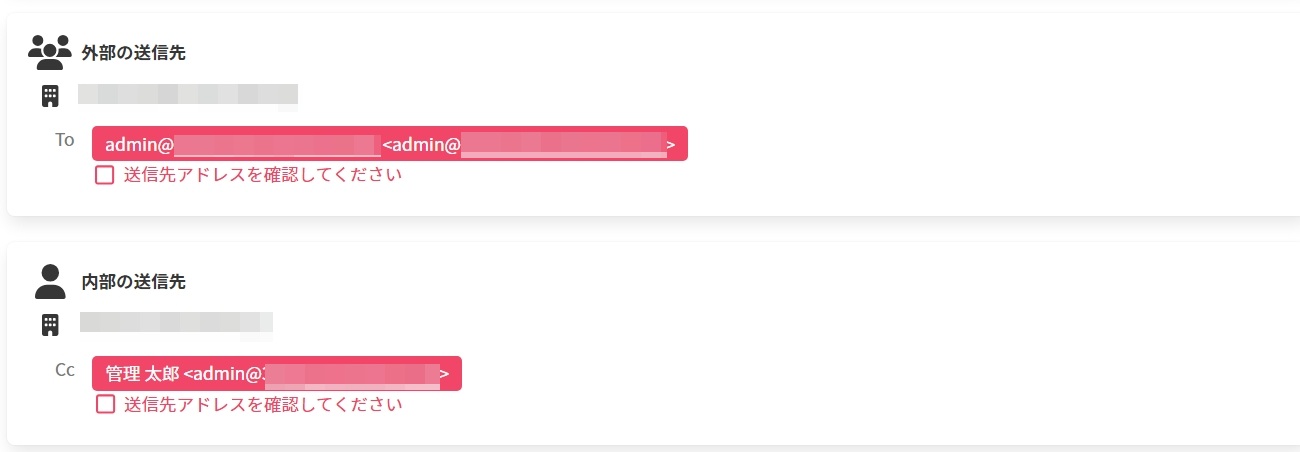
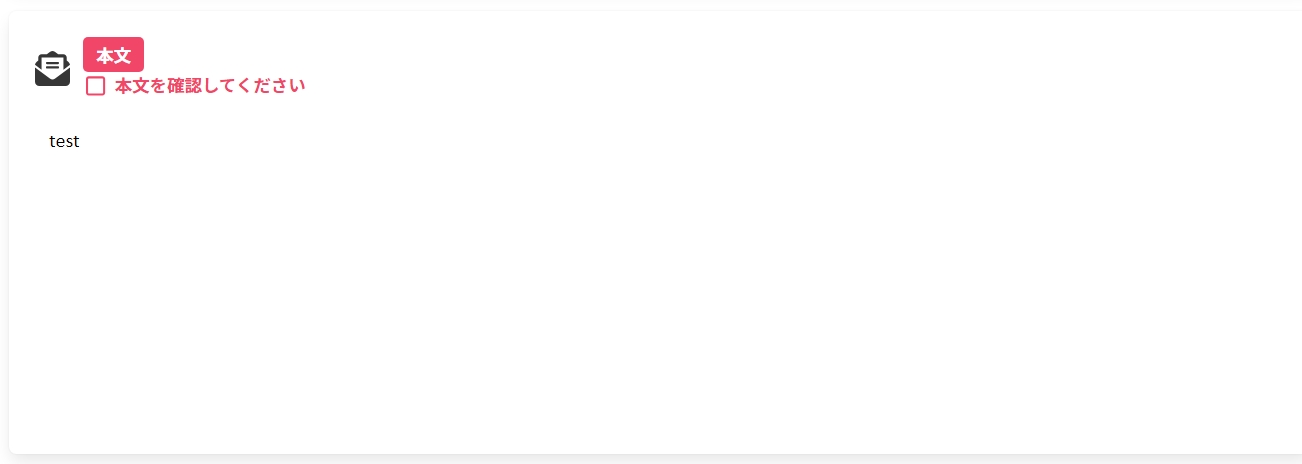
- When Subject and body confirmation is required before sending is
Enabled
To be able to send the email, the subject and body must be checked.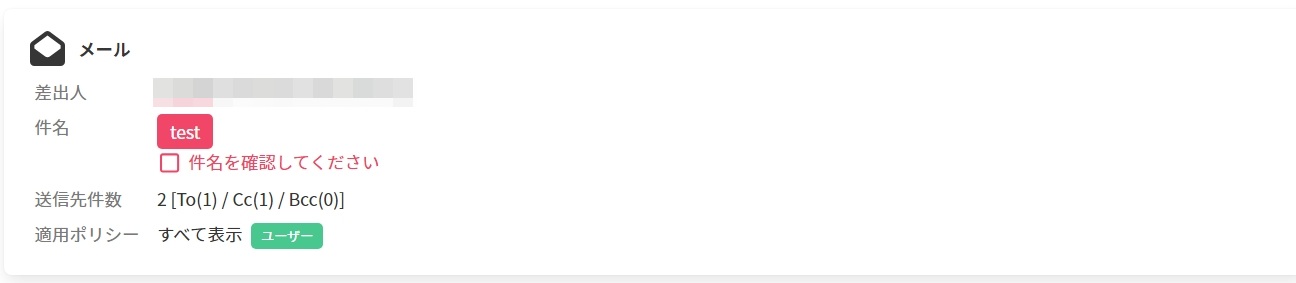
- When Attachment confirmation is required before sending is
Enabled
To be able to send the email, the attachment must be downloaded.
- When Recipient address check is required before sending is
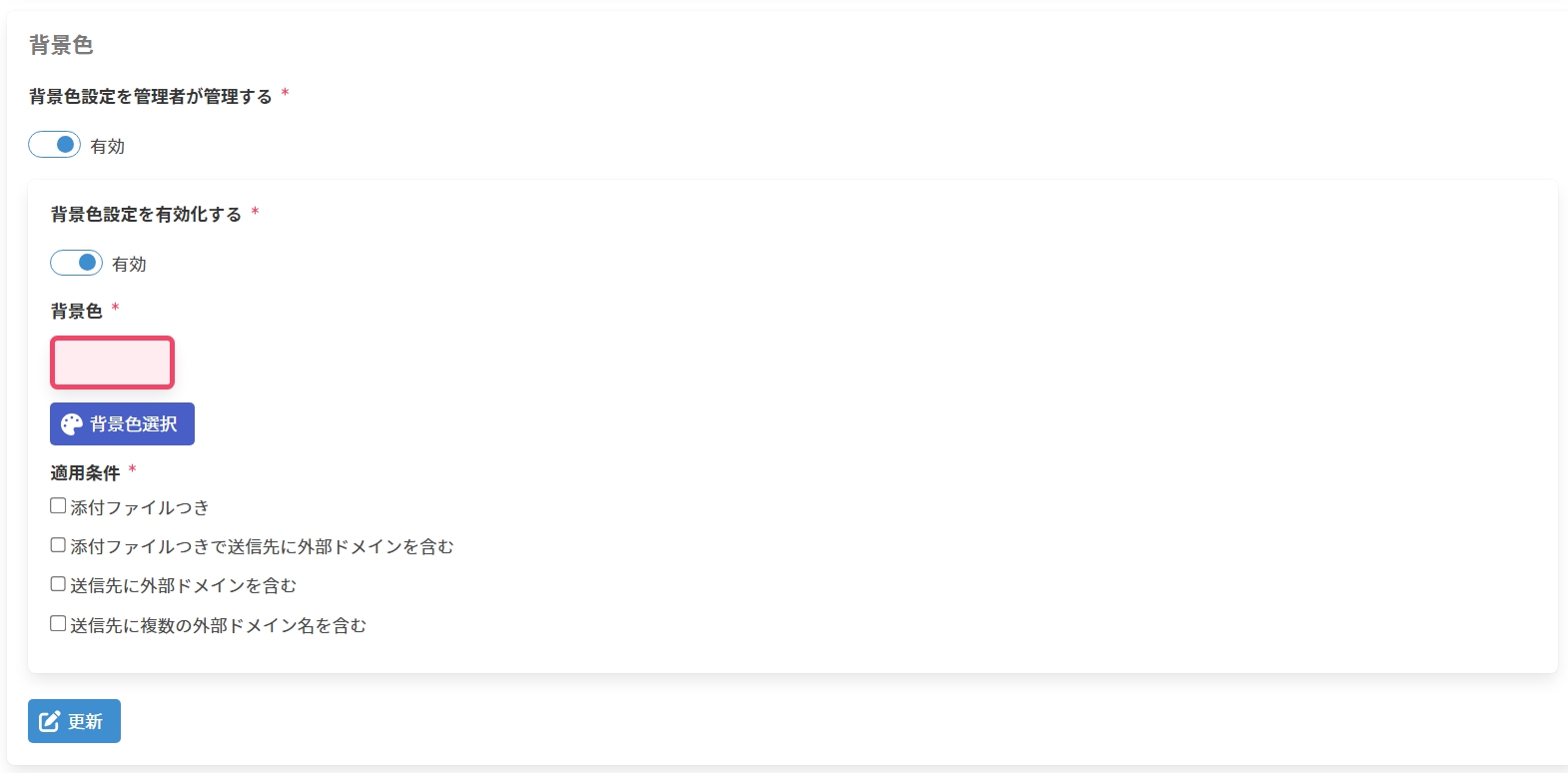
Updating Background Color Settings
-
Enter the following items and click Update to update the background color settings.
Item Description Administrator manages the background color settings An item that can be configured only in a Tenant rule or Group rule. EnabledThe background color settings configured in the Tenant rule or Group rule take effect. They cannot be configured in lower-level rules.DisabledThe background color settings configured in a lower-level rule take effect.Enable the background color settings EnabledDisabled
※ This item is hidden when Administrator manages the background color settings isDisabledin the Tenant rule or Group rule.Background color Click Select Background Color to select a background color.
※ This item is hidden when Administrator manages the background color settings isDisabledin the Tenant rule or Group rule, or when Enable the background color settings isDisabled.Application conditions When Enable the background color settings is Enabled, you must enable at least one of the following application conditions.- With attachment
- With attachment and recipients include an external domain
- Recipients include an external domain
- Recipients include multiple external domain names
※ This item is hidden when Administrator manages the background color settings isDisabledin the Tenant rule or Group rule, or when Enable the background color settings isDisabled. -
When the Send Alert screen is displayed, the behavior is as follows depending on the enabled application conditions.
- When With attachment is
Enabled
The background color of the Attachment section changes to the color set in Background color.
- When Recipients include an external domain or Recipients include multiple external domain names is
Enabled
The background color of the External Recipients section changes to the color set in Background color.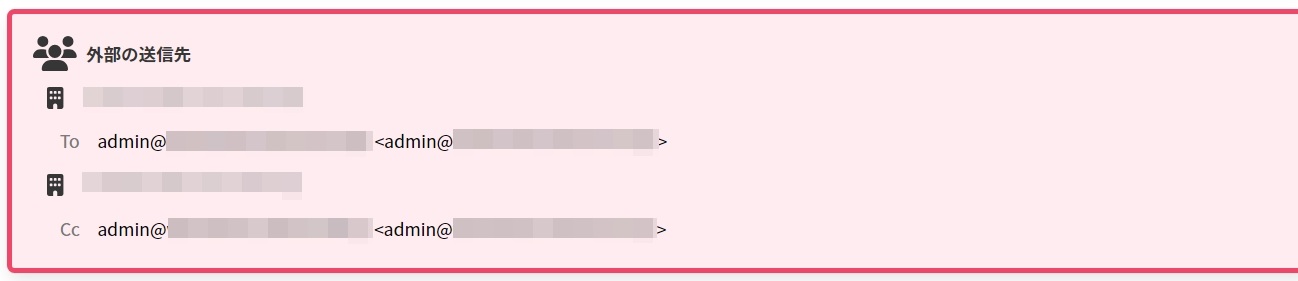
- When With attachment and recipients include an external domain is
Enabled
The background color of the Attachment section and the External Recipients section changes to the color set in Background color.
- When With attachment is
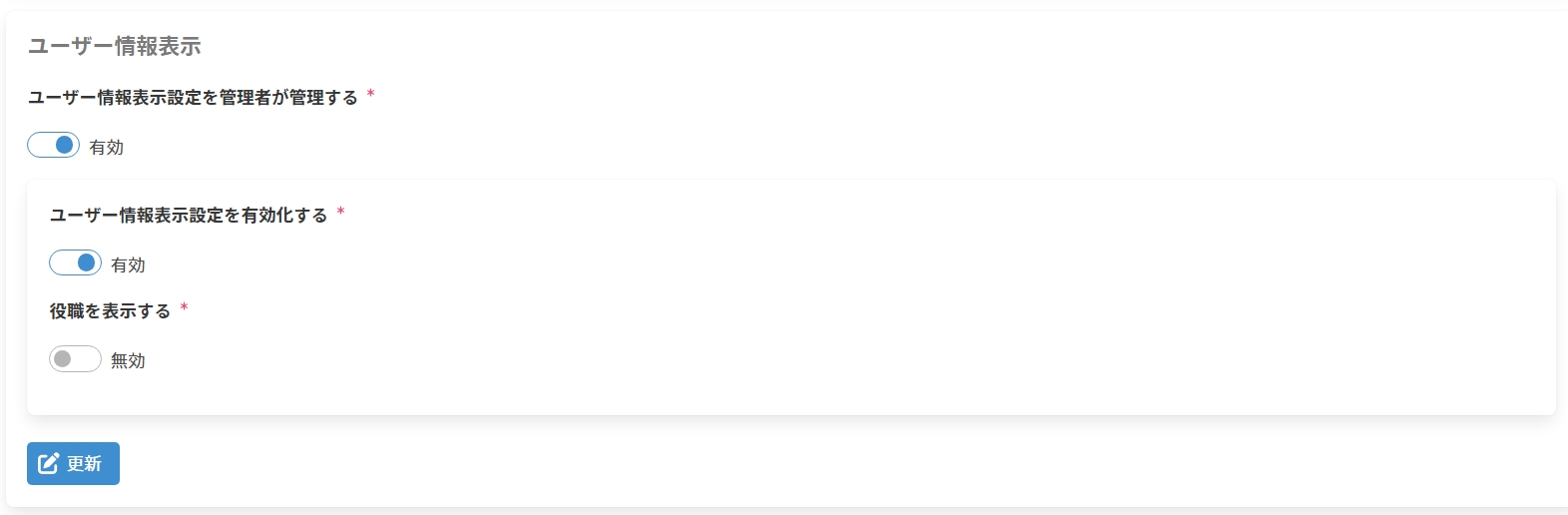
Updating User Information Display Settings
-
Enter the following items and click Update to update the user information display settings.
Item Description Administrator manages the user information display settings An item that can be configured only in a Tenant rule or Group rule. EnabledThe user information display settings configured in the Tenant rule or Group rule take effect. They cannot be configured in lower-level rules.DisabledThe user information display settings configured in a lower-level rule take effect.Enable the user information display settings EnabledDisabled
※ This item is hidden when Administrator manages the user information display settings isDisabledin the Tenant rule or Group rule.Display job title EnabledDisabled
※ This item is hidden when Administrator manages the user information display settings isDisabledin the Tenant rule or Group rule, or when Enable the user information display settings isDisabled. -
When Enable the user information display settings is
Enabled, the External Recipients and Internal Recipients are displayed in table format as follows when the Send Alert screen is displayed.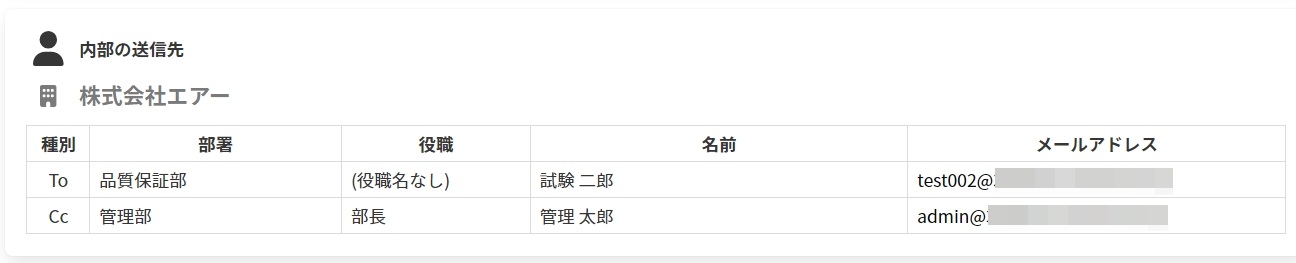 note
noteWhen Display job title is
Disabled, the Job Title column does not exist.noteUser information is obtained from the Global Address List (GAL). If no entry exists in the GAL, it is obtained from personal contacts.
However, when a group's email address is specified, the group information is obtained from personal contacts without referring to the GAL.
Updating Color Icon Display Settings
-
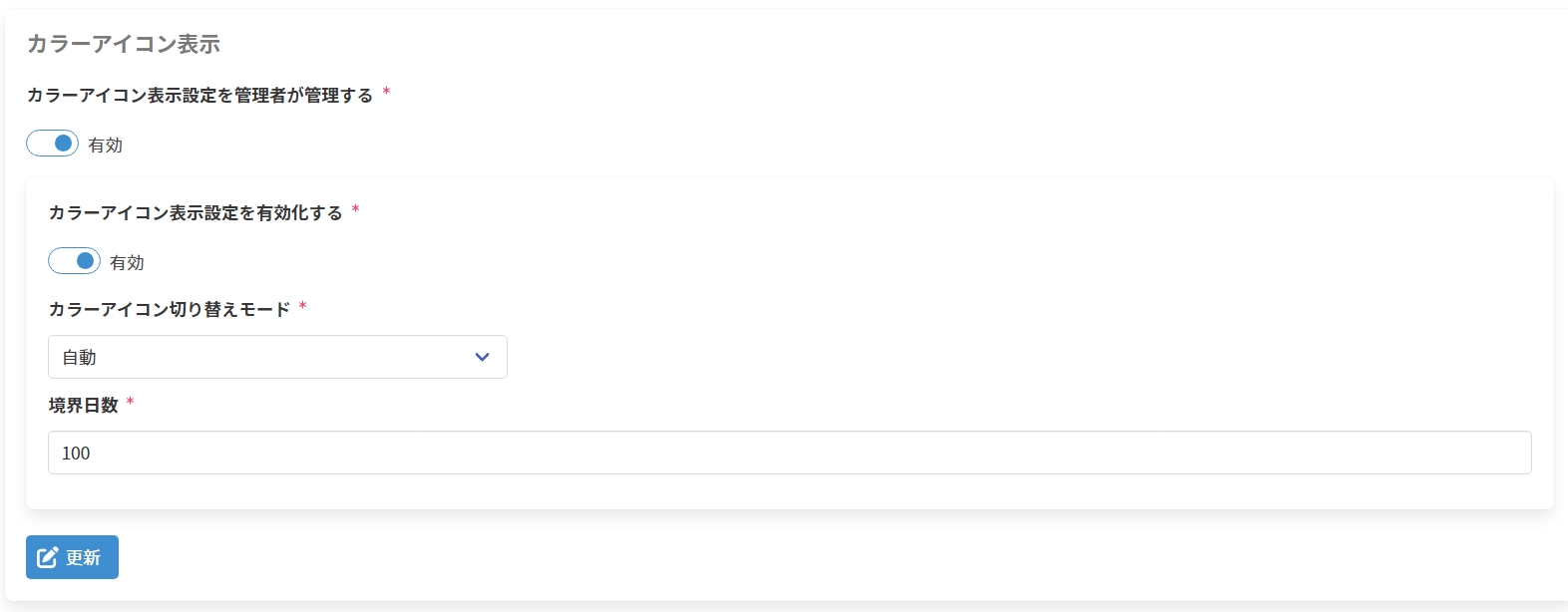
Enter the following items and click Update to update the color icon display settings.
Item Description Administrator manages the color icon display settings An item that can be configured only in a Tenant rule or Group rule. EnabledThe color icon display settings configured in the Tenant rule or Group rule take effect. They cannot be configured in lower-level rules.DisabledThe color icon display settings configured in a lower-level rule take effect.Enable the color icon display settings EnabledDisabled
※ This item is hidden when Administrator manages the color icon display settings isDisabledin the Tenant rule or Group rule.Color icon switch mode AutomaticManual
※ This item is hidden when Administrator manages the color icon display settings isDisabledin the Tenant rule or Group rule, or when Enable the color icon display settings isDisabled.Boundary days Specify the boundary days in the range 0-99999.
※ This item is hidden when Administrator manages the color icon display settings isDisabledin the Tenant rule or Group rule, when Enable the color icon display settings isDisabled, or when Color icon switch mode isManual.infoThe types and meanings of the color icons are as follows.
When Color icon switch mode is
Automatic- A color icon displayed for a recipient you are sending to for the first time.
- A color icon displayed for a recipient for whom the number of days specified in [Boundary days] or more has elapsed since the previous send date/time.
- A color icon displayed for a recipient for whom the number of days specified in [Boundary days] has not elapsed since the previous send date/time.
When Color icon switch mode is
Manual- A color icon displayed for a recipient that has not been clicked before and is not in the confirmed state.
- A color icon displayed for a recipient that has been clicked before and is in the confirmed state.
-
When the Send Alert screen is displayed, the behavior is as follows depending on the selected value of Color icon switch mode.
-
When
Automatic. When the recipient statuses are as follows, the color icon display is as shown in the capture.
試験 二郎A recipient you are sending to for the first time.
管理 太郎A recipient for whom the number of days specified in [Boundary days] has not elapsed since the previous send date/time.
試験 三郎A recipient for whom the number of days specified in [Boundary days] or more has elapsed since the previous send date/time.
-
When
Manual. When the recipient statuses are as follows, the color icon display is as shown in the capture.
試験 二郎A recipient whose color icon has never been clicked before.
管理 太郎A recipient whose color icon has been clicked before.
-
Updating Company Name Display Settings
-
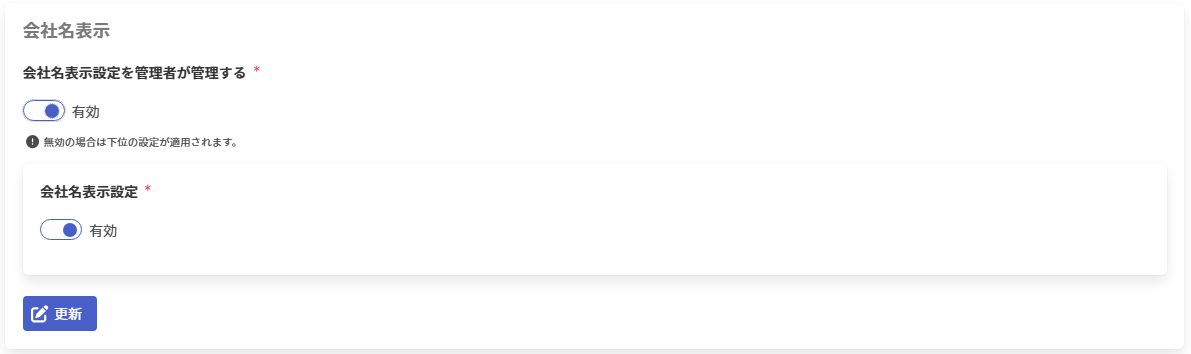
Enter the following items and click Update to update the company name display settings.
Item Description Administrator manages the company name display settings An item that can be configured only in a Tenant rule or Group rule. EnabledThe company name display settings configured in the Tenant rule or Group rule take effect. They cannot be configured in lower-level rules.DisabledThe company name display settings configured in a lower-level rule take effect.Company name display setting EnabledDisabled
※ This item is hidden when Administrator manages the company name display settings is disabled in the Tenant rule or Group rule.