About the Rule Assignment Screen
Overview
On the Rule Assignment screen, you can view, add, update, and delete rules, and configure rule settings.
There are three types of Rule Assignment screen: one for Tenant Settings, one for Group Settings, and one for User Settings.
How to Access the Rule Assignment Screen
-
Tenant Settings
In the Tenant Settings screen, click Rule Assignment in the menu on the left of the screen. -
Group Settings
In the Group Settings screen, click Rule Assignment in the menu on the left of the screen. -
User Settings
In the User Settings screen, click Rule Assignment in the menu on the left of the screen.
Rule Assignment Screen
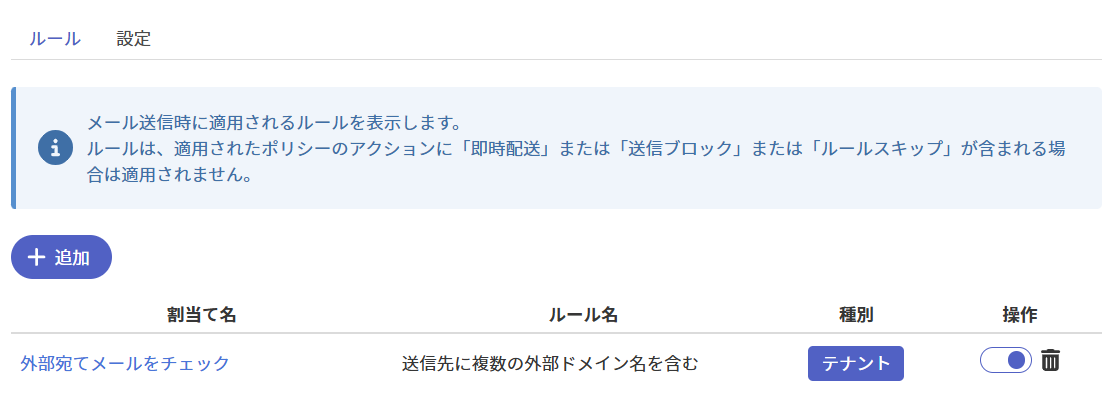
Rules Tab
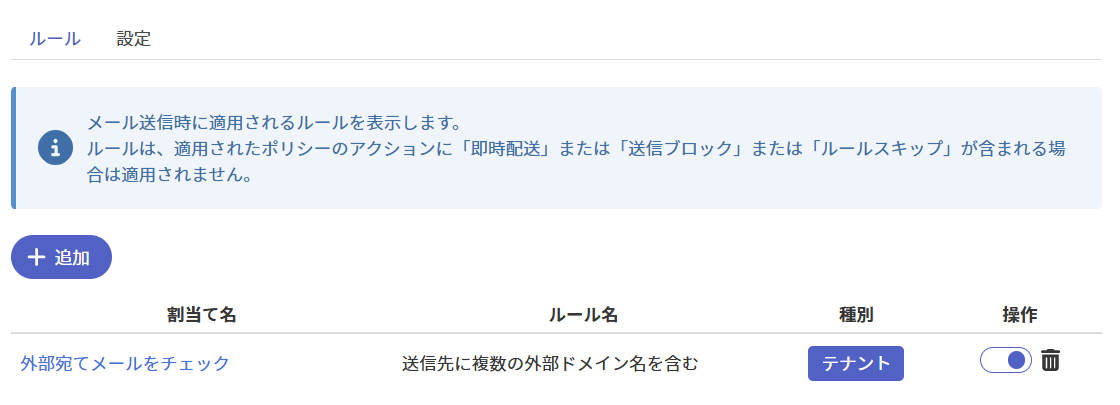
Items in the Rule Assignment List
| Item | Description |
|---|---|
| Assignment Name | Refer to Assignment Name here. |
| Rule Name | Refer to Rule Name here. |
| Type | Refer to Scope here. |
| Operation () | Performs the status change operation for that rule. |
| Operation () | Performs the delete operation for that rule. |
Adding a Rule
Clicking Add displays the Rule Assignment screen.
For details on the Rule Assignment screen, refer to here.
Updating a Rule
Clicking a rule's assignment name in the Rule Assignment list displays the Rule Update screen for that rule.
For details on the Rule Update screen, refer to here.
Changing a Rule's Status
The meaning of the toggle buttons in the Operation column of the Rule Assignment list is as follows.
| Toggle button | Description |
|---|---|
| Means that the rule is enabled. Clicking it disables the rule. | |
| Means that the rule is disabled. Clicking it enables the rule. |
Deleting a Rule
Clicking in the Operation column of the Rule Assignment list deletes that rule.
Settings Tab
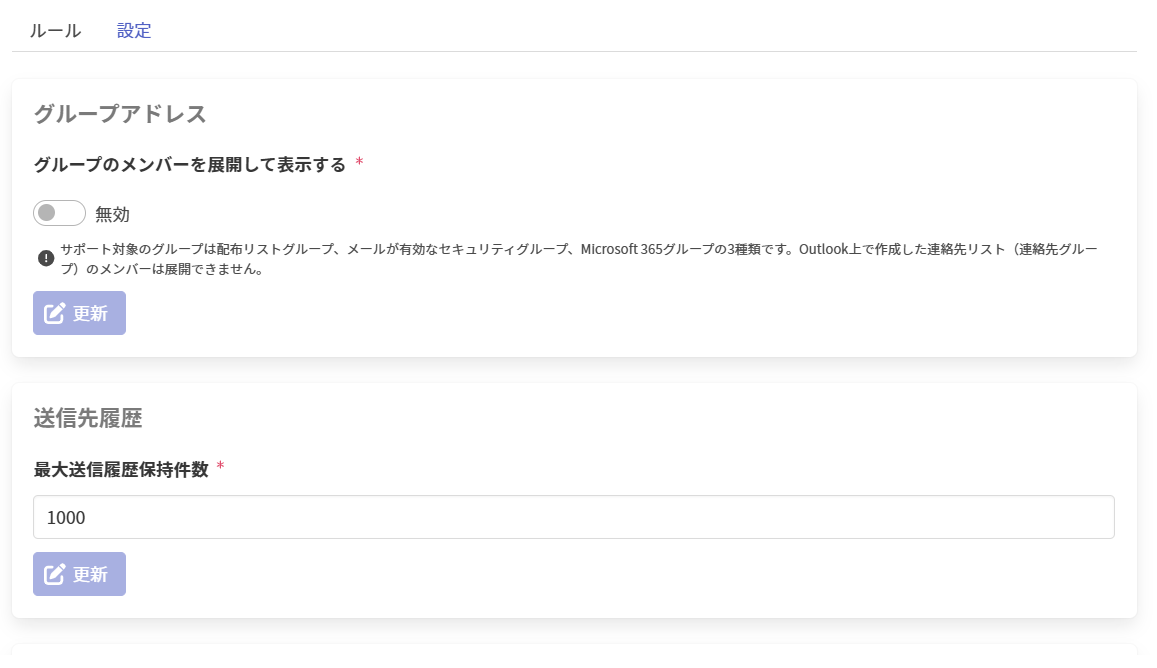
Rule Settings
On the rule settings tab, you can customize the behavior when the Outlook Add-in displays the Send Alert screen.
For details on the rule settings tab, refer to here.