About the AI Check Screen
Overview
On the AI Check screen, you can view, add, update, and delete the AI Check basic settings and the prompt configurations that serve as the AI Check perspectives.
The AI Check screen is divided into the Basic Settings tab and the Prompt List tab.
How to Access the AI Check Screen
In each settings information screen (Tenant Settings / Group Settings / User Settings), click AI Check in the menu on the left of the screen.
Basic Settings Tab
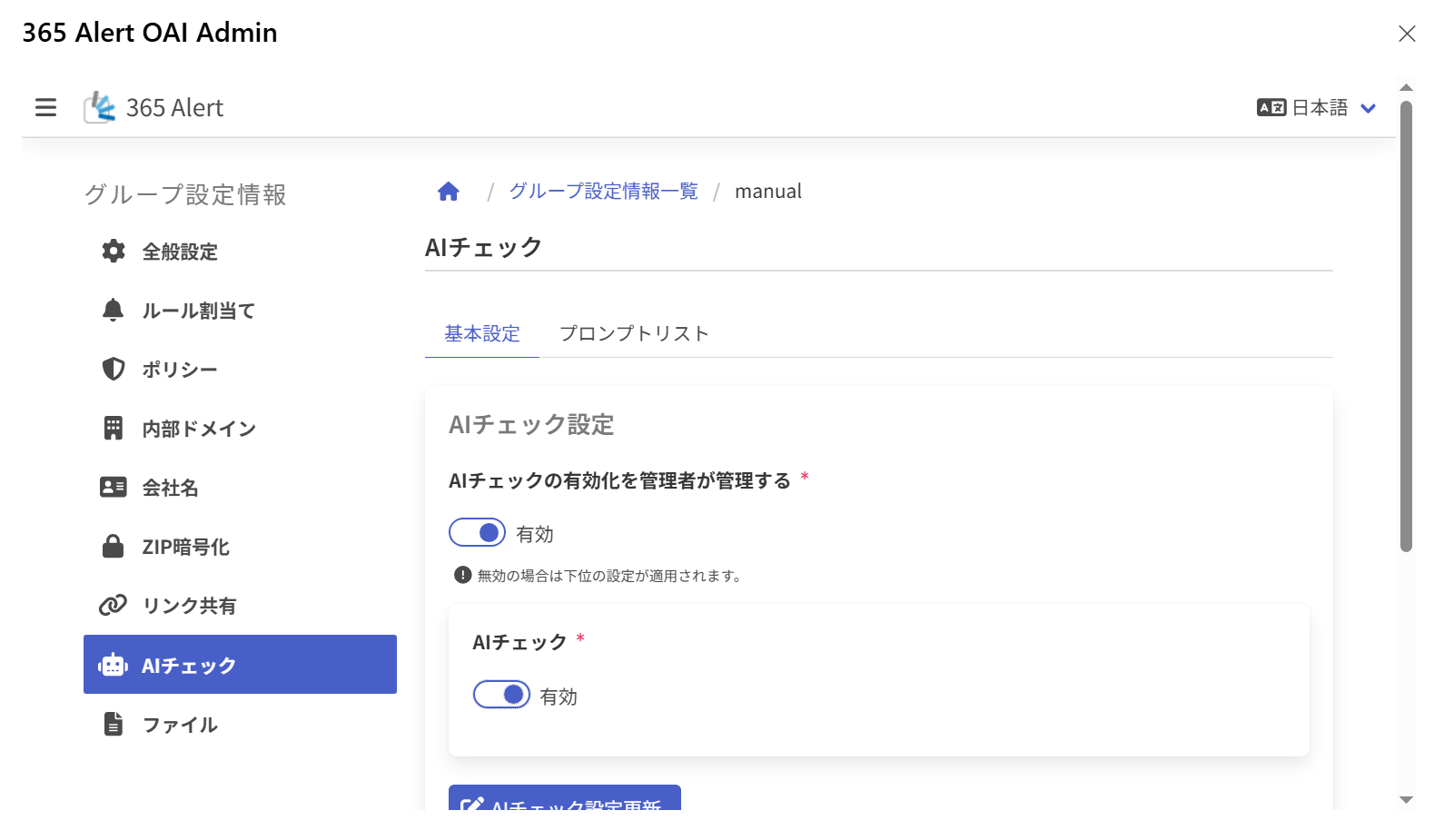
On the Basic Settings tab, you configure the enablement of AI Check, the connection information for Azure OpenAI, etc.
For details on the Basic Settings tab, refer to Basic Settings.
Prompt List Tab
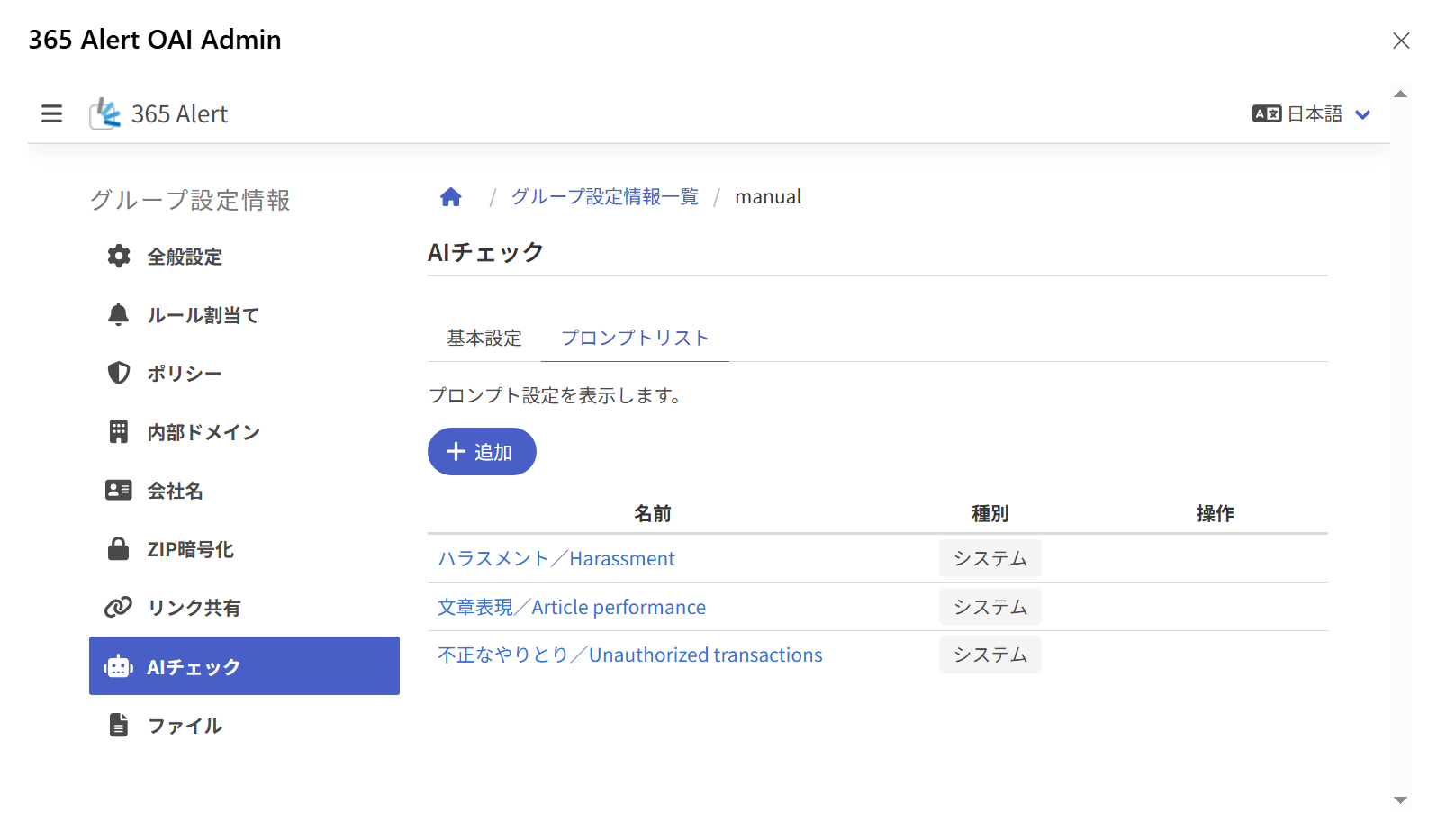
On the Prompt List tab, you can view, add, update, and delete the prompt configurations used when running AI Check.
Items in the Prompt Configuration List
| Item | Description |
|---|---|
| Name | Displays the name of the registered prompt configuration. Clicking a name of an editable type displays the Update Prompt Configuration dialog, and clicking any other (such as system) displays the Prompt Configuration Details dialog. |
| Type | Displays the type of the prompt configuration (System, Tenant, Group, User).The displayed types differ depending on the target settings information. |
| Operation | Displays the enable/disable switch and the delete icon for the prompt configuration. ※ Displayed only for prompt configurations of editable types. |
Adding a Prompt Configuration
Clicking Add displays the Add Prompt Configuration dialog.
For details on the Add Prompt Configuration dialog, refer to Adding a Prompt Configuration.
Updating a Prompt Configuration
Clicking a name of an editable type in the prompt configuration list displays the Update Prompt Configuration dialog.
For details on the Update Prompt Configuration dialog, refer to Updating a Prompt Configuration.
Changing a Prompt Configuration's Status
Clicking the enable/disable switch in the Operation column of the prompt configuration list toggles the application/non-application of that prompt configuration.
Deleting a Prompt Configuration
Clicking the delete icon in the Operation column of the prompt configuration list displays a delete confirmation dialog, allowing you to delete that prompt configuration.